
Under the Unified Trading Account (UTA), the Spot Cost refers to the average cost price of an asset during a calculation cycle. It's a key metric that helps you track your actual Spot trading costs and make more informed trading decisions. This guide explains how Spot Cost is calculated and how you can view or adjust it.
Calculate the Spot Cost
The Spot Cost is calculated as follows:
Notes:
— The calculation considers Spot Trading, Spot Margin Trading, Convert, and OTC Trading data available on our platform since the Spot Cost feature was launched on 12 Feb 2025.
— Deposits, transfers, and withdrawals do not affect Spot Cost. However, if the asset balance falls below the Net Buy Qty., the Net Buy Qty. will adjust to match the asset balance, which may impact the P&L.
— The Net Buy Qty. represents the total within a given calculation cycle.
— The data provided is for reference only and does not guarantee absolute accuracy.
Example
Let’s take BTC as an example to illustrate how Spot Cost changes with different trades. Assume Alice starts with no BTC in her account.
View the Spot Cost
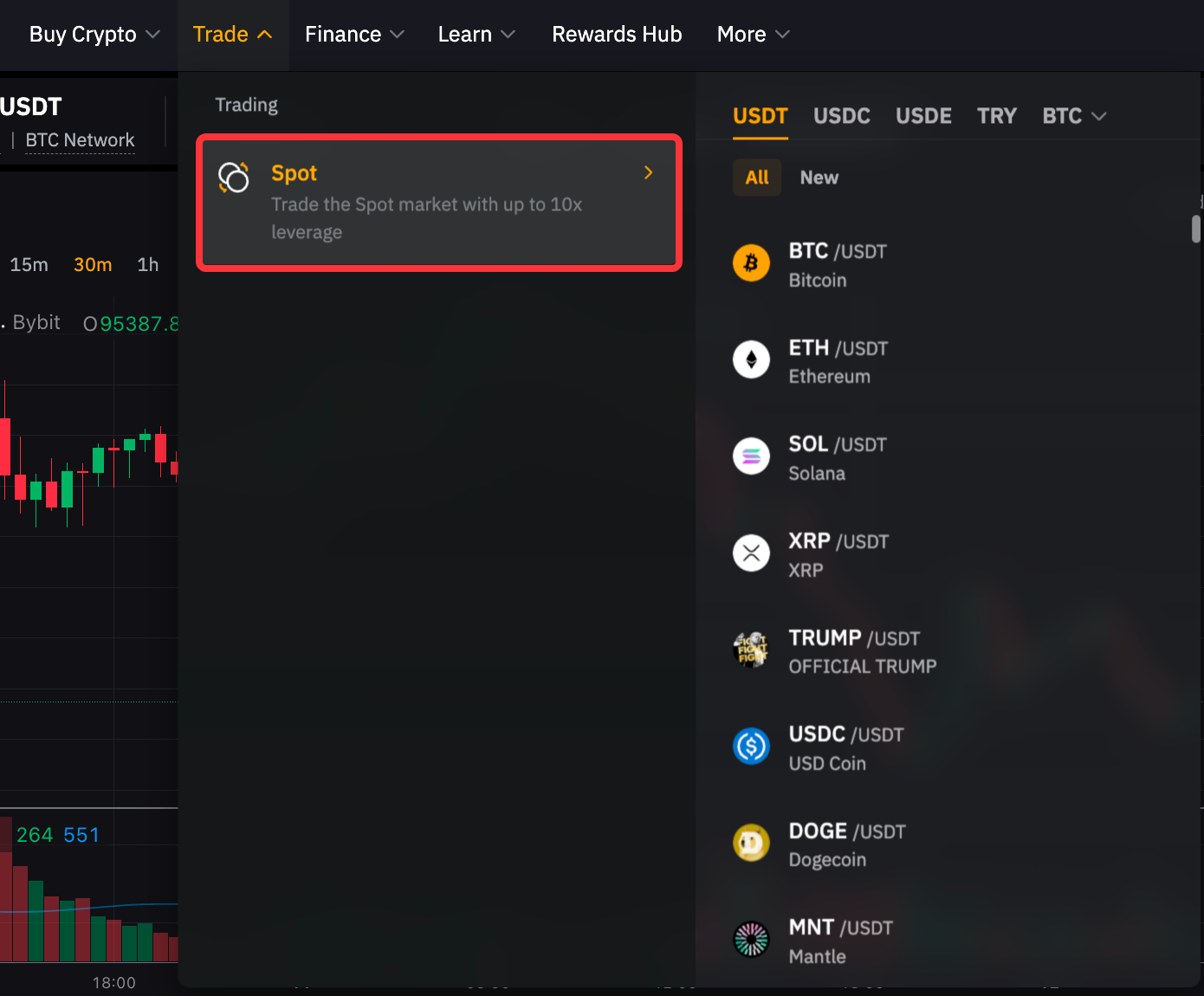
Step 1: Log into your account and click Trade → Spot in the top navigation bar to access the Spot trading page.
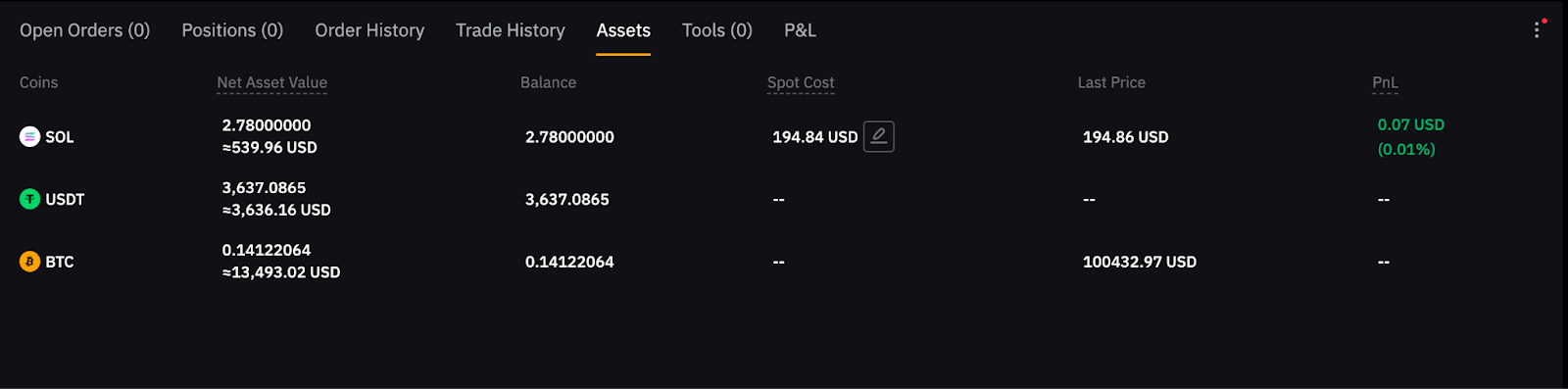
Step 2: Scroll to the bottom and click Assets to view your Spot Cost.
Adjust the Spot Cost
Bybit calculates the Spot Cost using data collected on our platform since 12 Feb 2025. If the displayed cost doesn't match your actual cost, you can adjust it manually.
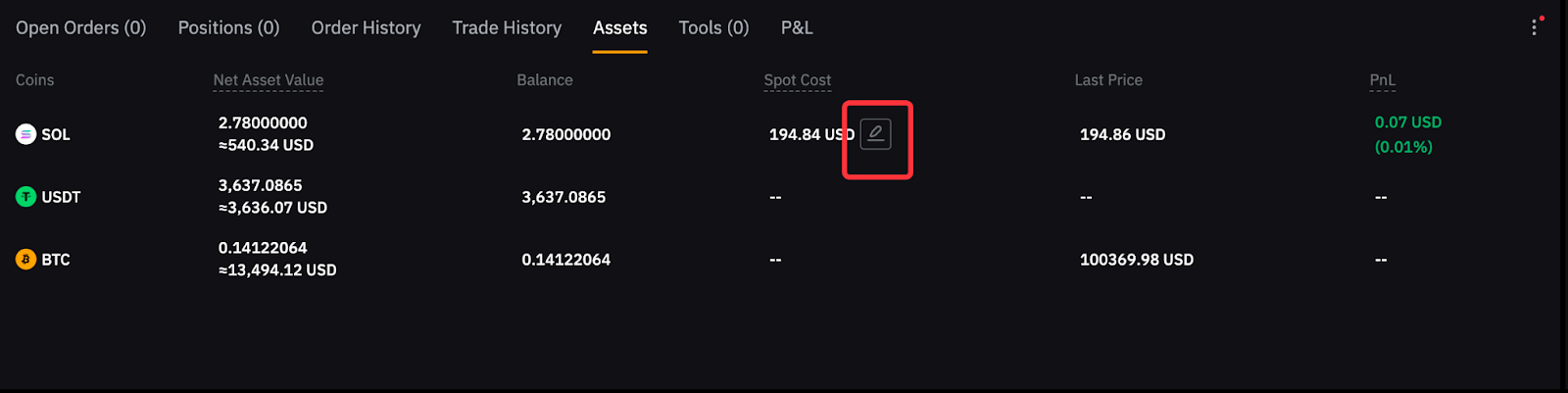
Step 1: Scroll to Assets at the bottom of the page and click the edit icon next to the displayed Spot Cost value.
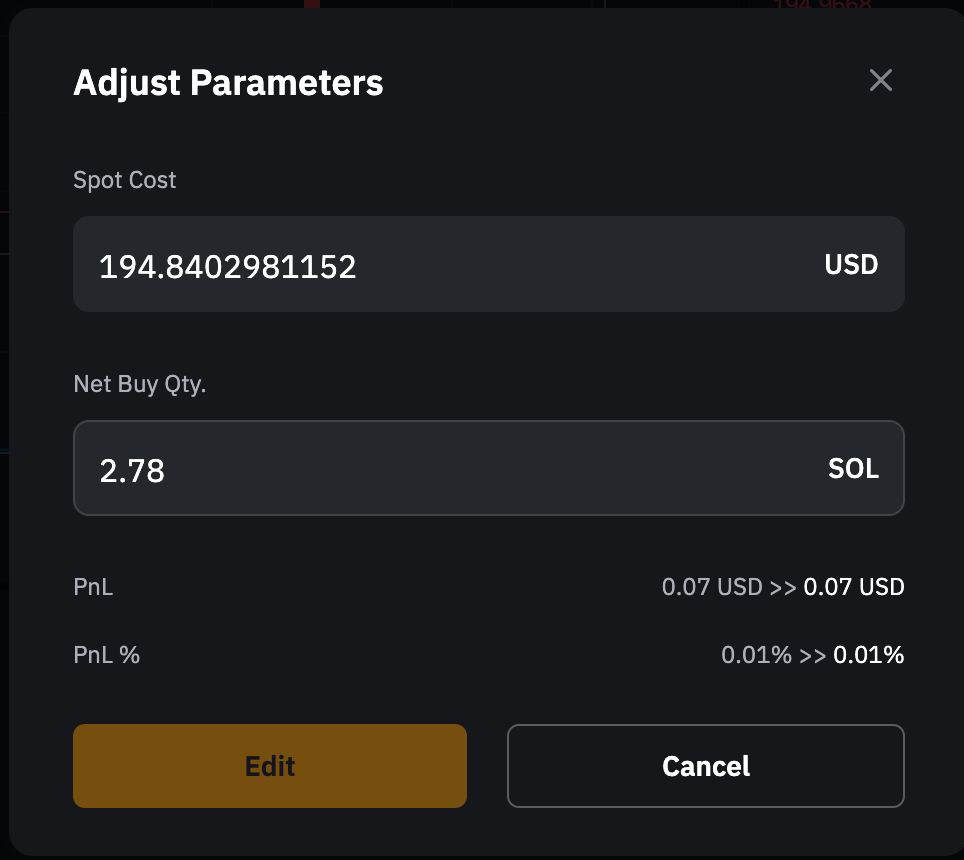
Step 2: In the Adjust Parameters pop-up, enter your new cost. You can also update the Net Buy Qty. if needed. Click Edit to save your changes or Cancel to discard them.
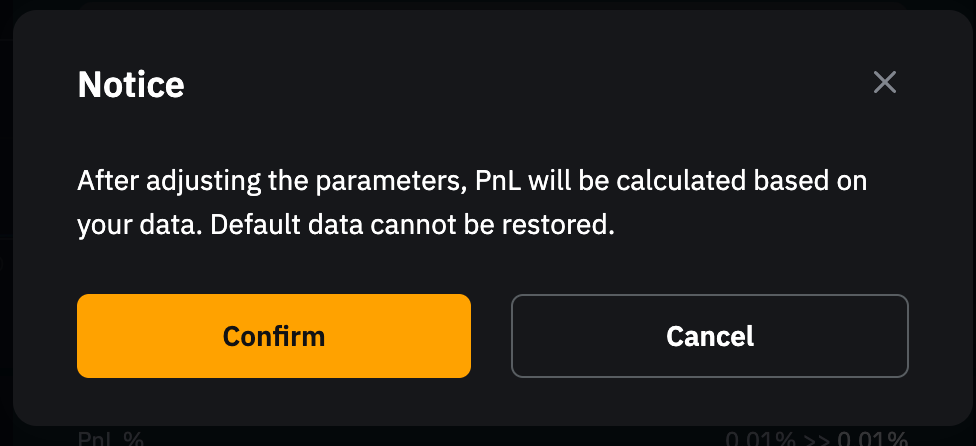
Step 3: A confirmation pop-up will notify you that the P&L and P&L % will be recalculated based on the updated data. You can view the updated P&L and P&L % under P&L, located next to Assets at the bottom of the trading page. Please note that adjustments are irreversible. To proceed, click Confirm.
Step 4: Once the change is successful, you'll see a confirmation message. Your Spot Cost has now been successfully adjusted!
Notes:
— The base and quote currencies of a trading pair, such as BTC (Base) and USDC (Quote) for BTC/USDC, are always displayed regardless of balance.
— Tokens valued below 0.0001 BTC are excluded, so if BTC is priced at $82,017.29, only tokens worth more than $8.20 are displayed.
— Tokens are sorted from highest to lowest USD value after showing the base and quote currencies.
— The amount entered in Net Buy Qty. cannot exceed the available asset balance in your account.
— Adjustments are only possible if the asset balance is greater than zero.
— You can input values with up to 18 decimal places in Spot Cost. When displayed, values with a whole number will be shown with up to two decimal places, while values without a whole number will show up to four significant digits. For example, 1234.00000001 will display as 1234.00, while 0.000001235000 will be shown as 0.000001235.