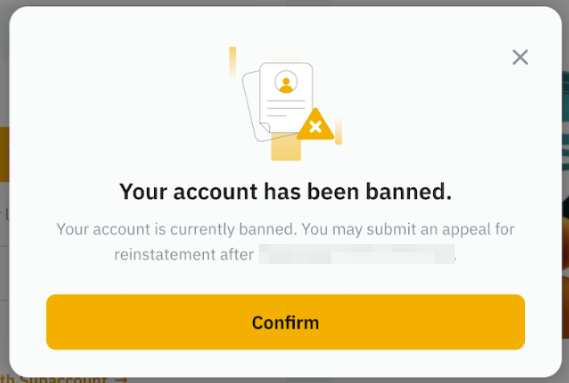
Bybit has launched a self-service account deactivation feature, which allows users to deactivate their accounts on their own via the Account page instead of sending account deactivation requests to Bybit customer support.
Reminder:
— You will not be able to log in to your Bybit account once you have confirmed account deactivation.
— The registered email address or mobile number you’ve used for this account cannot be used to create another Bybit account.
— If your account has been KYC verified, you will not be able to verify another Bybit account using the same ID documents and legal name.
— All Subaccounts under your Main Account will be subject to the same restrictions. If you have many Subaccounts, the system will take approximately three (3) minutes to apply the restrictions to all of them.
— To reactivate your account, please refer to this guide.
Here is a step-by-step guide on how to deactivate your account:
When logged in to your account
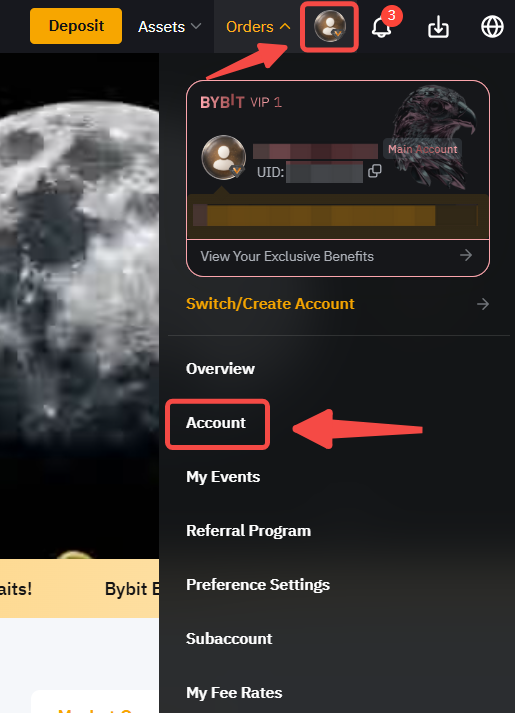
Step 1: Log in to your Bybit account and proceed to Account by clicking the profile icon in the top right corner on the Bybit page.
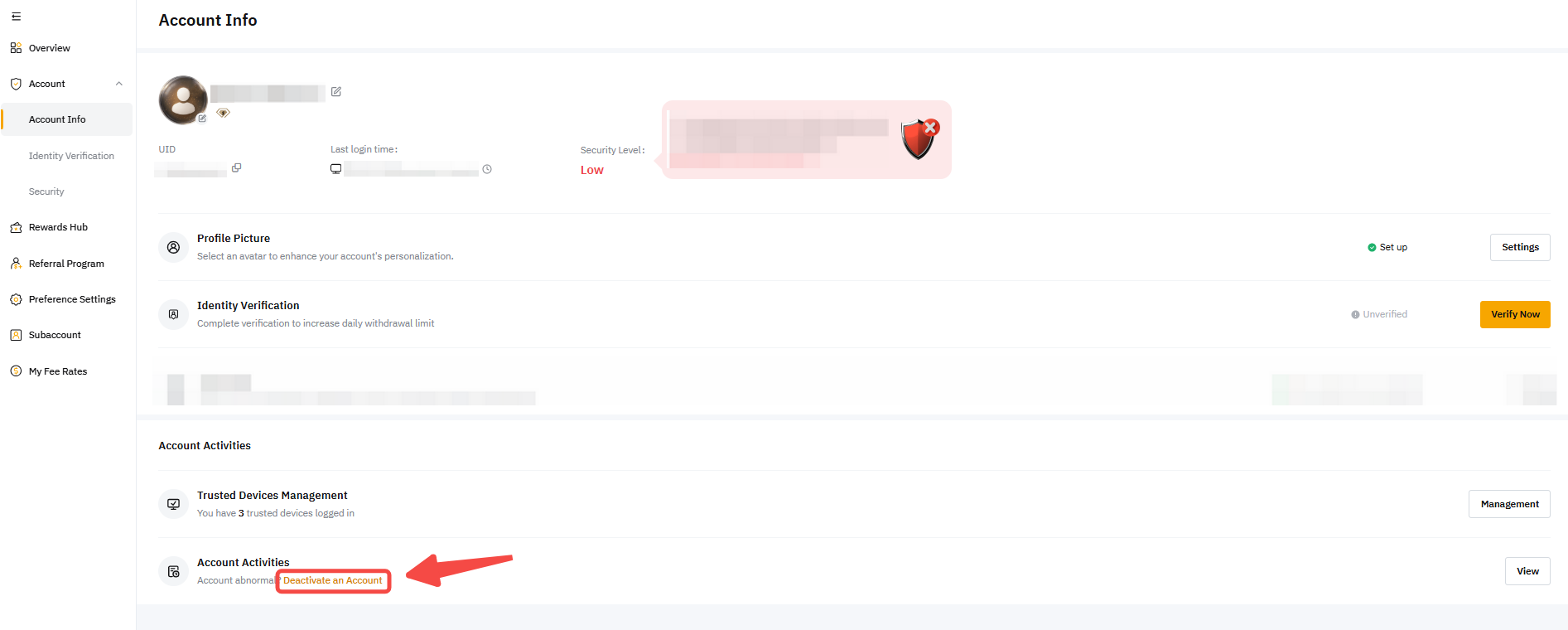
Step 2: Click on Deactivate an Account under Account Activities.
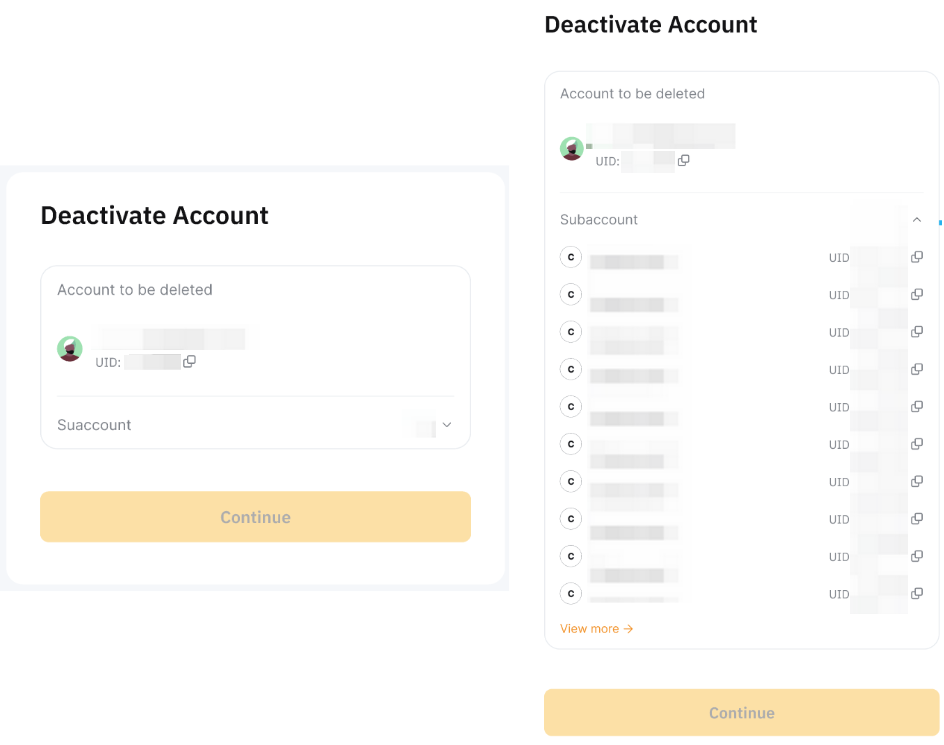
Step 3: Review and confirm the account and any associated subaccounts that should be deactivated.
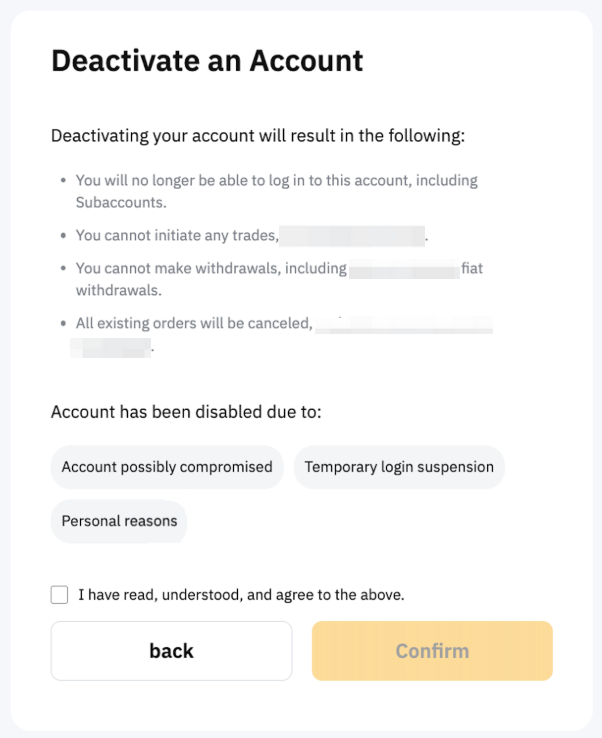
Step 4: Acknowledge the consequence of deactivating the account and choose your reason for account deactivation. Please choose the most relevant one.
- Possible account compromise
You can choose this reason if you notice any suspicious account activity, or if someone has hacked into your Bybit account.
- Temporary deactivation
If you would like to deactivate your account.
- Personal reason
If your account deactivation reason is none of the above.
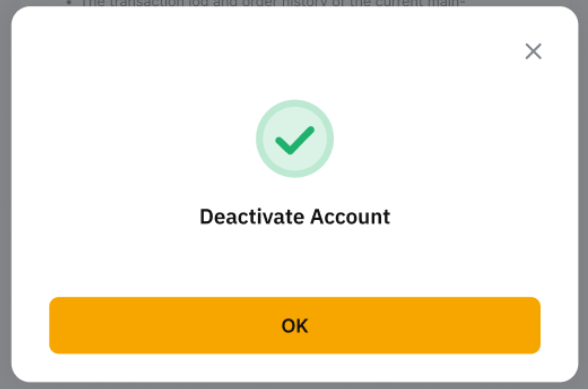
Step 5: Upon completing the security verification, your account has been successfully deactivated.
When logged out of your account
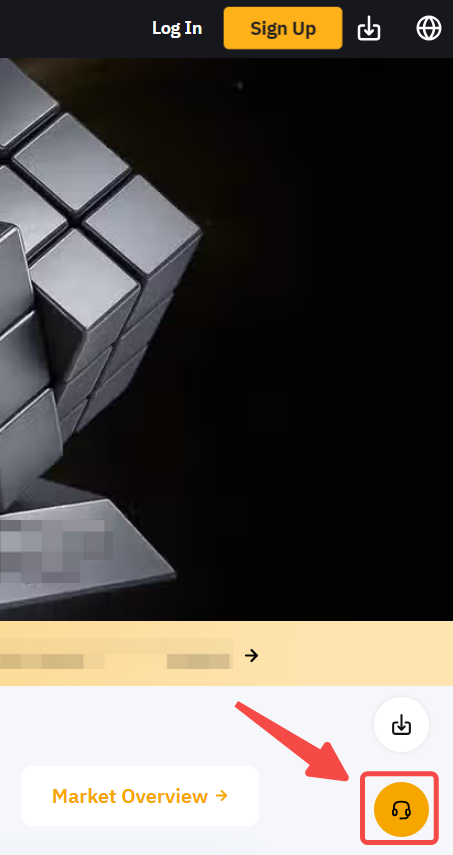
Step 1: Go to the bottom right corner of the webpage and click on the headphone button to trigger the bot.
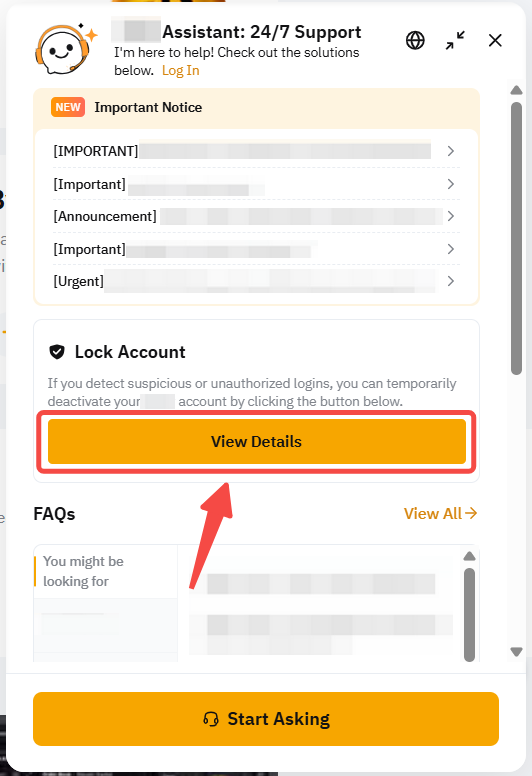
Step 2: Click on View Details under the Lock Account.
Step 3: Select Apply to lock account via email if unable to log in and enter your email address.
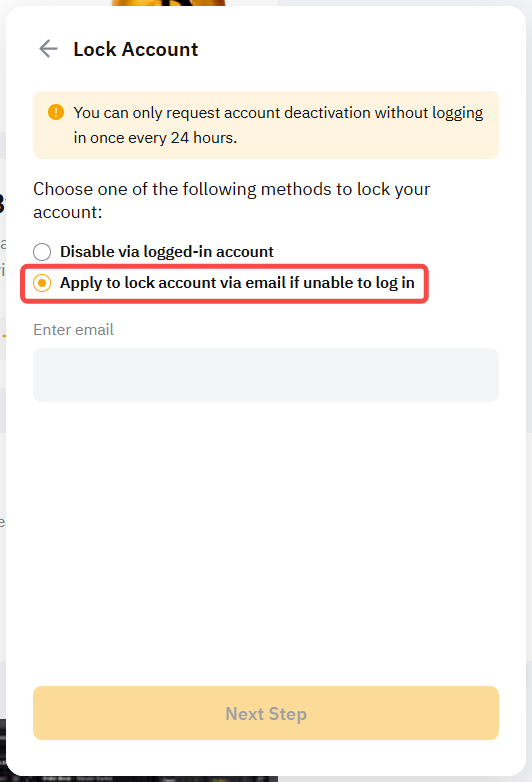
Note: If you're a phone-registered user or have lost access to your email, please reach out to our live chat service to immediately assist in freezing your account.
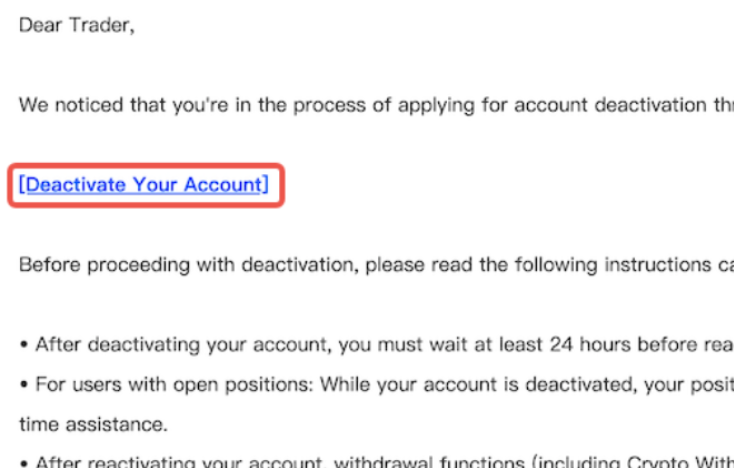
Step 4: To ensure security, please check your inbox and verify by clicking the provided link.
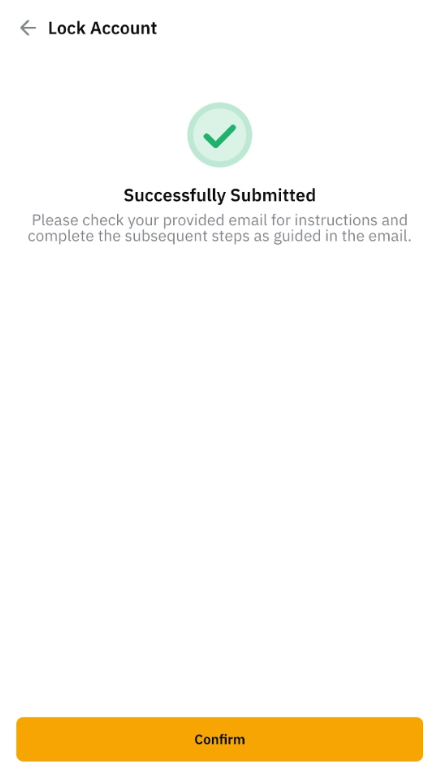
Step 5: By clicking the link provided in the email, you will be redirected to deactivate your account. Please read and understand the consequences, then select the reason for deactivation and click Deactivate This Account. Finally, click Confirm to freeze your account.
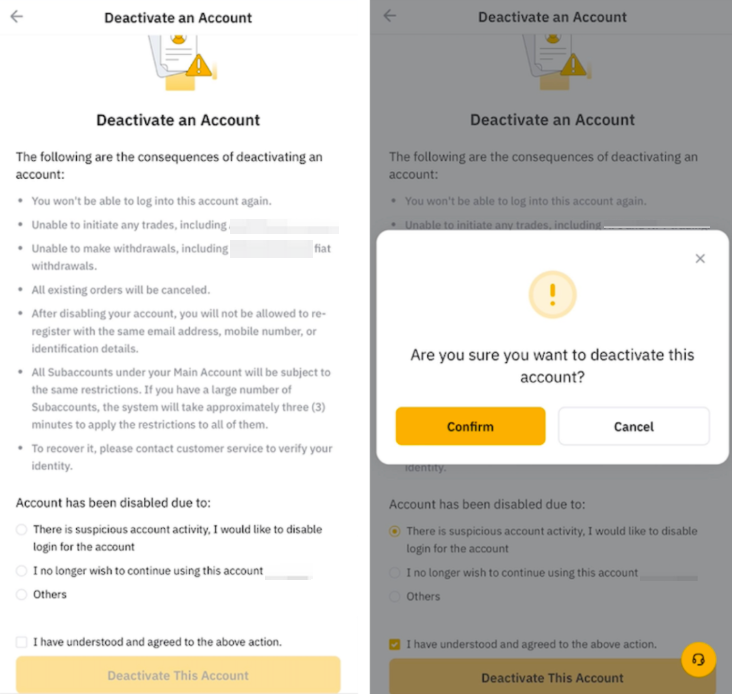
You have successfully deactivated your account! If you wish to reactivate it, please note that self-reactivation can only be done after 24 hours. You may refer to the guide here for further assistance.