
Here's a step-by-step guide to getting started with Bybit Futures trading, including both Perpetual and Expiry Contracts.
Place an Order/Open a Position
Adjust Margin for Your Position (Isolated Margin Mode Only)
Check the Mark Price
Modify or Cancel an Order
Close a Position
Place an Order/Open a Position
On the Bybit App trading page, you can open a position in two ways.
Quick Trade
The Quick Trade mode allows you to quickly place limit or market orders without leaving the Chart tab.
To enable this mode, tap the Settings icon to open Chart Settings. Then, tap Customize Buy/Sell Mode and select Quick Trade.
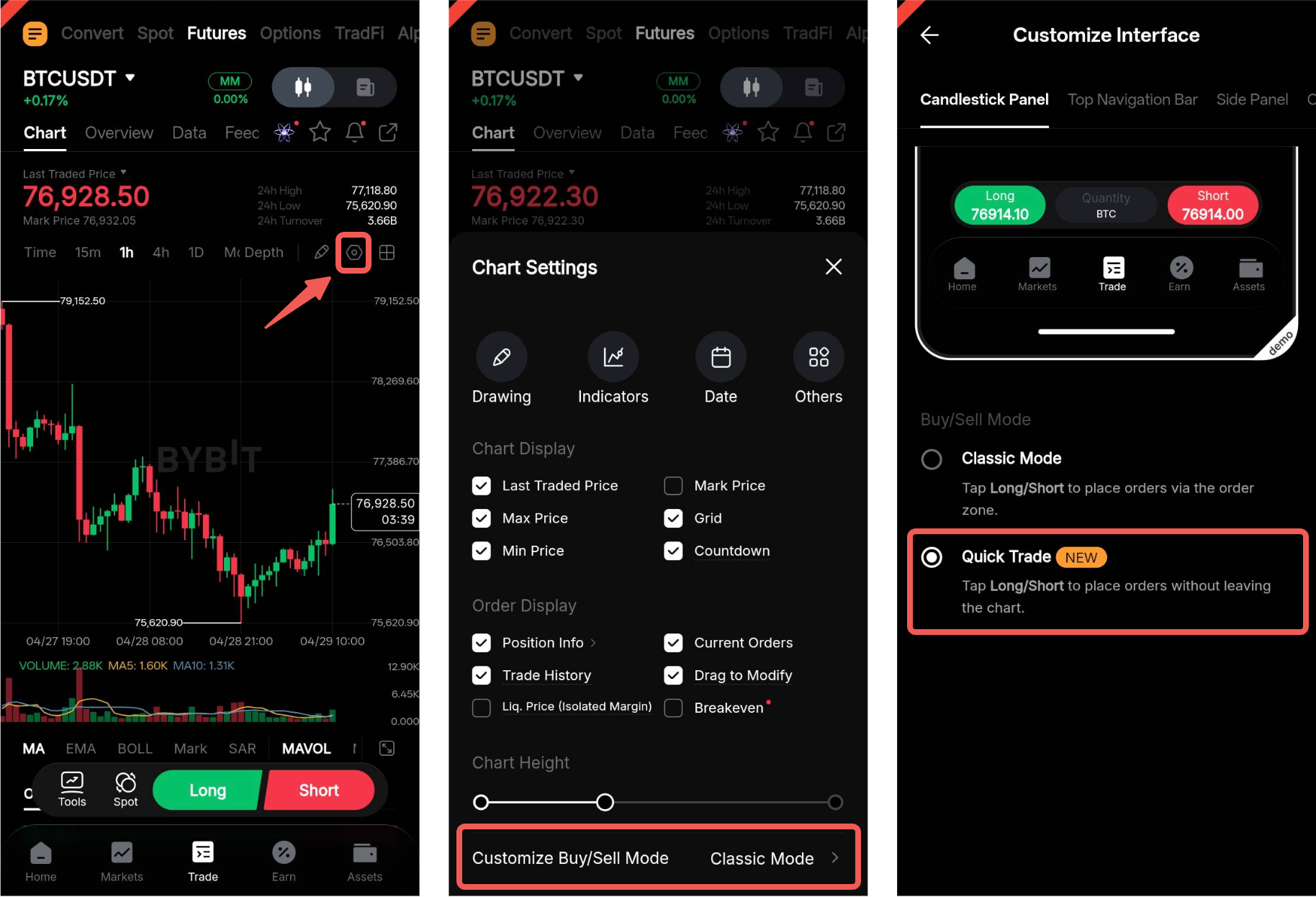
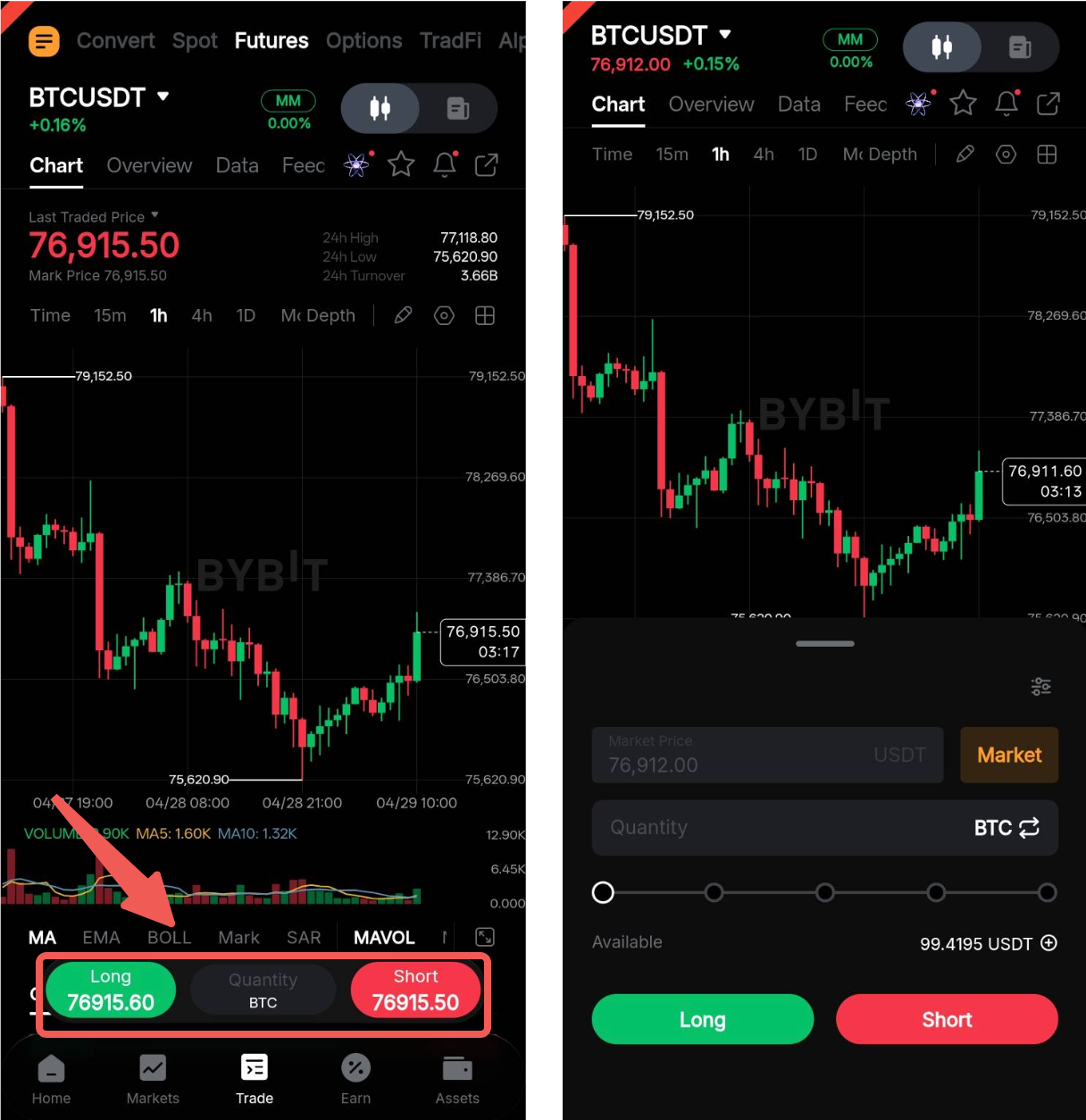
To place an order, tap the Quick Trade bar and configure your order parameters accordingly.
Order Zone
You can place both basic and advanced orders through the Order tab, with customizable settings based on your trading strategy.
Below is a detailed guide on the different order types and settings available in the order zone.
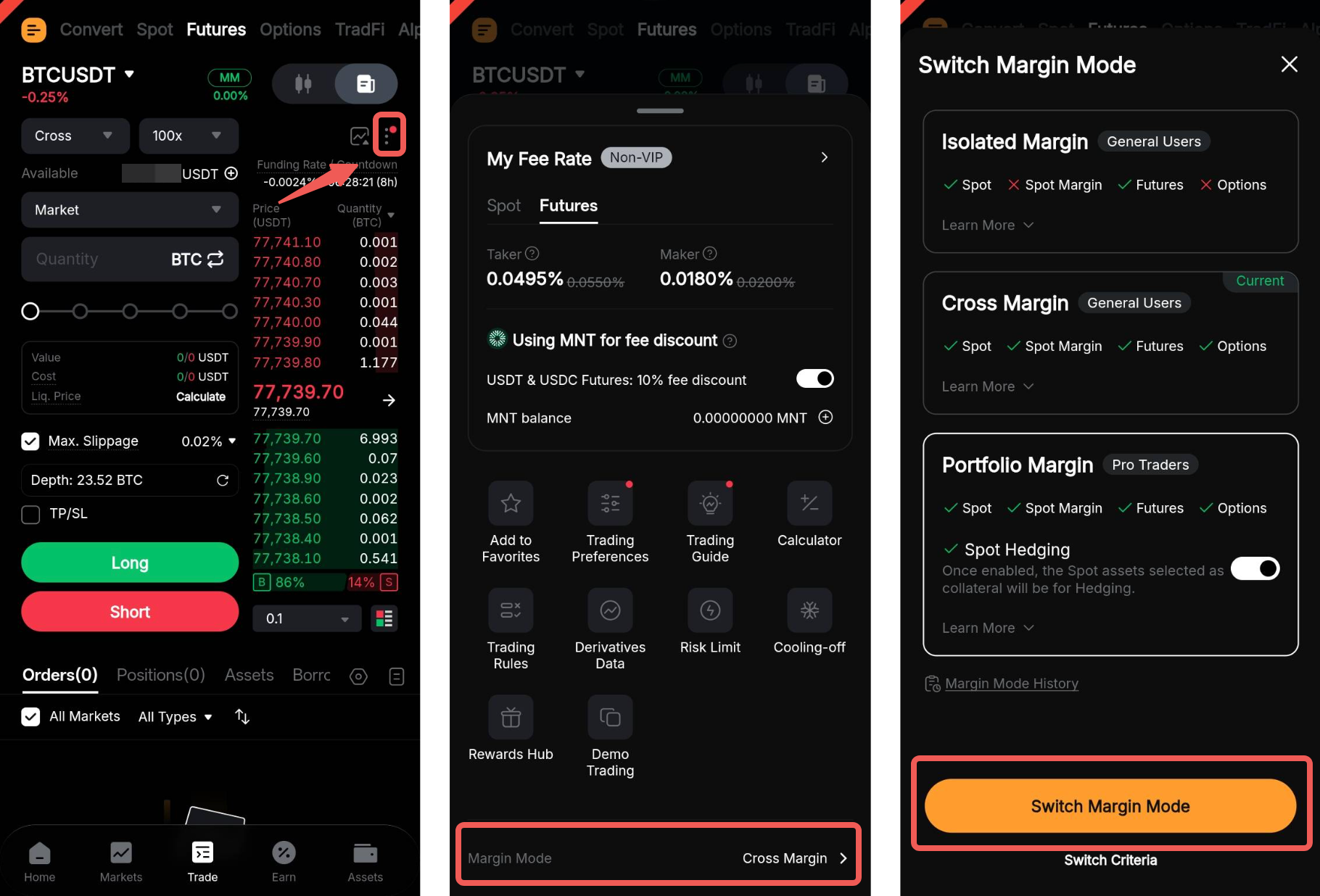
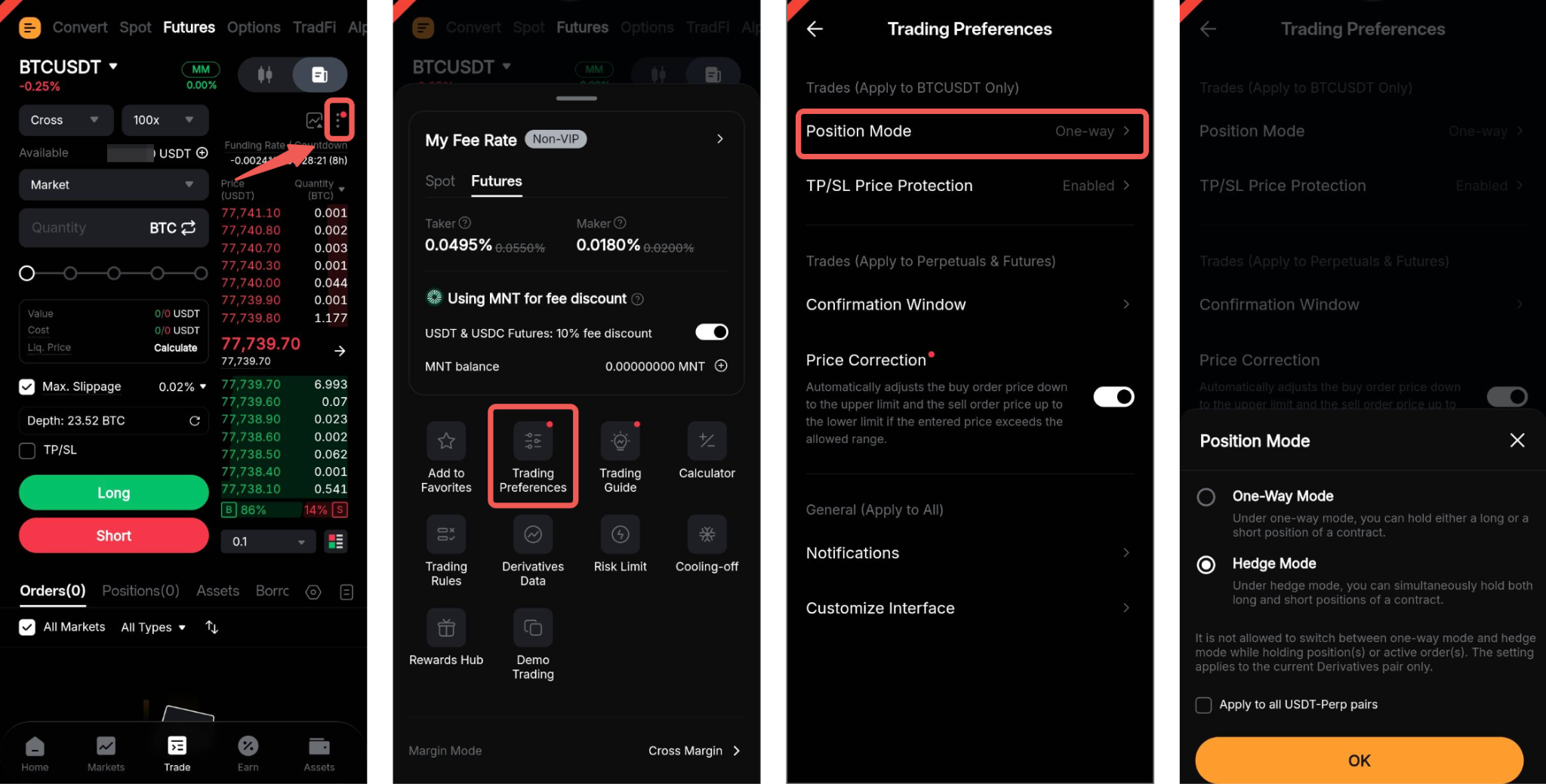
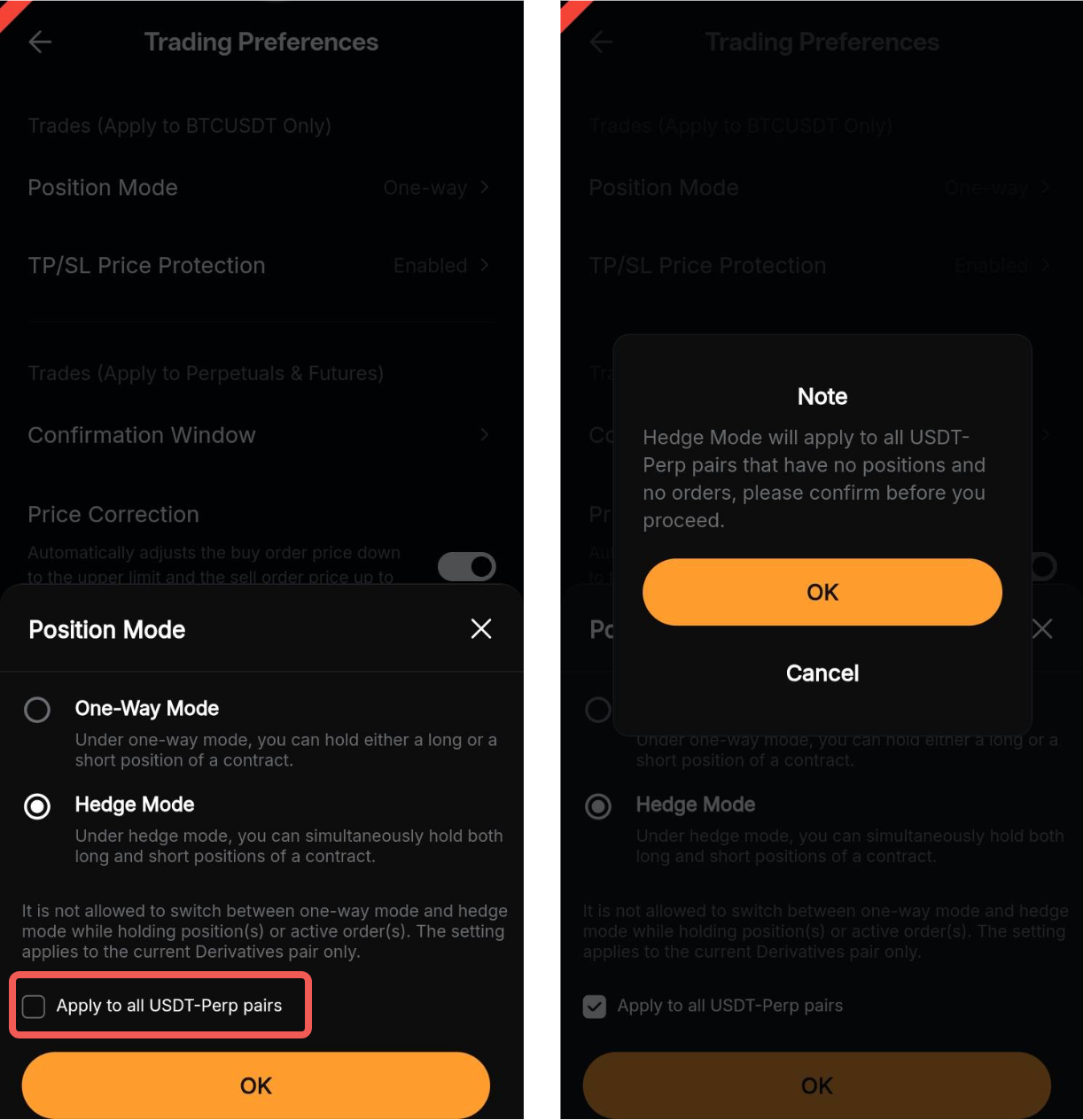
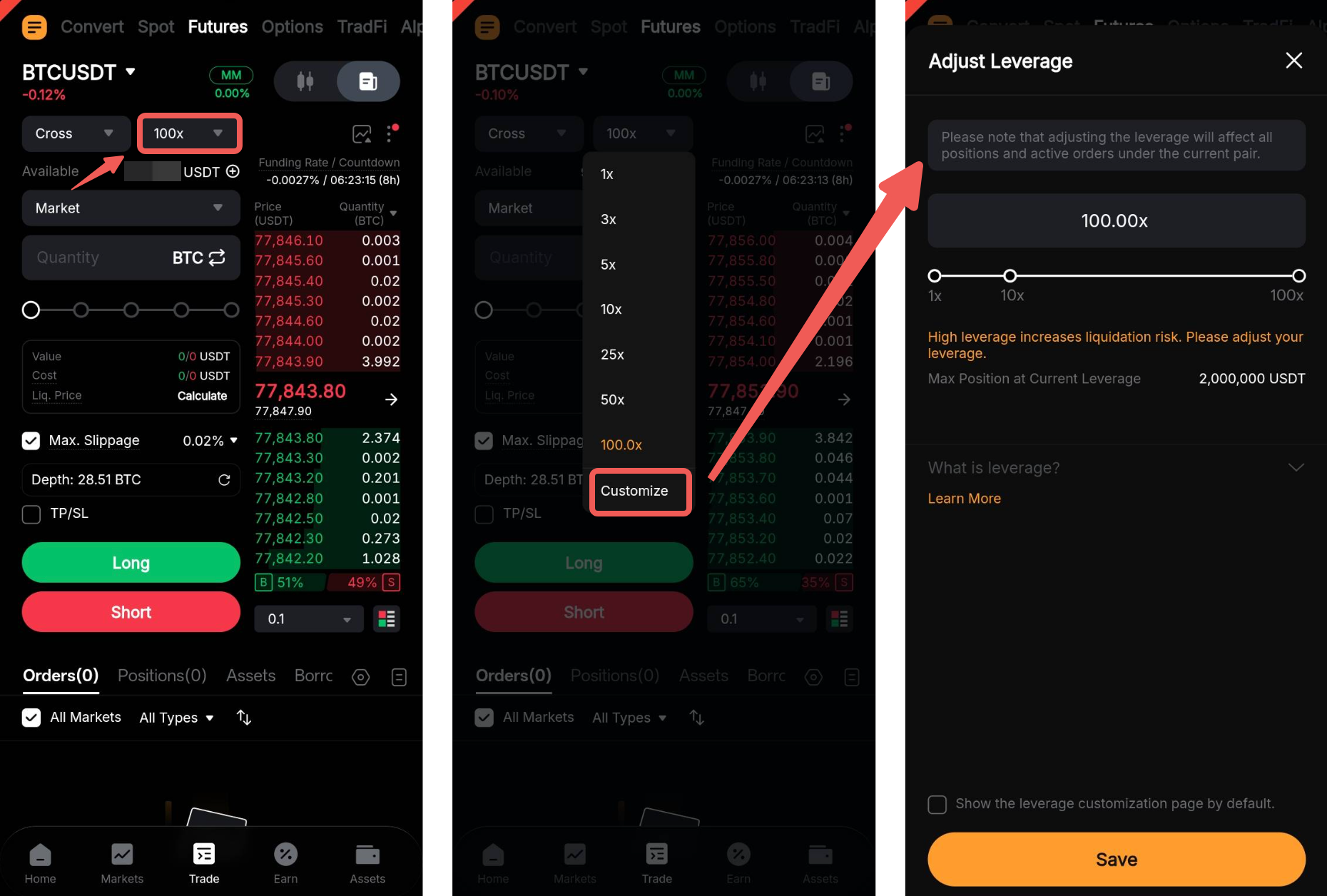
1. Margin Mode, Position Mode, and Leverage
Set the margin mode, position mode, and leverage for your order before opening a position. By default, orders are placed in Cross Margin mode with 10× leverage under One-Way mode.
2. Order Type
Select the type of order you would like to place, and the order zone will display the relevant fields based on the selected order type. For a comprehensive overview of the available order types on Bybit, please refer to this page.
3. Price Settings
Depending on the selected order type, you may need to configure different price settings, such as the order price or trigger price. Please ensure that you understand how each setting affects your order before placing it.
For more information, please refer to FAQ — Order Execution and Liquidation.
4. Order Amount
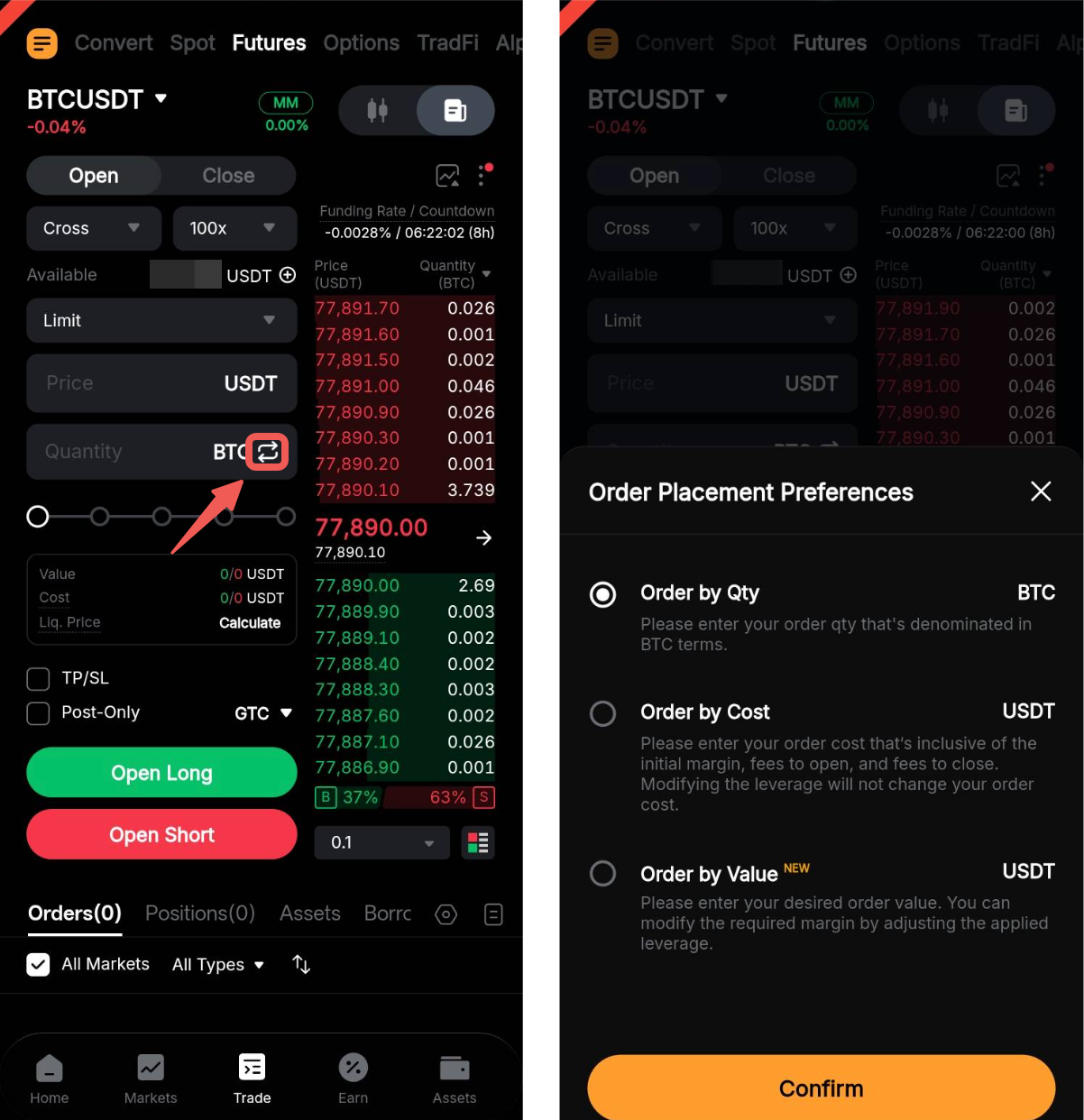
Enter your order amount in the input field. You can place your order with:
- Order by Quantity
- Order by Cost (calculated based on the initial margin and trading fees for opening and closing the position)
- Order by Value (calculated based on the required margin and selected leverage)
Please note that Order by Cost is only available to USDT Perpetual in Hedge mode.
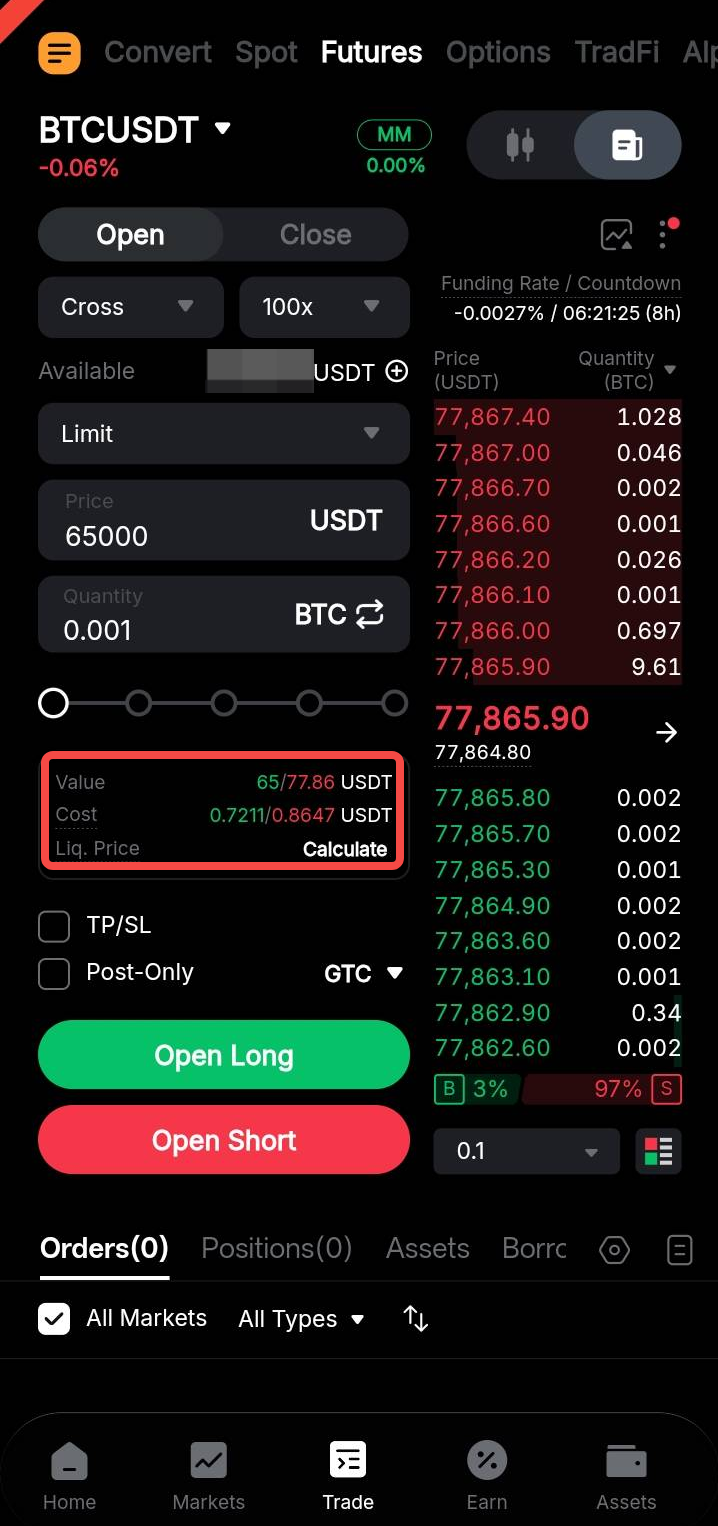
Based on your selected order placement preference, the entered amount will be used to calculate the corresponding order quantity, order value, or order cost for both long and short directions.
5. TP/SL (Take Profit and Stop Loss Orders)
You can set up a Take Profit (TP) and Stop Loss (SL) order by enabling the TP/SL option when placing your order. Once your order is filled, the system will automatically place the preset TP/SL order.
To modify your TP/SL settings afterward:
- Go to the Orders tab to update the TP/SL settings for unfilled limit orders.
- Go to the Positions tab to update the TP/SL settings for open positions.
For more details on TP/SL orders, please refer to the following:
- Take Profit and Stop Loss (Perpetual and Expiry Contracts)
- How to Set Up and Modify Your TP/SL (Perpetual and Expiry Contracts)
- FAQ — Order Execution and Liquidation
6. Order Settings
For limit and conditional orders, additional order settings are available to better support your trading strategy:
- Select the order's execution strategy, including GTC (Good-Till-Canceled), IOC (Immediate-Or-Canceled), and FOK (Fill-Or-Kill). By default, the Time in Force setting is GTC.
- Enable the Post-Only option to ensure your limit order is placed as a Maker order instead of being executed immediately as a Taker order. Please note that market orders are always executed as Taker orders, so the Post-Only option is not available for market orders.
- In One-Way mode, you can enable the Reduce-Only option for limit orders or the Close On Trigger option for conditional orders to ensure that the order only reduces or closes an existing position instead of opening a new one.
7. Position Direction
After setting up your order and verifying the entered information, tap Long or Short to place the order.
Once submitted, the order will either be executed immediately or remain pending until triggered. Orders that are executed immediately cannot be canceled. However, pending orders can be modified or canceled from the Open Orders tab.
Adjust Margin for Your Position (Isolated Margin Mode Only)
Under Isolated Margin mode, you can increase or reduce the margin allocated to a position.
To adjust the margin, go to the Positions tab and select an active position. On the position details page, tap Margin to open the Adjust margin window, then enter the new initial margin amount for the position.
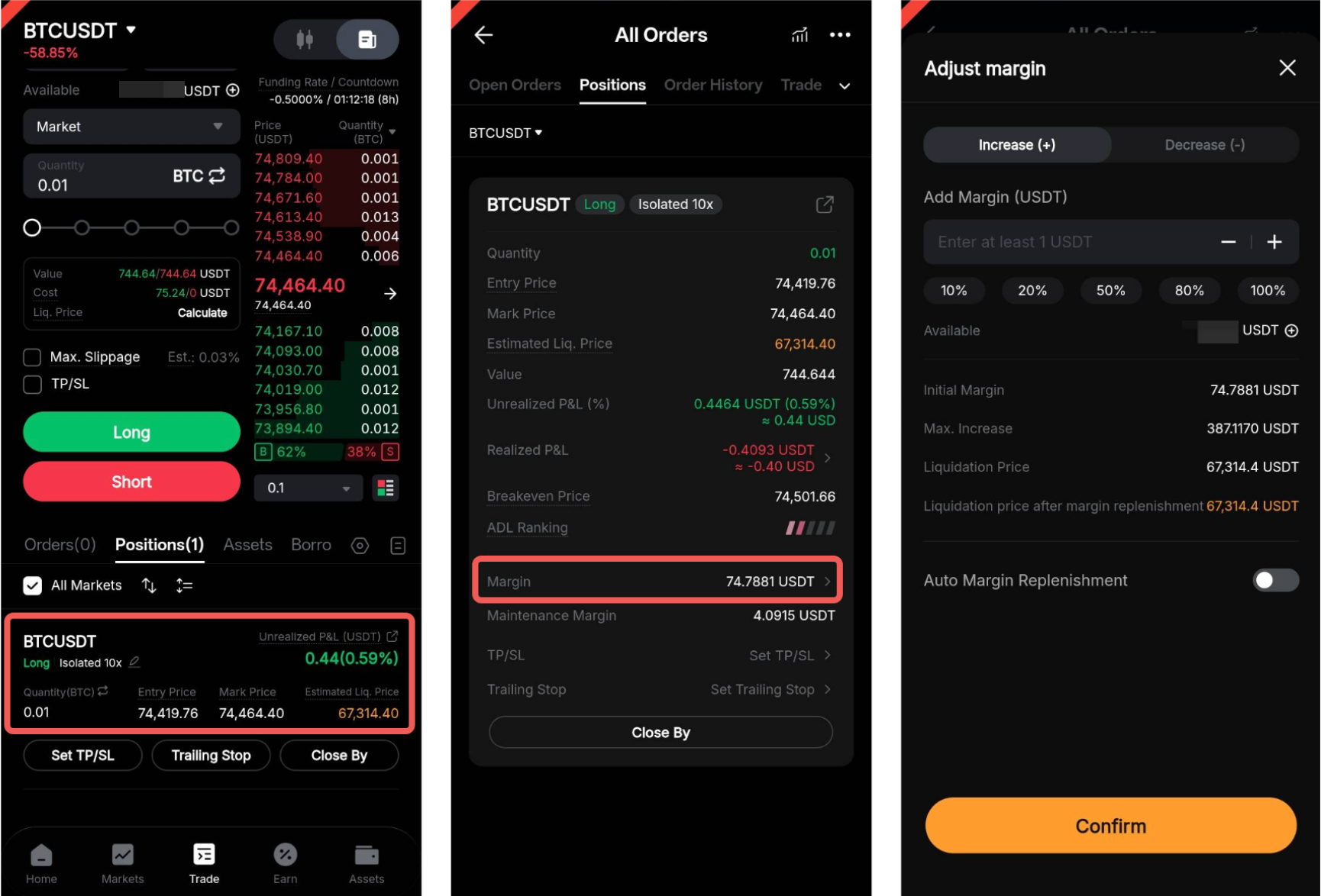
When additional margin is added to a position, the leverage used to open the position and the leverage displayed in the order zone will remain unchanged. The position's liquidation price will be recalculated based on the updated margin amount. You can preview the adjusted liquidation price before confirming the change.
The following scenarios explain how additional margin added to a position may be affected.
Scenario 1
After additional margin is added to a position, if you change the leverage in the order zone, the position's initial margin will be recalculated according to the new leverage setting. Any extra margin previously added to the position will be removed.
Please note that leverage can only be reduced when there is sufficient available margin. Likewise, higher leverage can only be set if it will not immediately trigger liquidation. Otherwise, the leverage adjustment request will be rejected.
Scenario 2
After additional margin is added to a position, if you open another position in the same direction, the added margin will be applied to the entire position.
Example
1. A trader holds a 1 BTC long position with an entry price of 10,000 USDT and a liquidation price of 9,500 USDT.
2. The trader adds 1,000 USDT of additional margin, lowering the liquidation price to 8,500 USDT.
3. The trader then opens another long position of 1 BTC at 10,000 USDT, increasing the total position size to 2 BTC.
4. The additional 1,000 USDT margin will now be shared across the entire 2 BTC position, causing the liquidation price to rise to 9,000 USDT.
Scenario 3
After additional margin is added to a position, if you partially close the position, the added margin will be reduced proportionally based on the percentage closed. The liquidation price will remain unchanged after the partial closure.
Example
1. A trader holds a 1 BTC long position with an entry price of 10,000 USDT and a liquidation price of 9,500 USDT.
2. The trader adds 1,000 USDT of additional margin, lowering the liquidation price to 8,500 USDT.
3. The trader partially closes 50% of the position (0.5 BTC), leaving a remaining position size of 0.5 BTC. As a result, the additional margin is reduced to 500 USDT (50%), while the liquidation price remains at 8,500 USDT.
Check the Mark Price
The mark price is derived from a global Spot price index and a decaying funding basis rate. It is designed to reflect the real-time Spot price across major exchanges. Bybit uses the mark price to trigger liquidations and calculate unrealized profit and loss (P&L).
The following are several ways to check the mark price on the Bybit App:
In the Chart Tab
a. Enable the Mark Price Chart View
To enable the Mark Price chart view, tap the Last Traded Price dropdown menu and select Mark Price.
Please note that switching to the Mark Price chart view will disable the countdown bar for the Last Traded Price display.
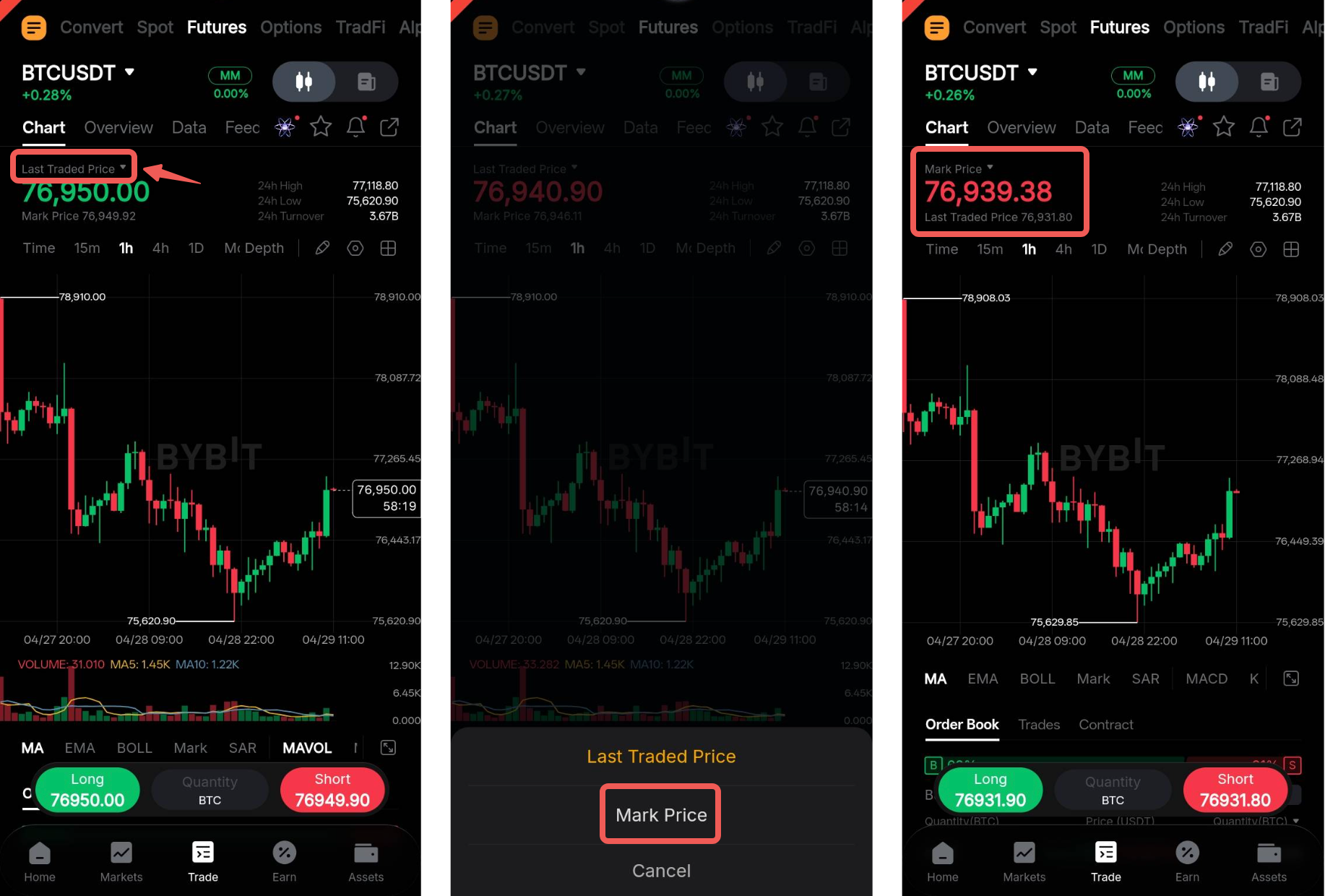
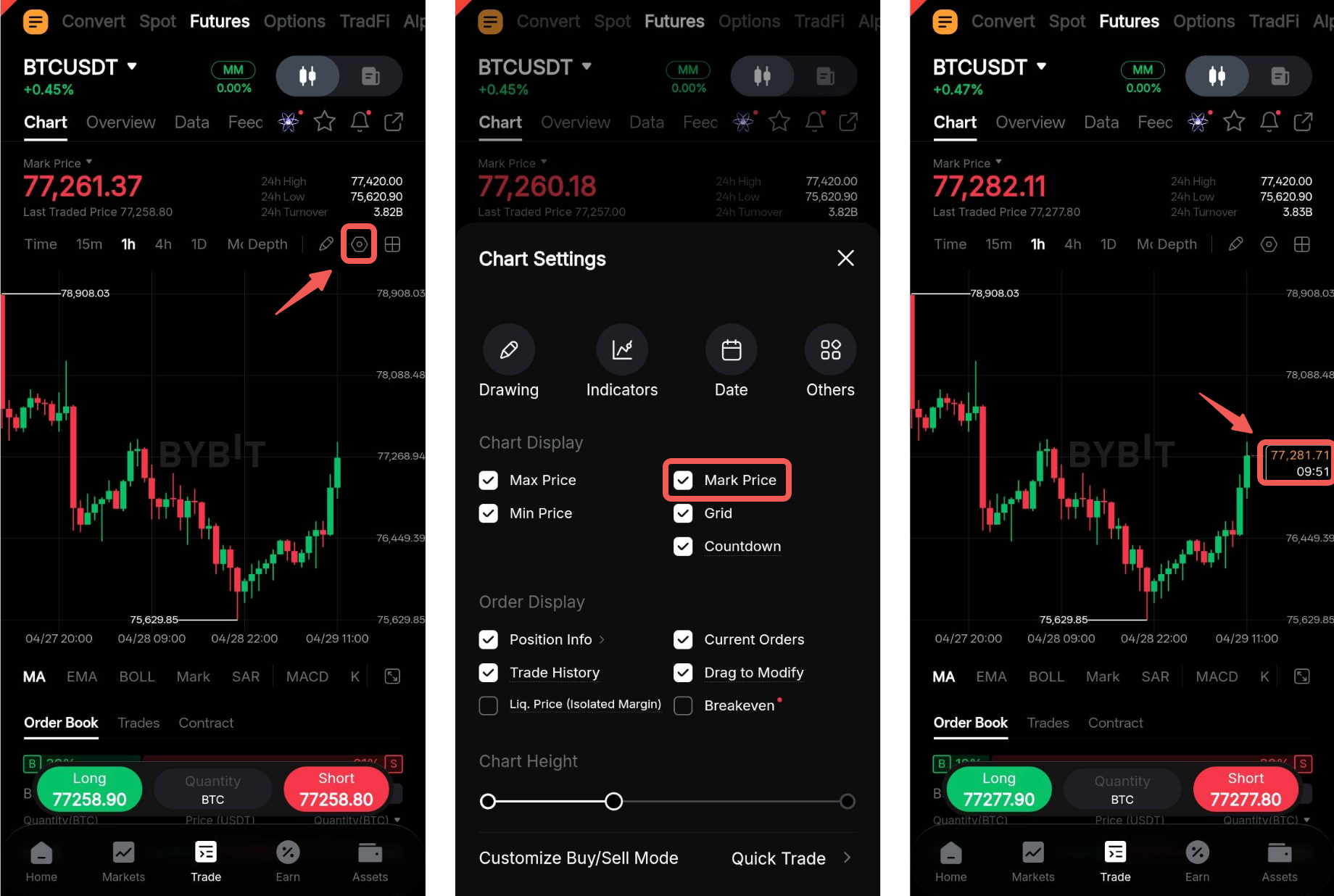
If you would like to view mark price movements alongside the countdown bar, tap the Settings icon to open Chart Settings, then enable Mark Price.
b. Enable the Mark Price Indicator Line
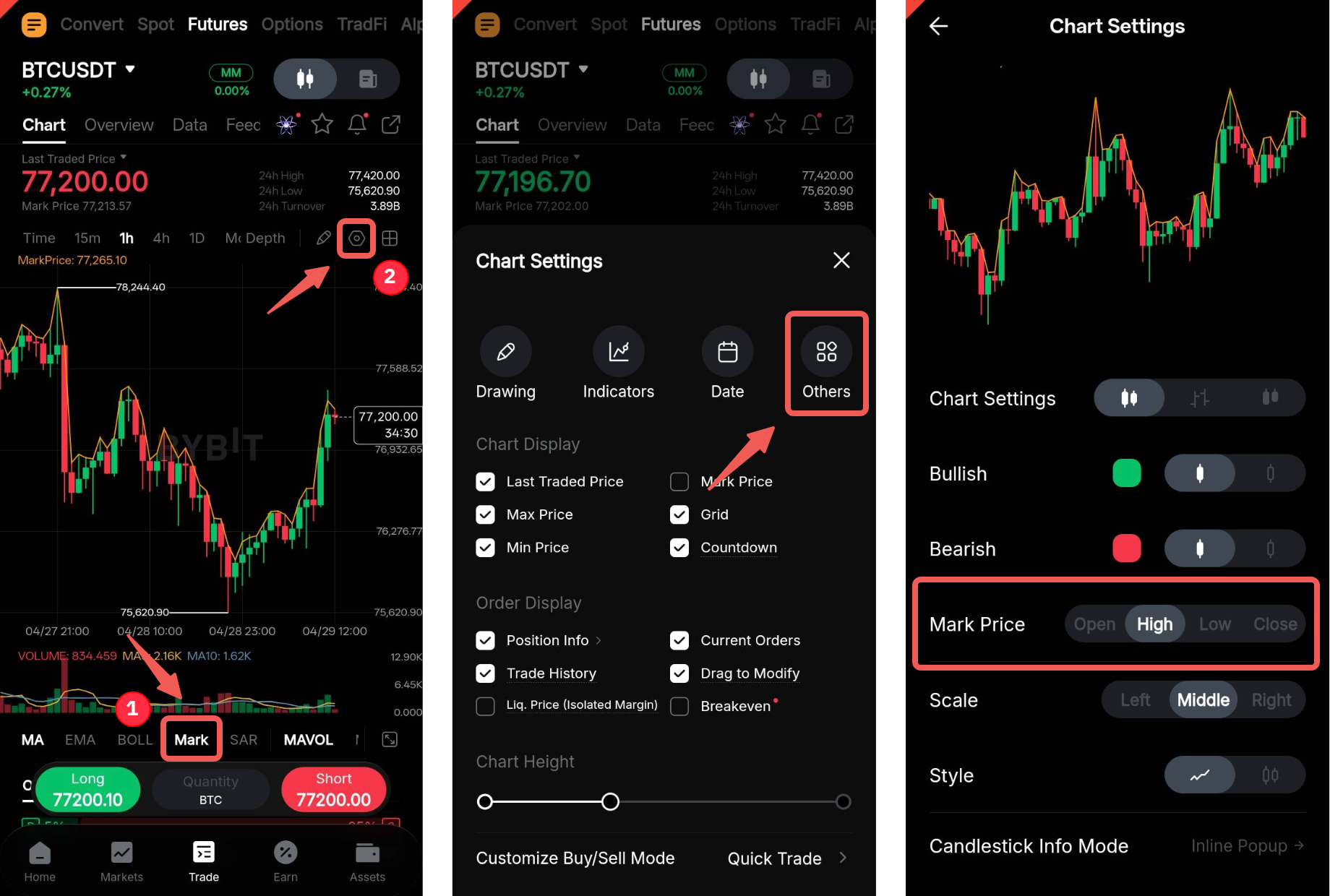
You can also tap Mark in the bar below the chart to enable a yellow indicator line that tracks mark price movements. By default, the line displays the closing mark price.
For a more accurate representation based on your position direction, go to Chart Settings → Others, then select your preferred mark price display preset.
In the Order Tab
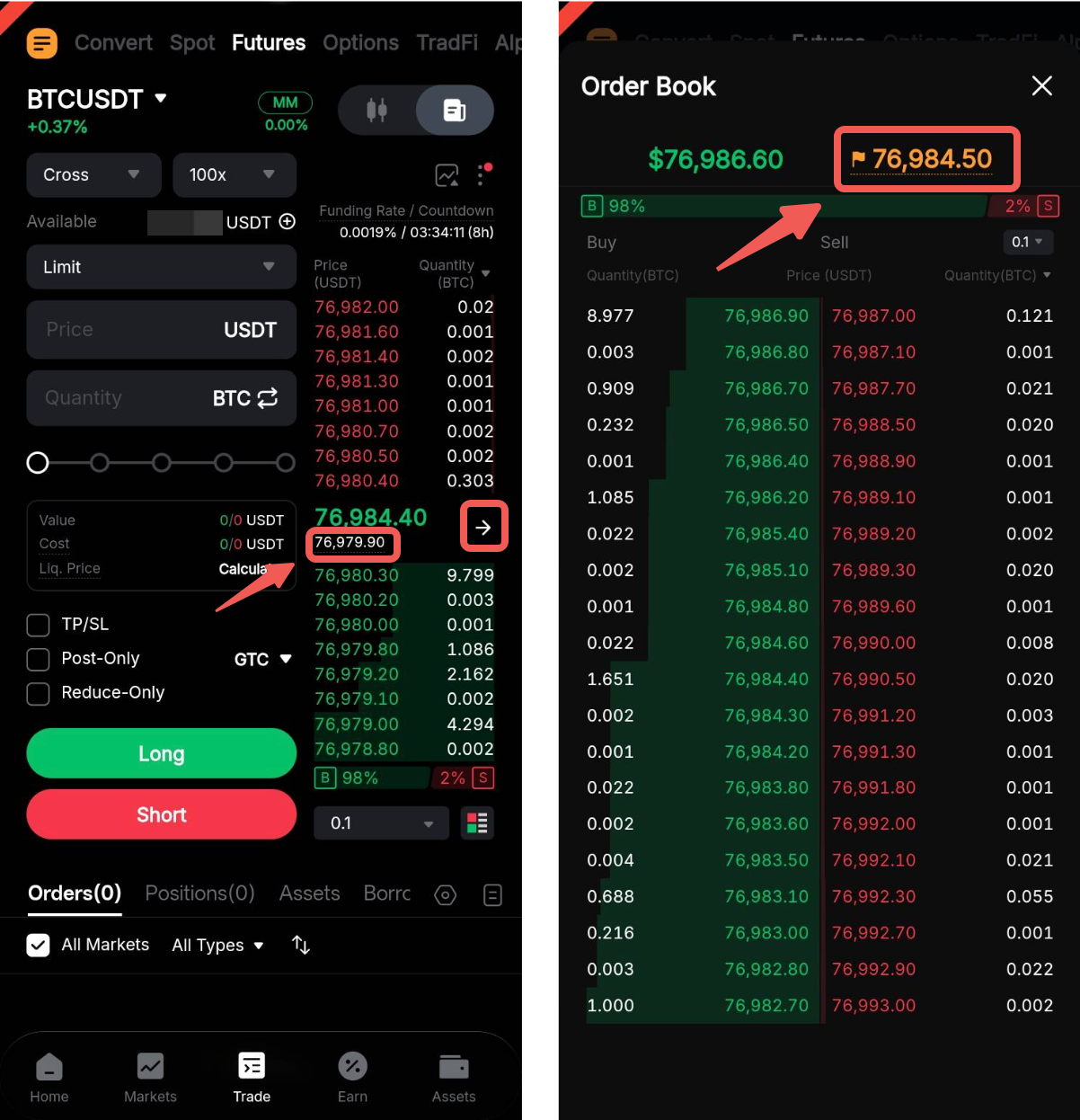
You can view the mark price in the order book, located below the current last traded price. In the full view mode, the mark price is displayed in yellow on the right-hand side of the order book.
Modify or Cancel an Order
Via the Futures Trading Page
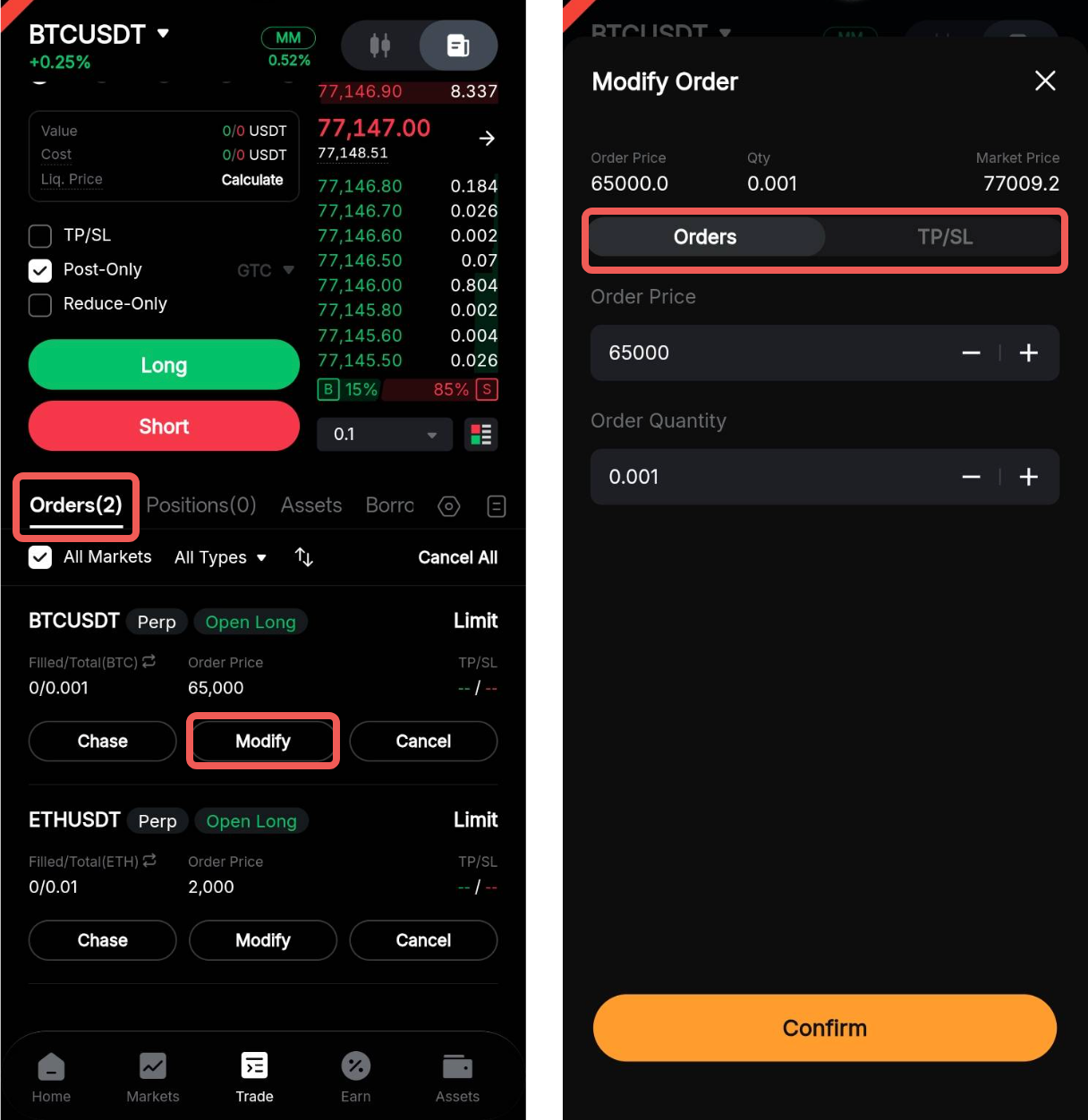
Go to the Orders tab and tap Modify for the relevant order to update its parameters, such as order price, order quantity, or TP/SL.
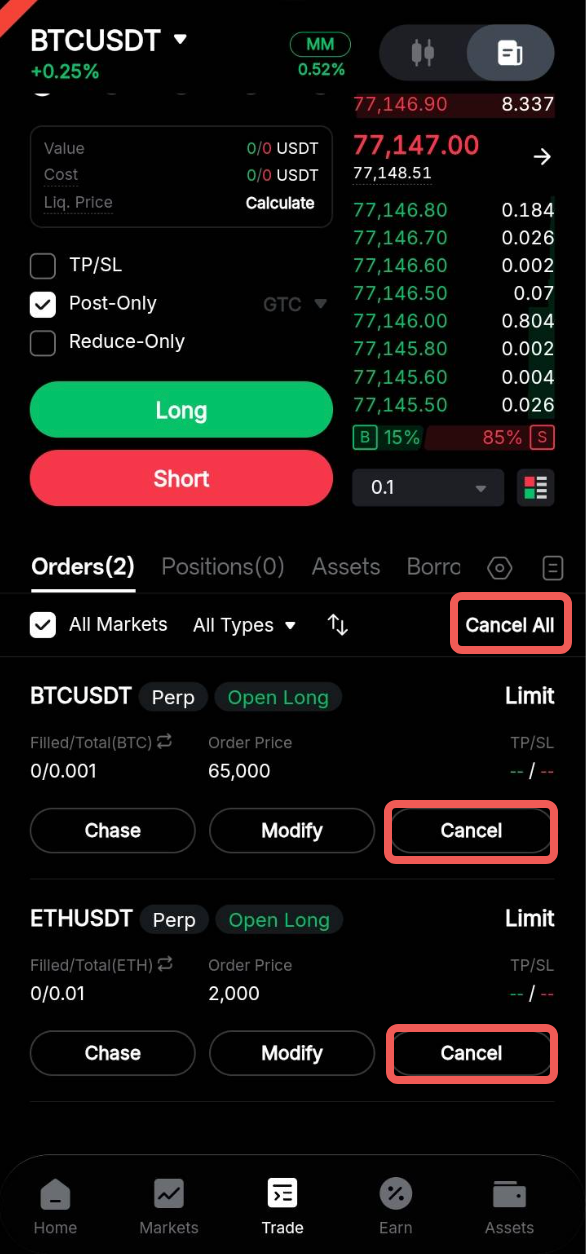
To cancel an order, tap Cancel for the relevant order or tap Cancel All to cancel all open orders.
Via the All Orders Page
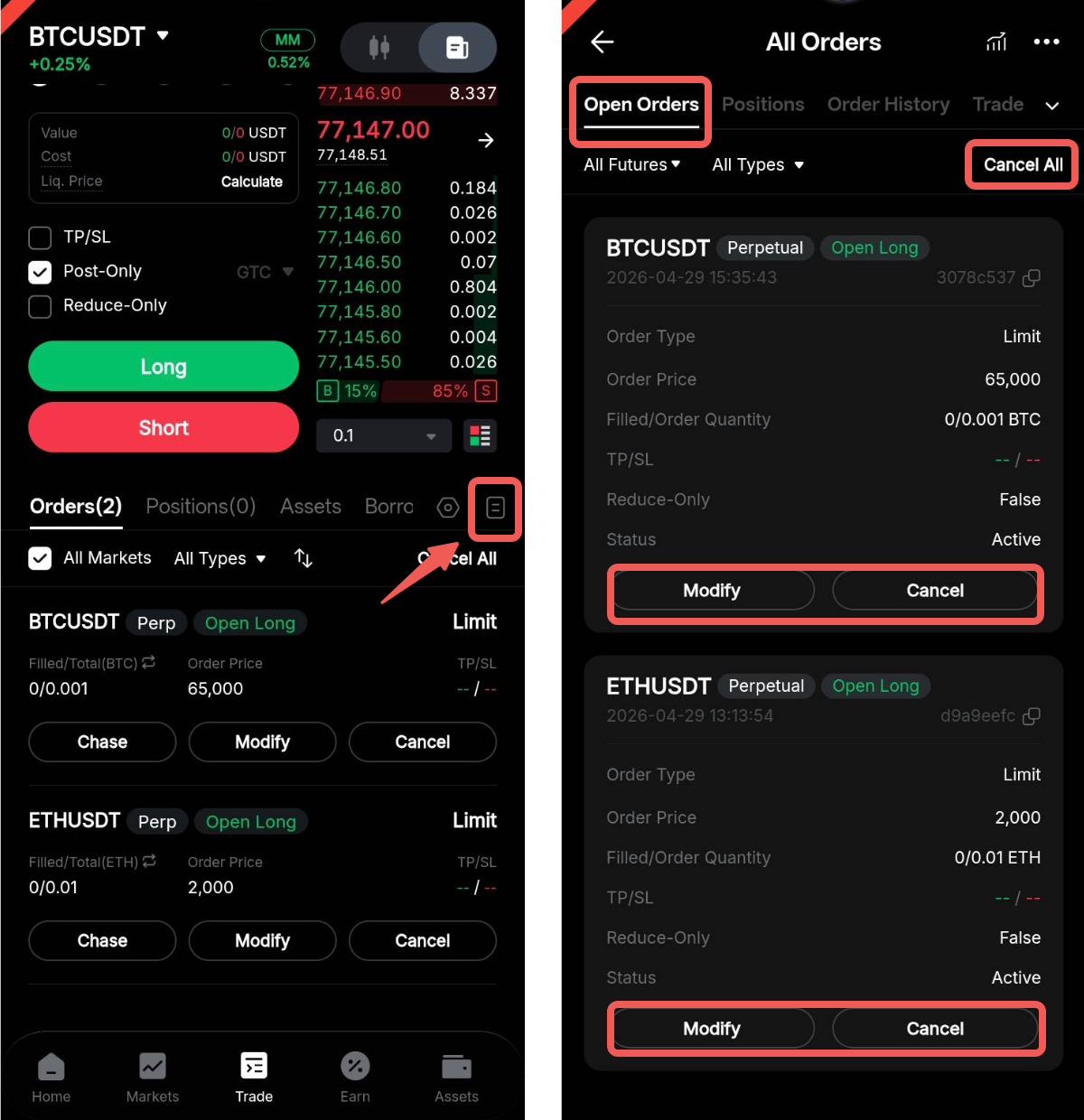
To locate the relevant contract for modification or cancellation, tap the History icon in the Trade Subpanel to access the All Orders page. Then, switch to the Open Orders tab and, if necessary, filter the contracts to All Futures.
From there, you can tap Modify, Cancel, or Cancel All as needed.
Close a Position
You can close your current position using the following methods.
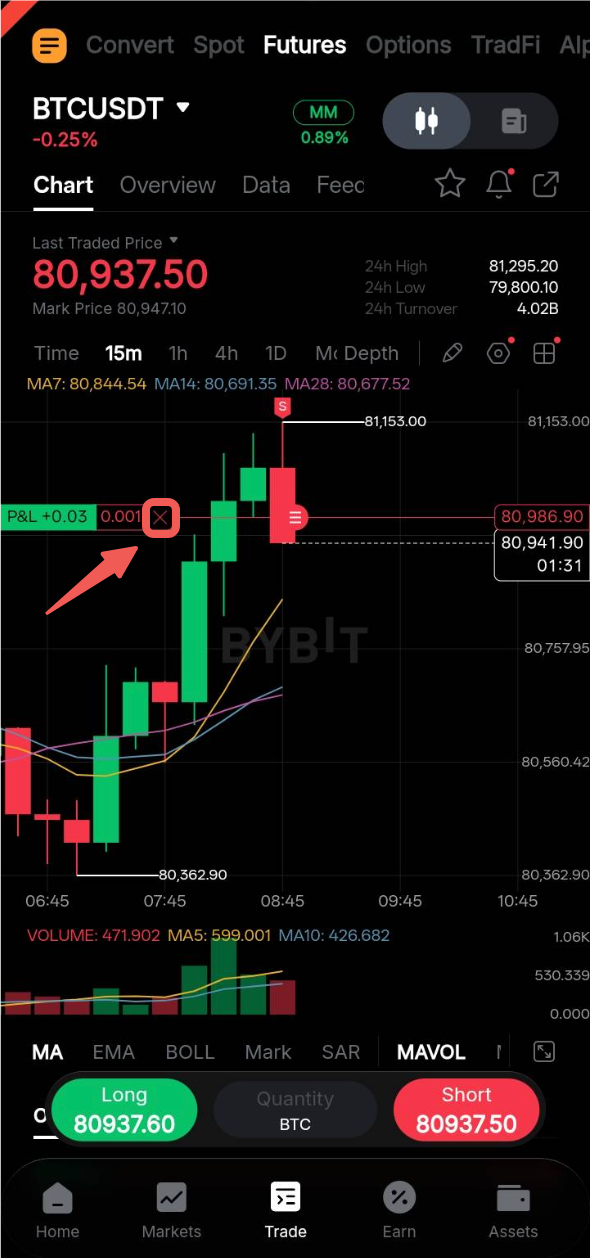
(i) Via Quick Close
Tap the Quick Close button on the chart to close your entire position at the market price.
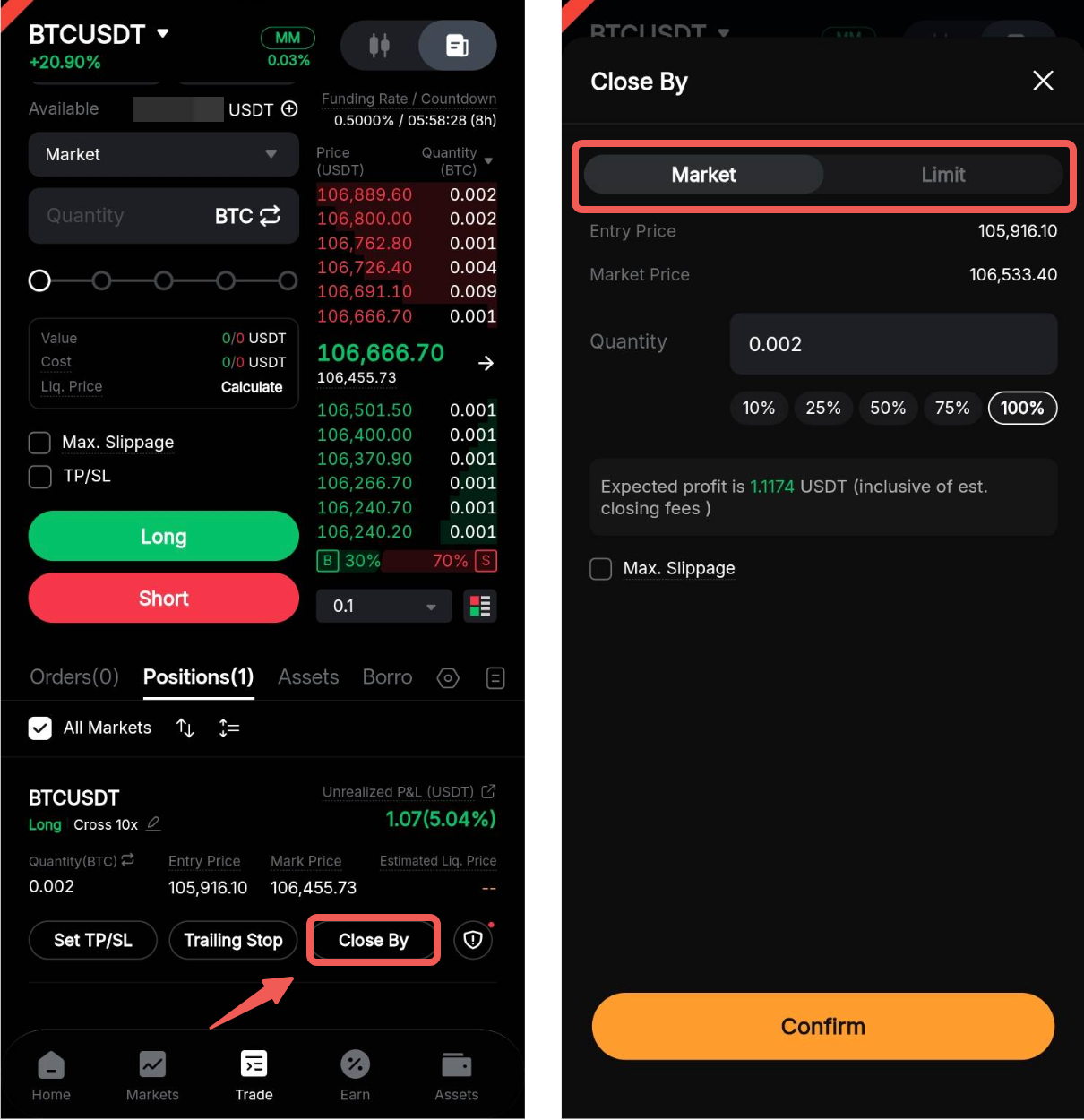
(ii) Via the Positions Tab
To close your current position, tap Close by Limit or Market.
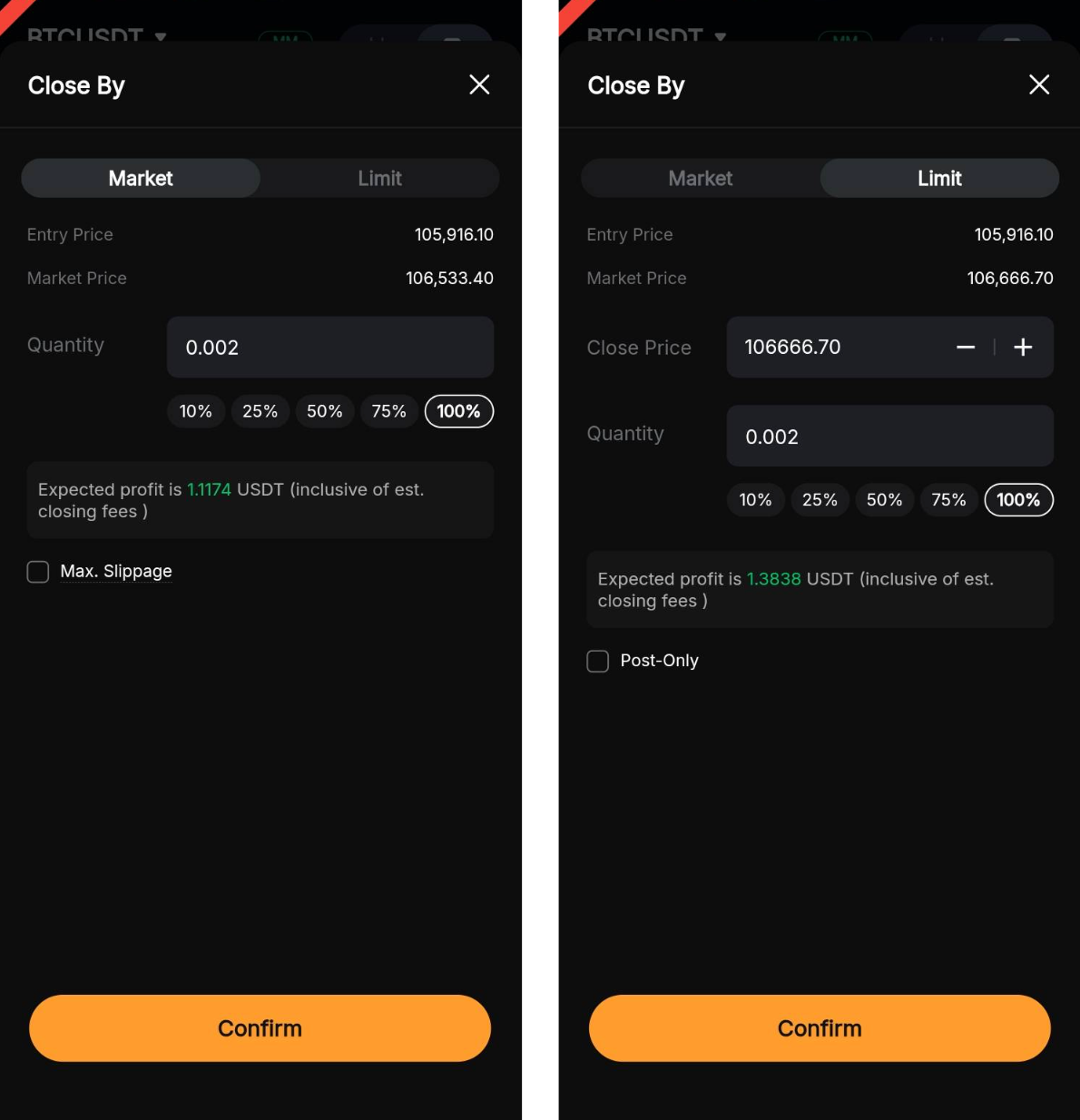
To partially close a position, adjust the quantity using the input field or percentage presets. Partial closure is only available when your active position size exceeds the minimum order quantity.
Notes:
- You can enable the Slippage Tolerance setting to define the maximum acceptable price difference for your Market Close order, either by amount or percentage. This helps protect against extreme market fluctuations by ensuring the order is executed within your expected price range.
- You can enable Post-Only to ensure that your Limit Close order is placed in the order book as a Maker order. If the system detects that the order would be executed immediately, the order will be automatically canceled.
(iii) Via Order Placement
Depending on your selected position mode, you can place a closing order in the order zone using the following methods:
a. One-Way Mode
Under One-Way mode, place an order in the opposite direction of your current position with the same quantity. Once the order is executed, your position will be closed.
For example, if you hold a 1 BTCUSDT short position, you will need to place a 1 BTCUSDT long order to close the position.
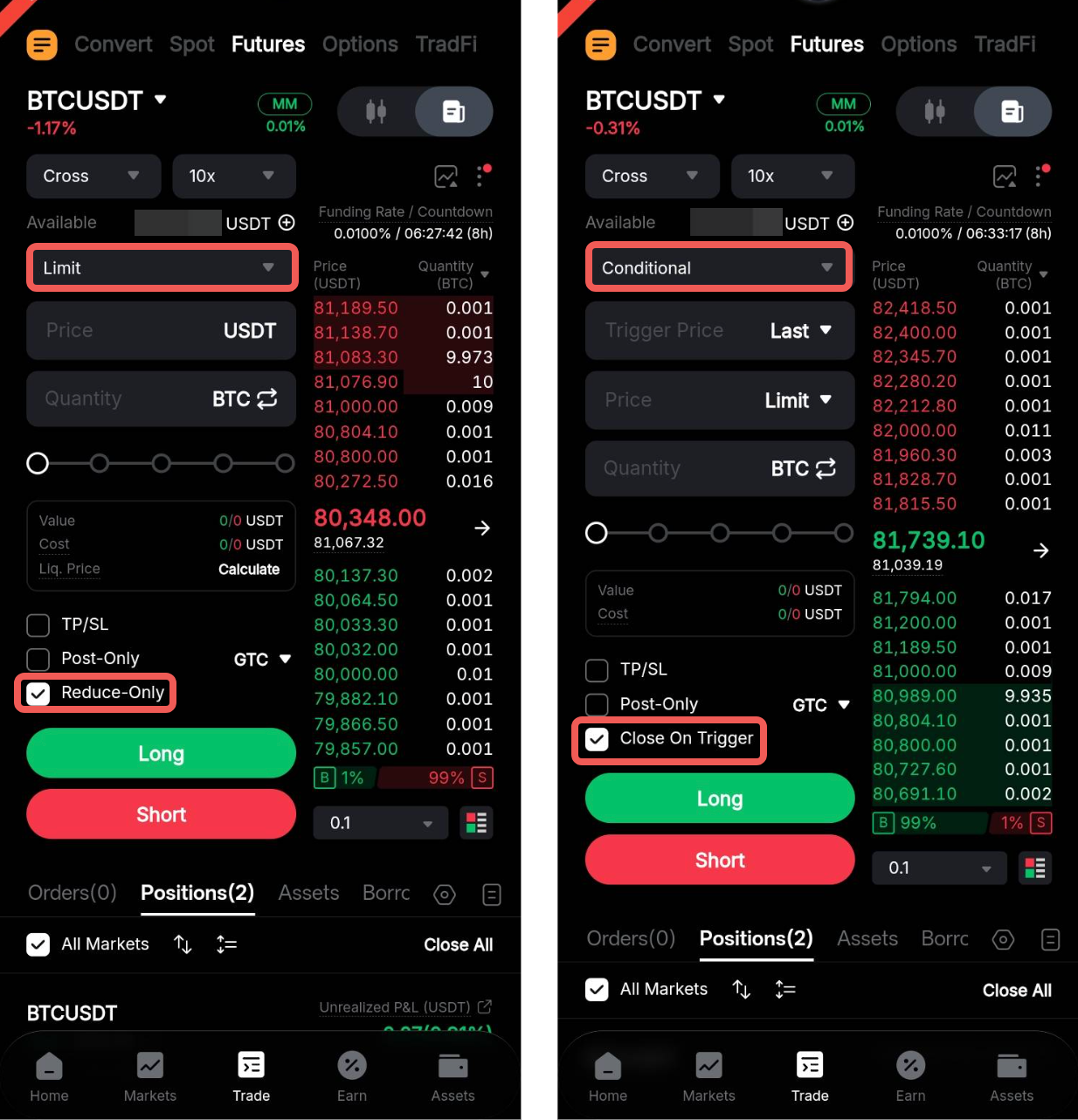
You can also enable Reduce-Only for a limit closing order or Close On Trigger for a conditional closing order. These options ensure that no new position in the opposite direction will be opened if the order quantity exceeds the current position size.
b. Hedge Mode
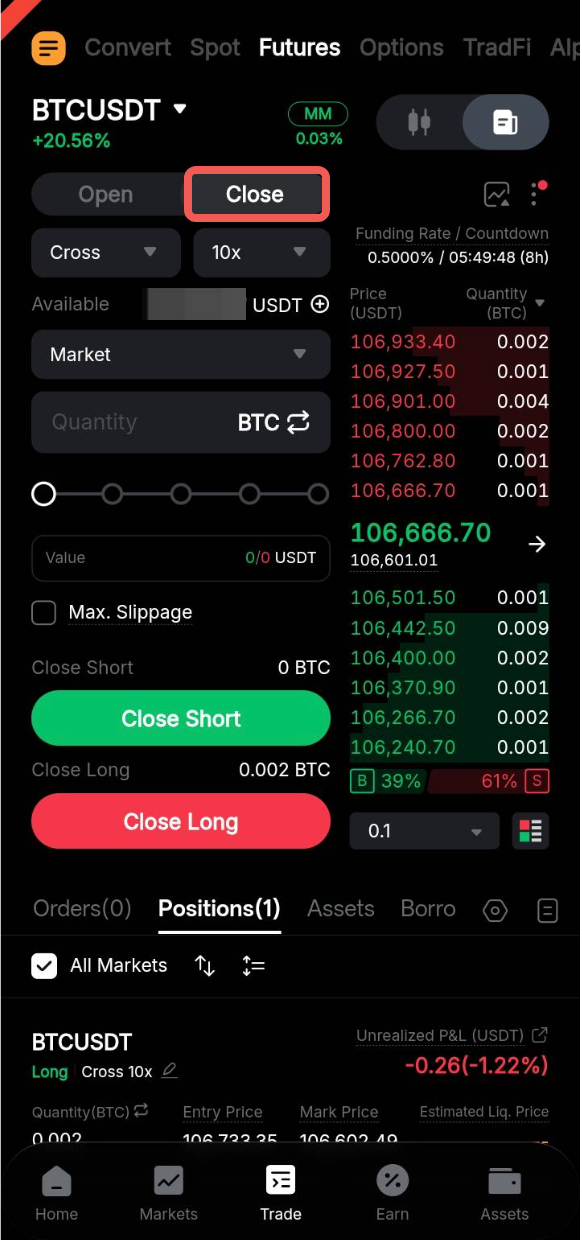
Under Hedge mode, place an order using the Close tab, then tap the Close button corresponding to the direction of the position you wish to close.
(iv) Via Risk Management Orders
In addition to TP/SL orders, the following automated features can help manage risk by triggering position closures when certain conditions are met.
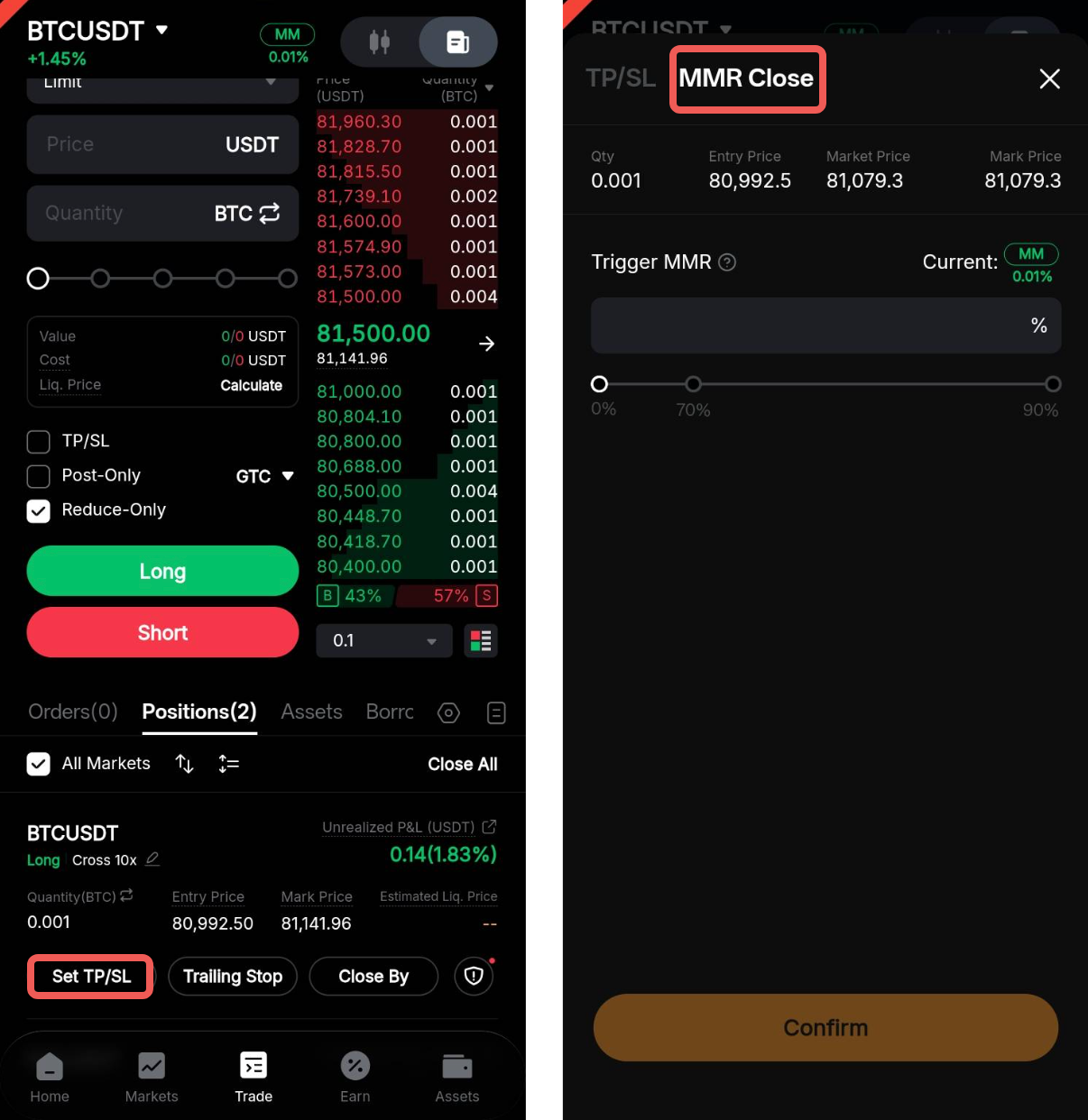
MMR Close
Maintenance Margin Ratio (MMR) Close automatically places a market order to fully close the selected position once your account's maintenance margin ratio reaches the preset trigger level. For more information, please refer to the guide here.
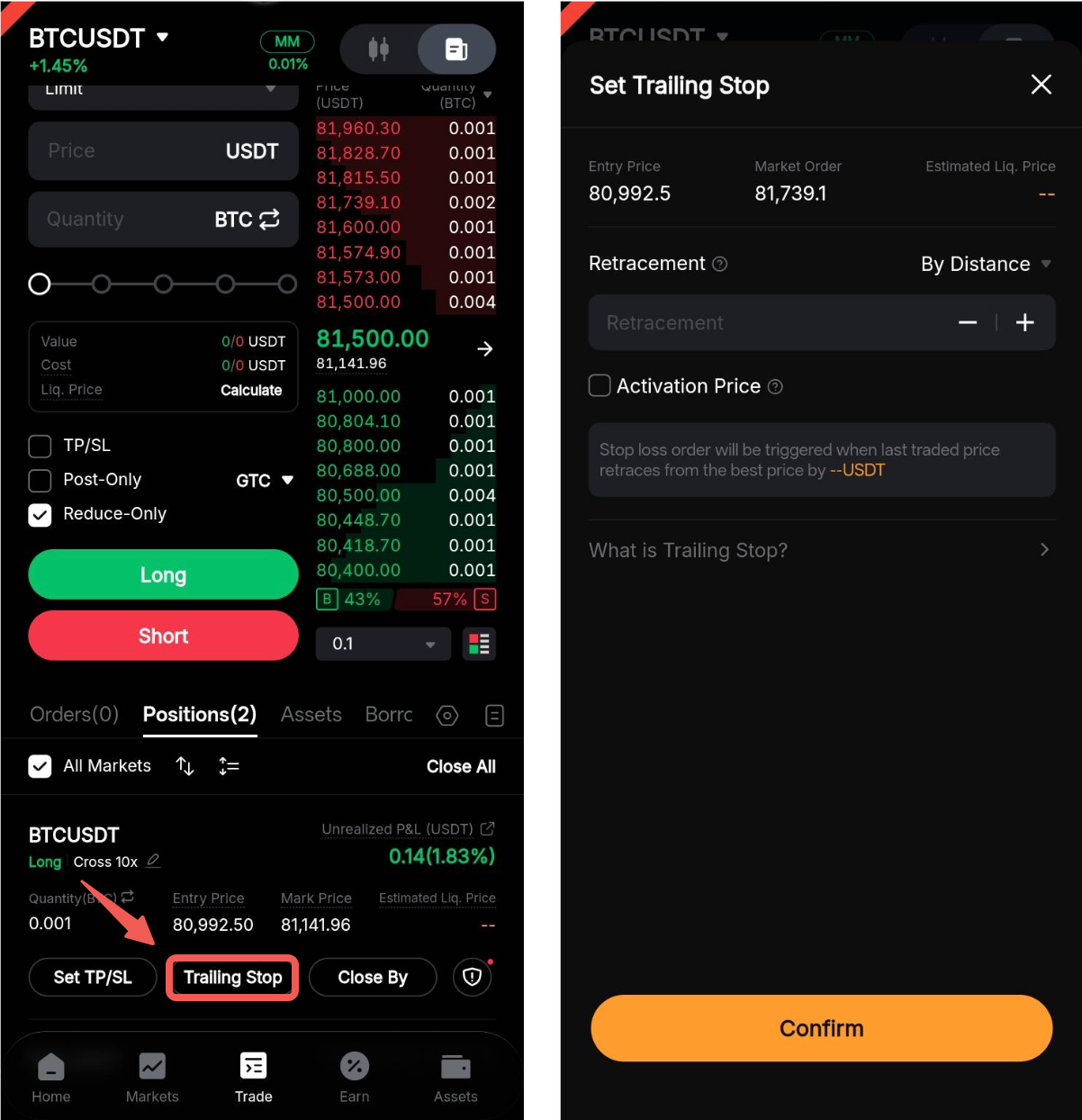
Trailing Stop
A Trailing Stop order dynamically adjusts the stop price according to market movements, helping you lock in profits while limiting potential downside risk. For more details, please refer to the guide here.
Important notes:
- All immediate close methods (such as Quick Close, Market Close, and Close All) are executed at the current market price and may be subject to slippage.
- If your position size exceeds the symbol's maximum order quantity, the system will split the close order into multiple smaller orders, with a 100ms delay between each submission.
- Example:
For a 600 BTC position on BTCUSDC, where the maximum order quantity is 200 BTC, the system will split the close order into three separate 200 BTC orders. After the first order is submitted, the second order will be placed 100ms later, followed by the third order another 100ms afterward.
- Advanced order tools are also supported for position closure. To avoid unintentionally opening a new position, ensure that Reduce-Only is enabled. For more details on advanced order tools, refer to the following guides:
- Chase Limit Order
- TWAP (Time-Weighted Average Price) Order
- Iceberg Order
- Scaled Order