
Here is a step-by-step guide to know how to log into your TradFi (MT5) account.
How to Log into Your TradFi (MT5) Account
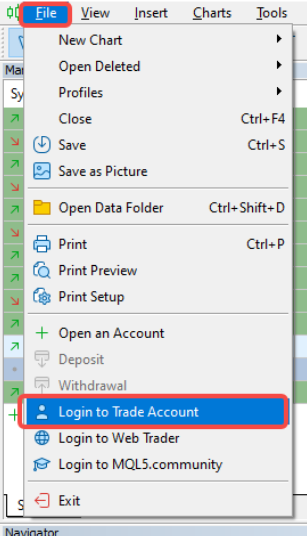
Step 1: Open the MT5 platform and click on File → Login to Trade Account.
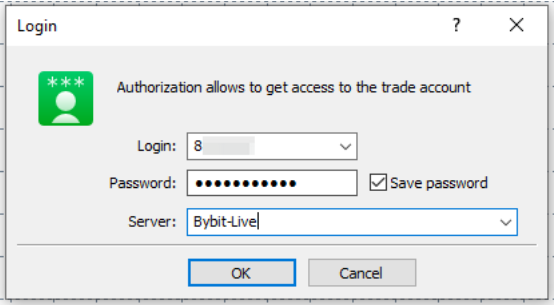
Step 2: Enter your account number, password, and the server address of your Bybit MT5 account. Click OK once done.
Notes:
- In order to log into your Bybit TradFi (MT5) Account, you will first need to register an account on the Bybit TradFi (MT5) page by following this guide.
- MT5 uses a different login username and password from your Bybit Account. You can retrieve your MT5 Account ID and Password from the Bybit MT5 page.
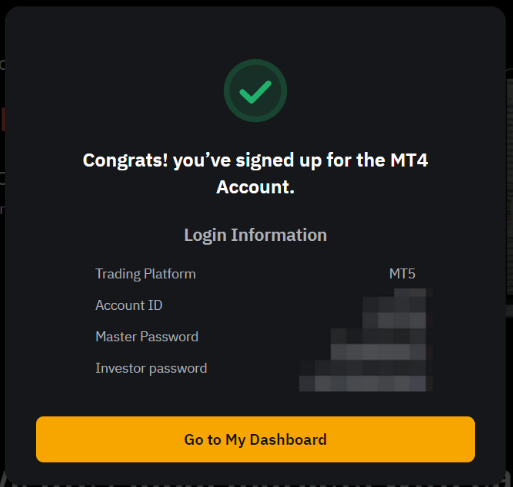
- 2 types of accounts are available on MT5 based on the password that you will enter:
- Master Password: Full access to your trading account. This includes the ability to open and close trades.
- Investor Password: Read-only access to your trading account. The trading functionality will be disabled.
- The servers’ information can be retrieved here.
How to Reset Your TradFi (MT5) Account Password
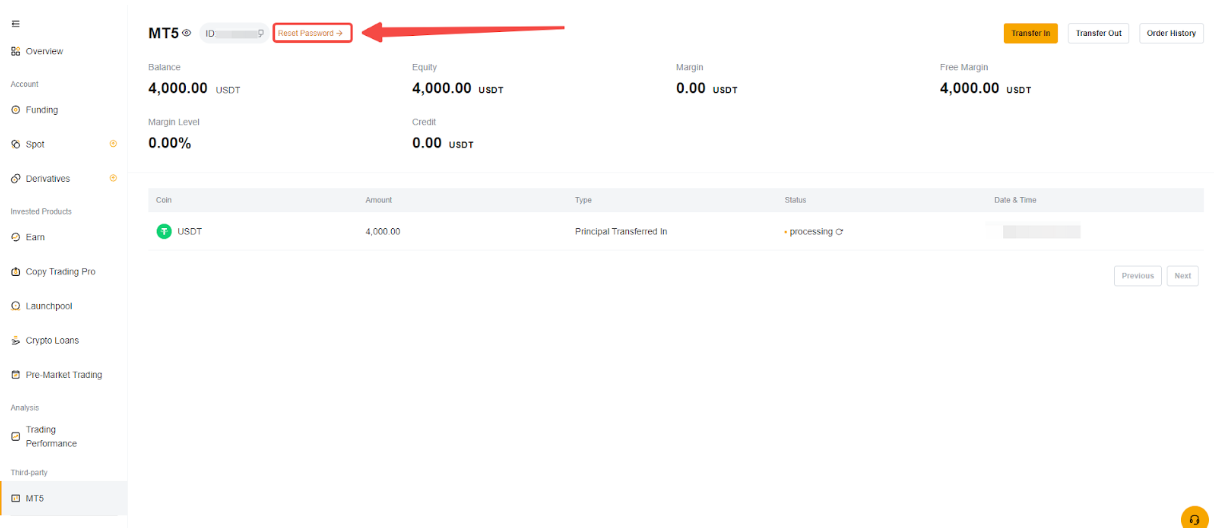
You can reset both your MT5 Master Password and Investor Password on the MT5 asset page. Please note that the password reset procedure will require 2FA.
Step 1: Go to your MT5 asset page and click on Reset Password.
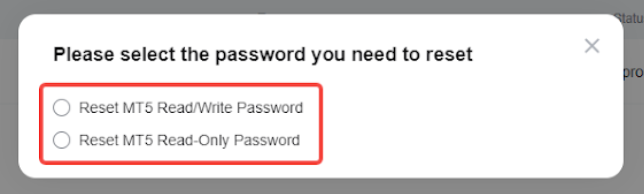
Step 2: Select the type of password you would like to reset. There will be a pop-up window with two options:
- Reset MT5 Read/Write Password, to reset your Master Password,
- Reset MT5 Read-Only Password, to reset your Investor Password
Step 3: Enter your new password and click on Confirm.
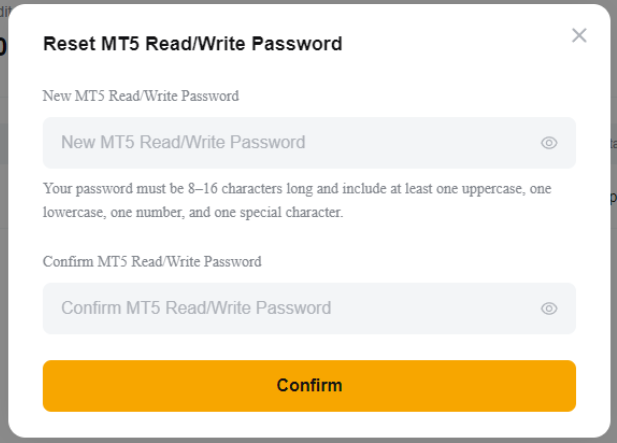
Note: There are requirements for the MT5 Password which includes:
- The password must be 8-16 characters long
- At least one uppercase character
- At least one lowercase character
- At least one number
- At least one special character
Step 4: Input your 2FA code to confirm your new password.
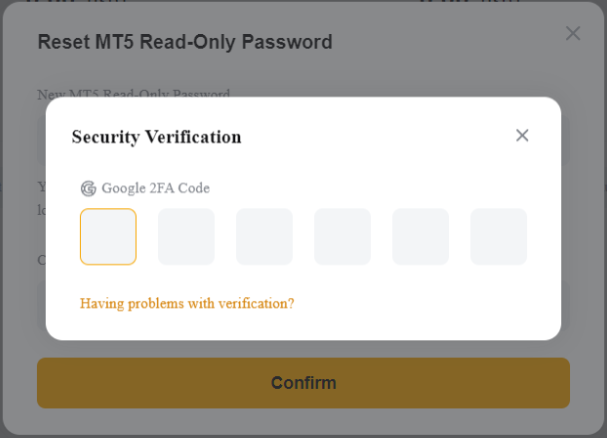
Note: If you have yet to set up the 2FA verification on your Bybit account, please follow this guide.