
Before you start trading Options, please ensure that your margin mode is set to either Cross Margin or Portfolio Margin, as Options trading on Bybit does not support Isolated Margin mode.
To switch to a supported margin mode, go to Trade → Options, tap the Ellipsis icon → Isolated Margin, then choose your preferred margin mode and tap Switch Margin Mode to confirm.
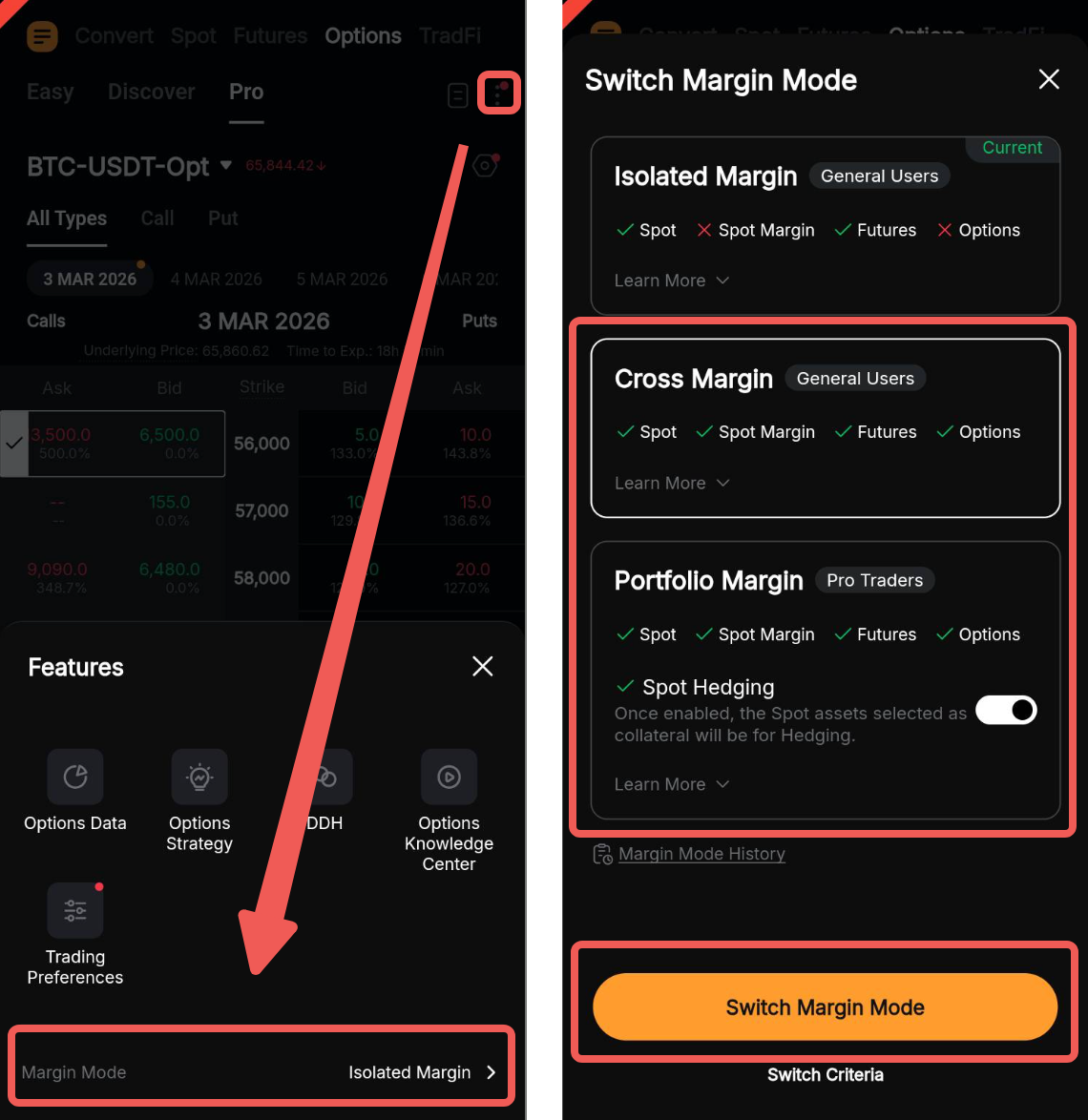
Once the supported margin mode is set, you are ready to begin.
Below is a step-by-step guide to getting started with Options trading on Bybit.
Navigate the Options Trading Page
Place Your Order
Via Limit Order
Via Market Order
Modify or Cancel Your Order
Set Take Profit/Stop Loss (TP/SL)
Close Your Open Positions
Navigate the Options Trading Page
On the Bybit App homepage, go to Trade and switch to the Options tab in the top navigation panel.
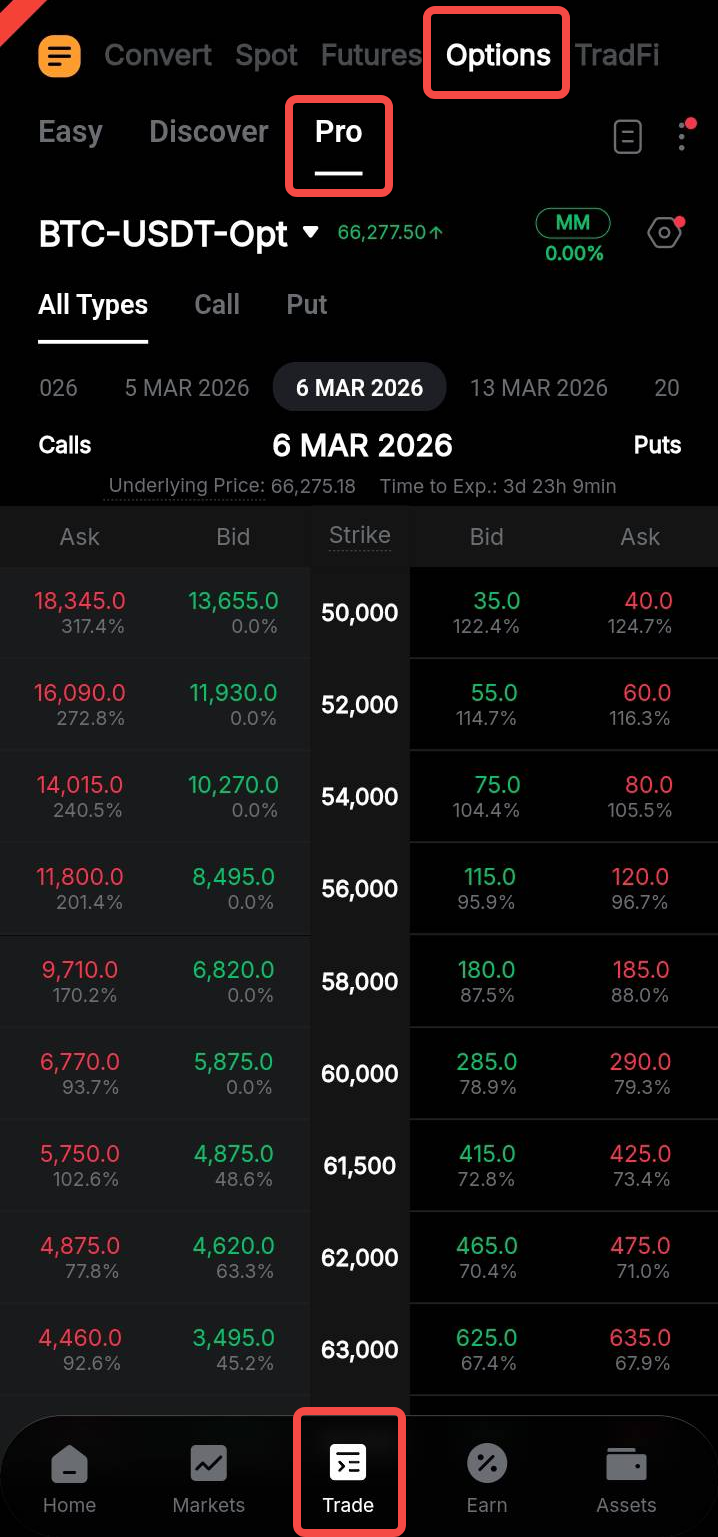
The Bybit App offers three Options trading modes: Easy, Discover, and Pro.
This guide focuses on accessing and navigating the classic Options trading interface in Pro mode. For more information on trading Options in Easy or Discover mode, please refer to this article.
The Pro mode trading page consists of the Options Contract Panel and the Options Chain.
a. Options Contract Panel
This panel consolidates essential trading tools and indicators to help you open or manage your open positions. Below is an overview of the key features.
Trading pair & expiry filters
To view available Options trading pairs and contract types, open the contract dropdown menu. You can use the search bar or select a contract via the Options Chain or Contract Details.
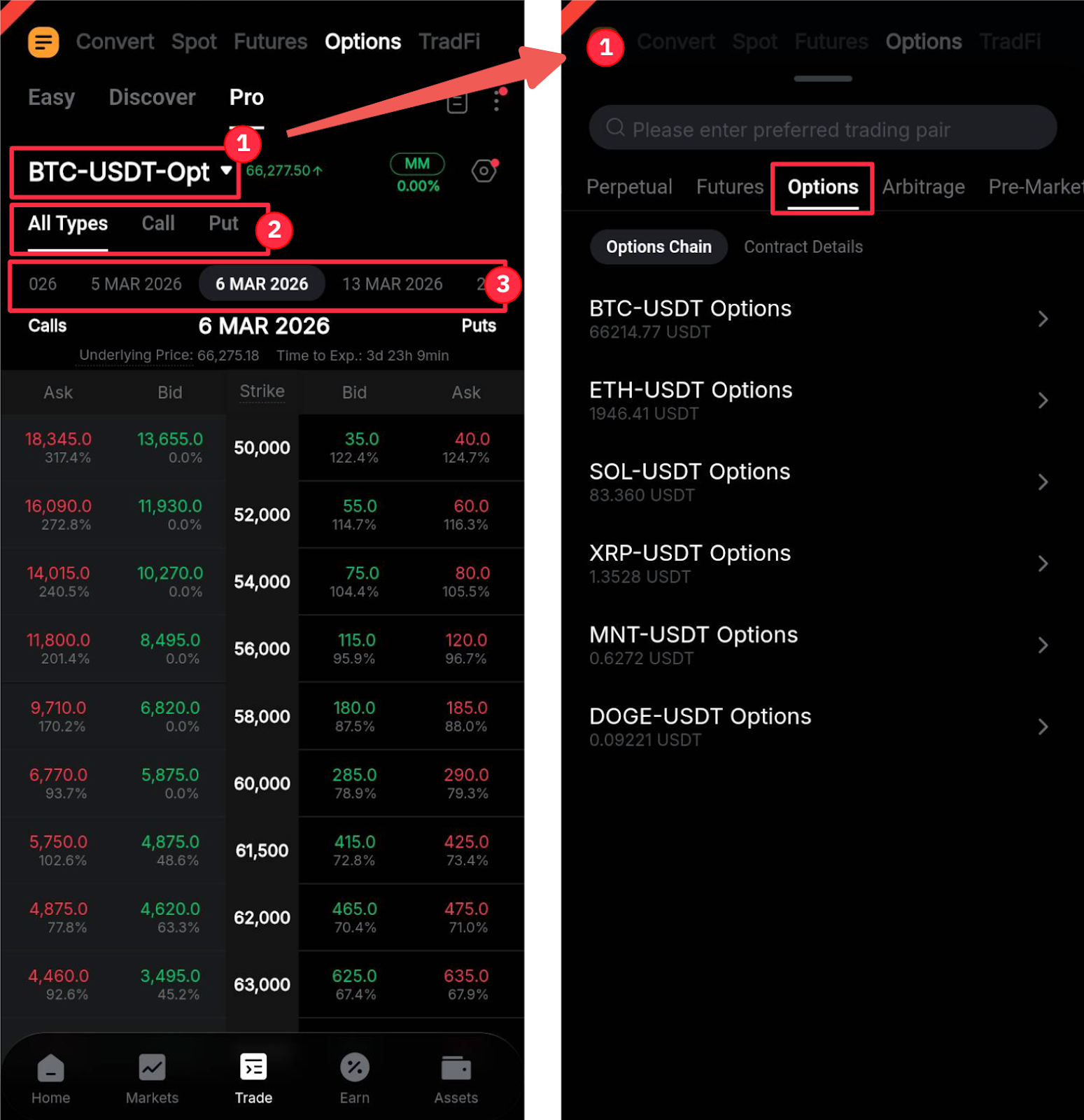
You can also adjust how the Options Chain is displayed:
- All Types: Displays bid and ask prices for both Call and Put Options.
- Call: Displays bid and ask prices for Call Options only.
- Put: Displays bid and ask prices for Put Options only.
To set the contract expiration date, select your preferred date from the horizontal scroll bar.
Trading margin indicators
This section provides an overview of your margin across your Unified Trading Account (UTA), including the initial margin (IM) rate, maintenance margin (MM) rate, margin balance, available balance, and your current margin mode.
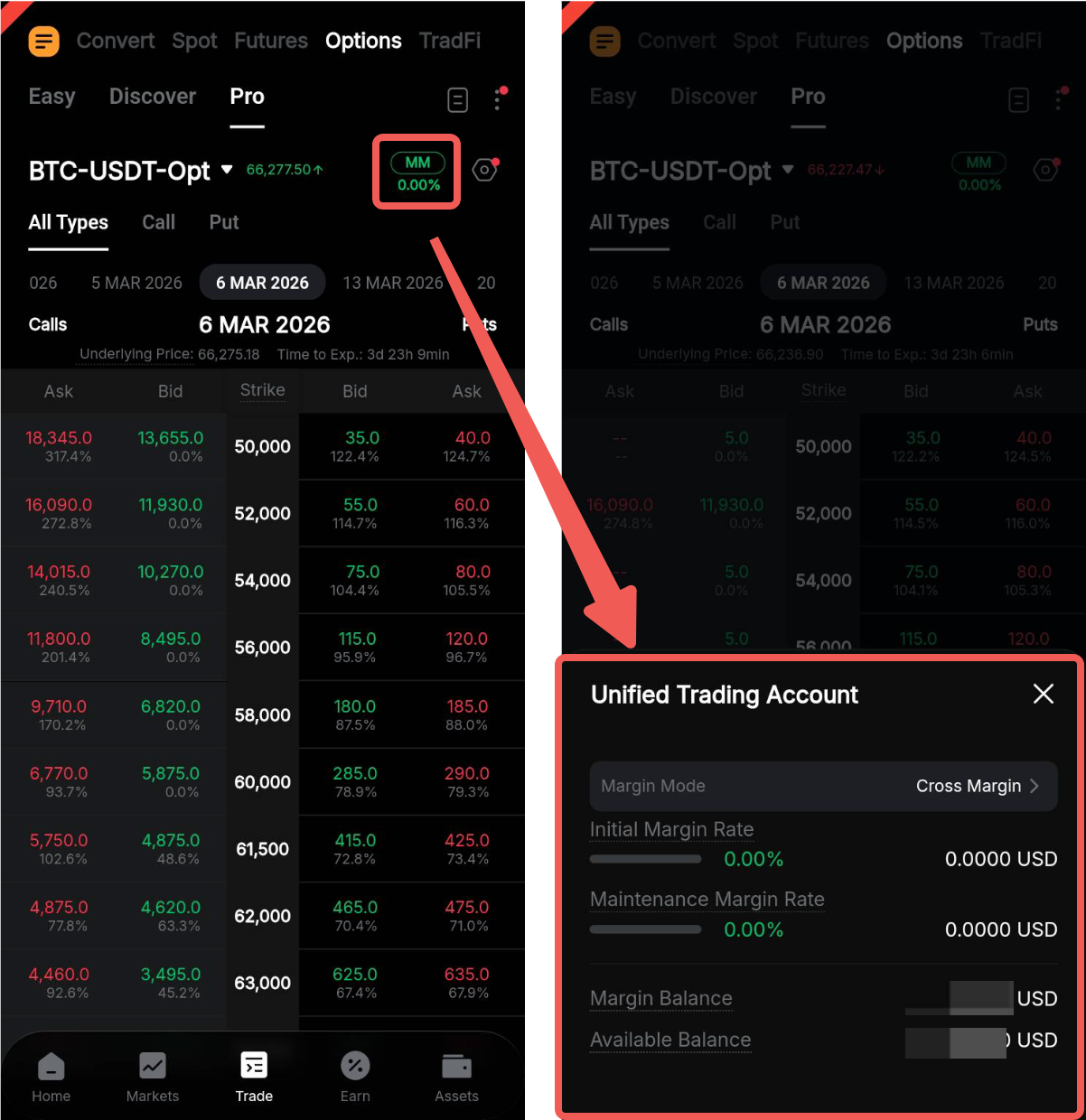
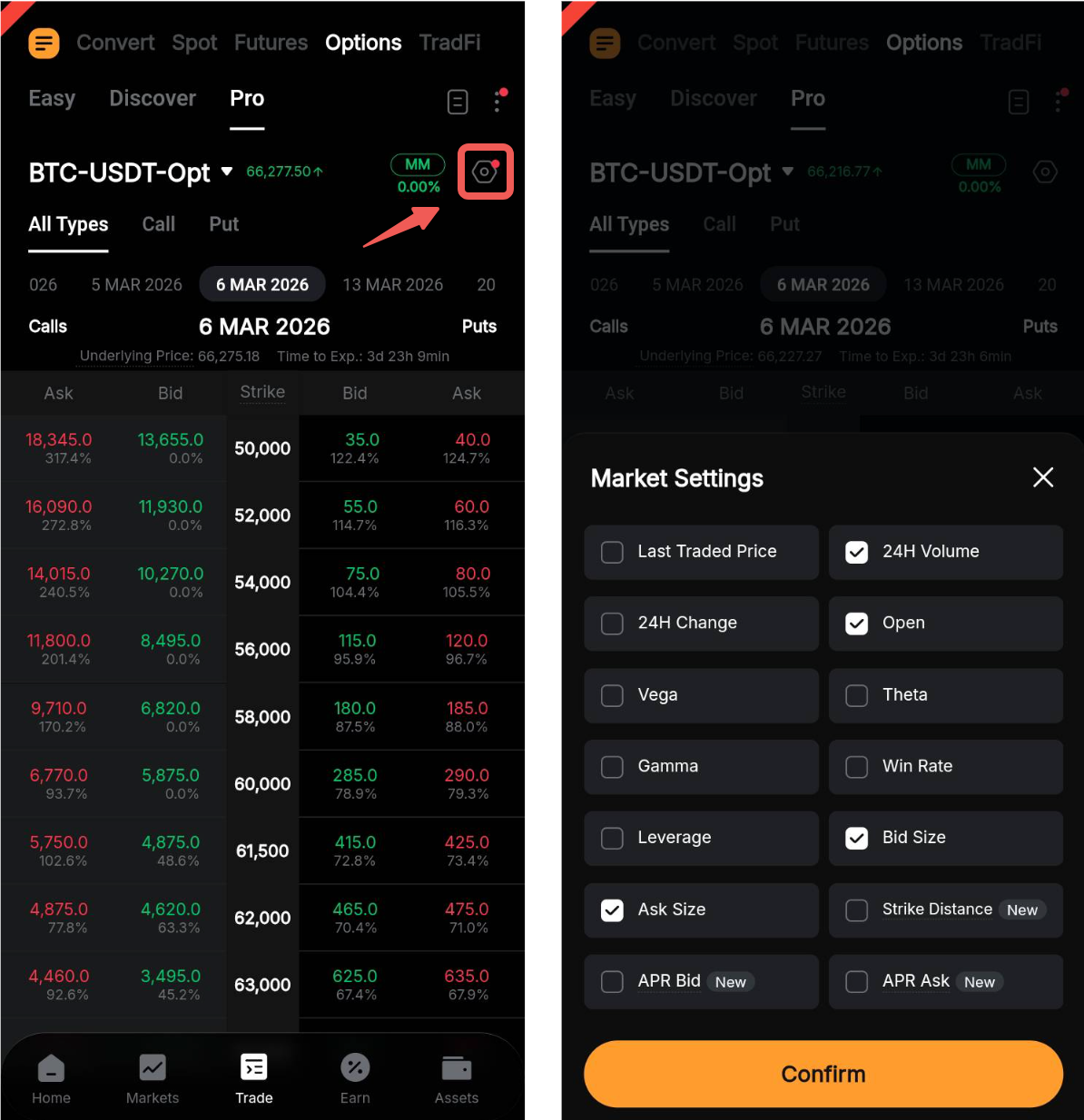
To customize the market settings in your Options Chain, tap the Settings icon and select or deselect the options as needed. Available settings include Last Traded Price, Options Greeks, Strike Distance, APR Bid/Ask, and more.
Read More
- Introduction to Bybit Options
- Initial and Margin Calculation (Options)
- Options Greeks
- Options Trading: Fees Explained
Quick access
You can access additional features to support your Options trading by tapping the Ellipsis icon in the top-right corner of the page.
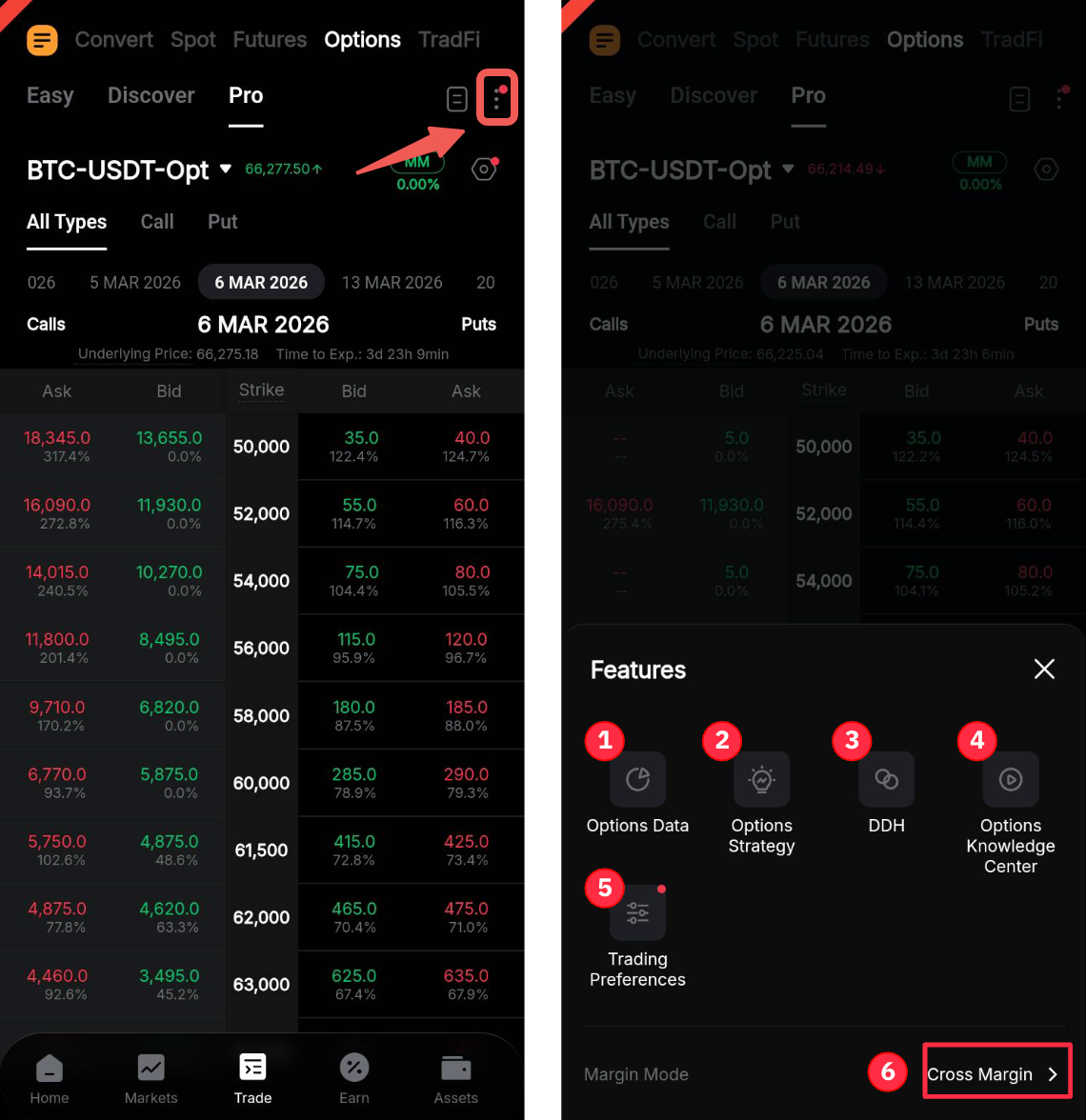
1. Options Data: View the latest data and insights for Options contracts, including Open Interest, Trading Volume, Implied Volatility (IV), and more.
2. Options Strategy: Create Options strategies to trade in both bull and bear markets. For more details, refer to the Options Strategy guide here.
3. DDH: Place a Dynamic Delta Hedge (DDH) order. For more details, refer to this article.
4. Options Knowledge Center: Access educational resources and information about Options trading.
5. Trading Preferences: Adjust your trading preferences and the layout of the Options Chain. You can also enable batch order placement for multi-leg Options orders.
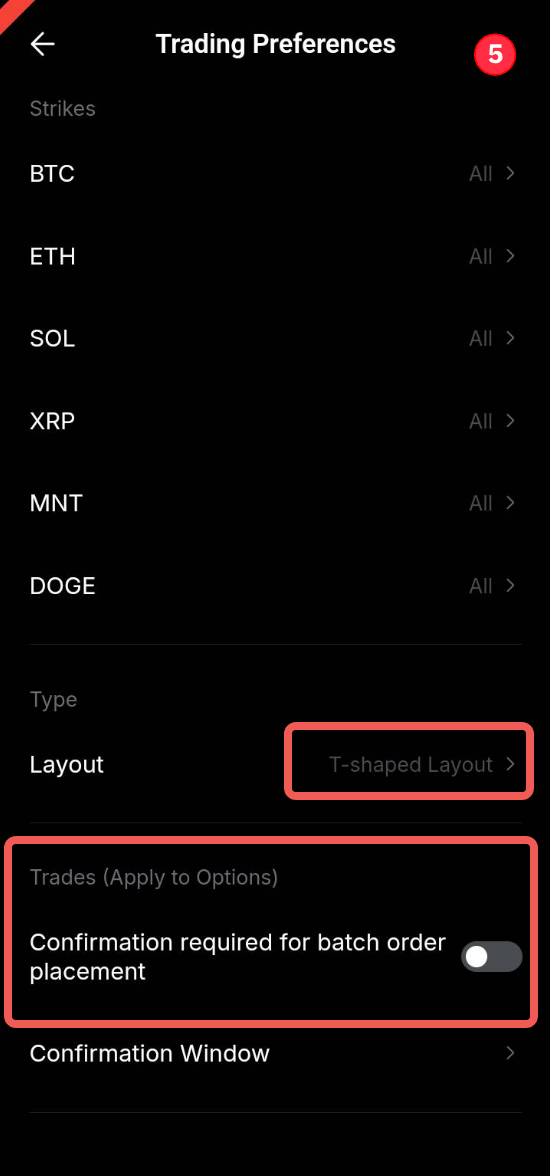
6. Margin Mode: Switch between different margin modes. For more details, refer to this page.
b. Options Chain
This section displays key market information for the selected Options trading pair, including the underlying price, bid/ask prices, strike price, Delta, mark price, and more.
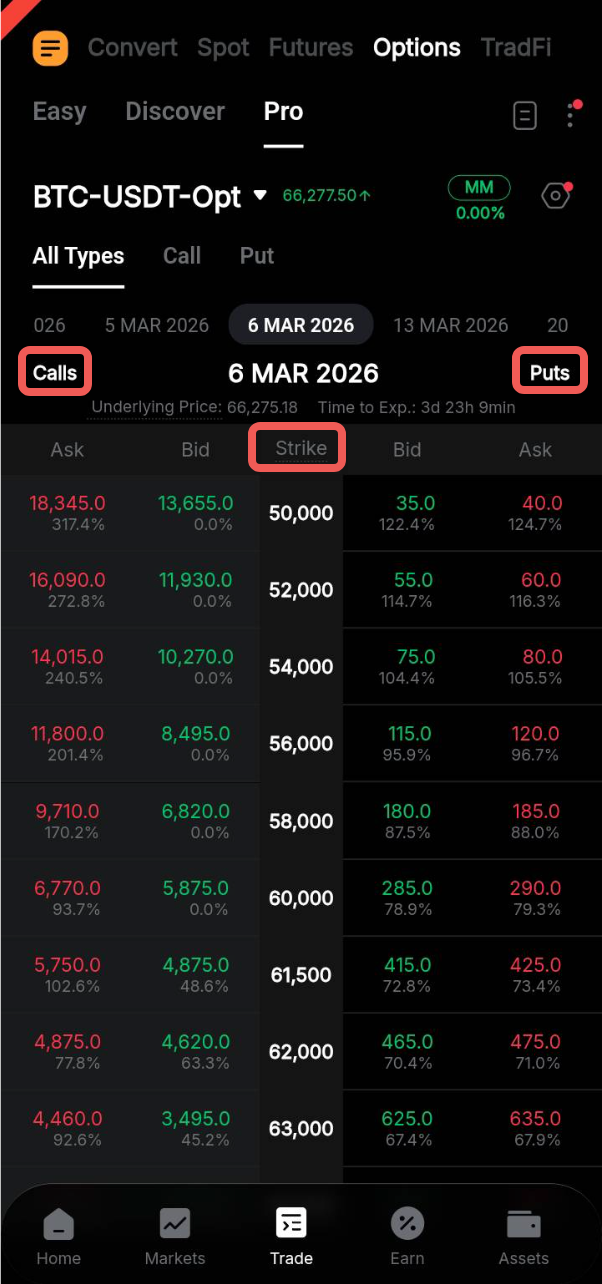
In the default All Types layout, two contract types are available: Calls and Puts. Call Options are displayed on the left side, while Put Options are shown on the right, with the Strike Price listed in the center.
Bybit Options trading supports Buy Call, Sell Call, Buy Put, and Sell Put orders.
Note: The Bid and Ask columns display the prices at which market participants are willing to buy or sell Options contracts.
Place Your Order
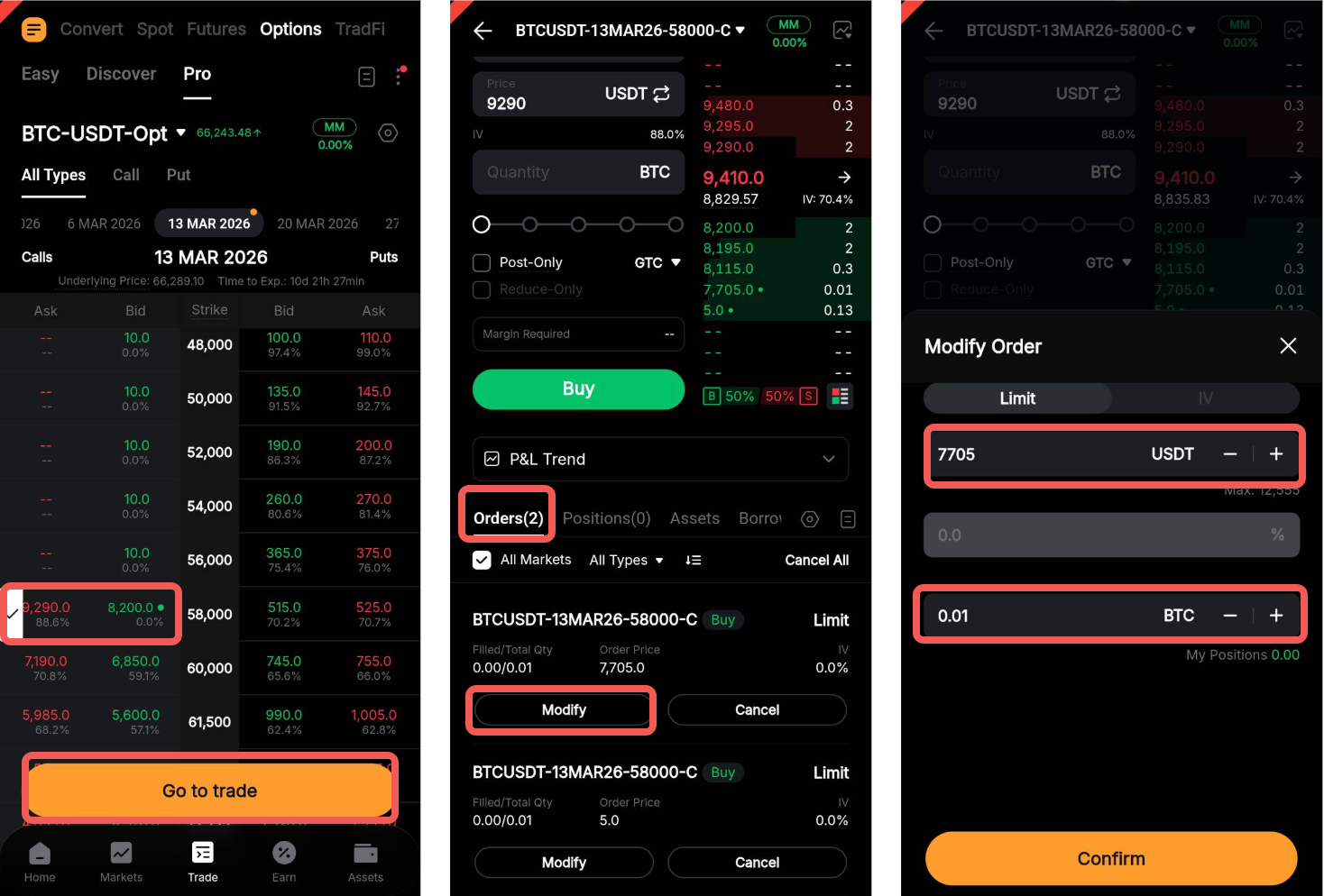
Step 1: On the Options trading page, select your preferred trading pair, expiration date, and other order parameters (if applicable) in the Options Contract Panel.
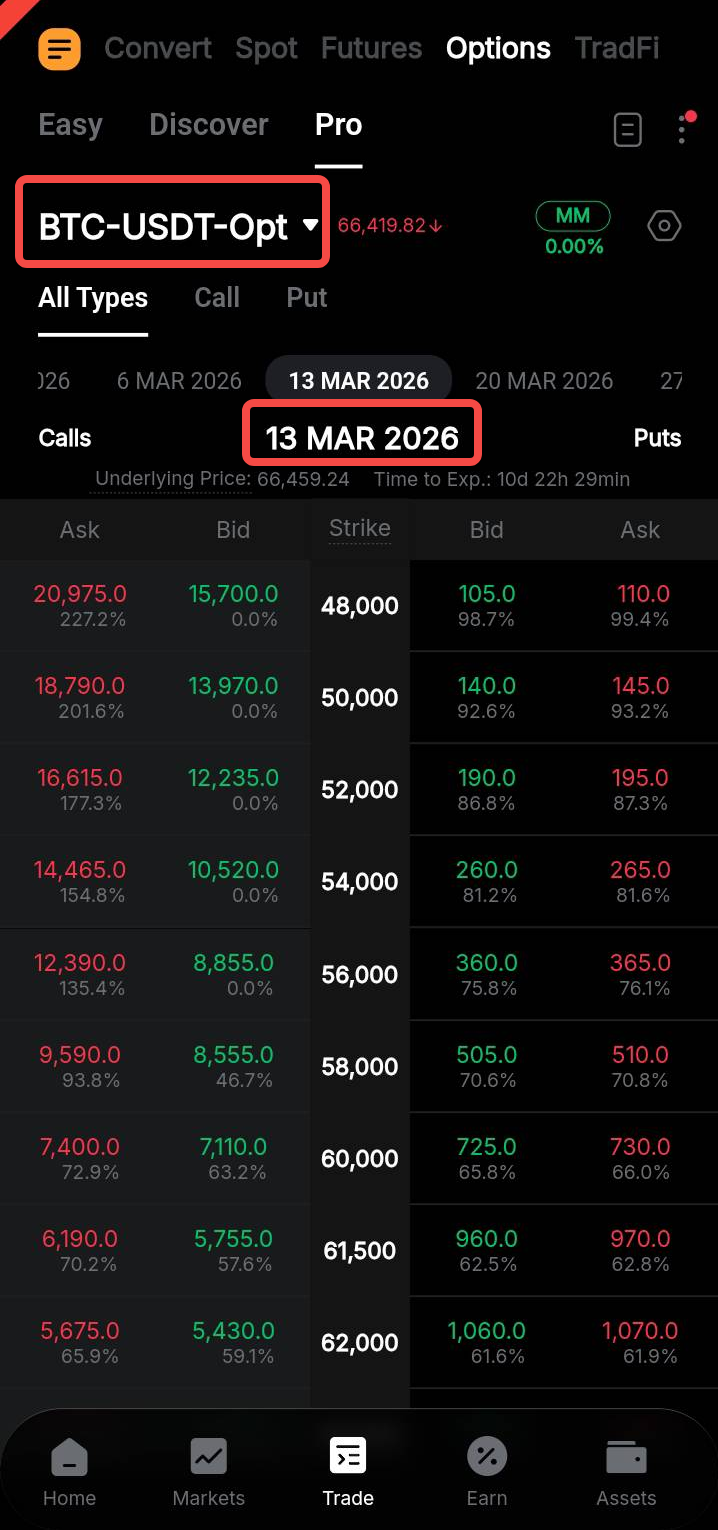
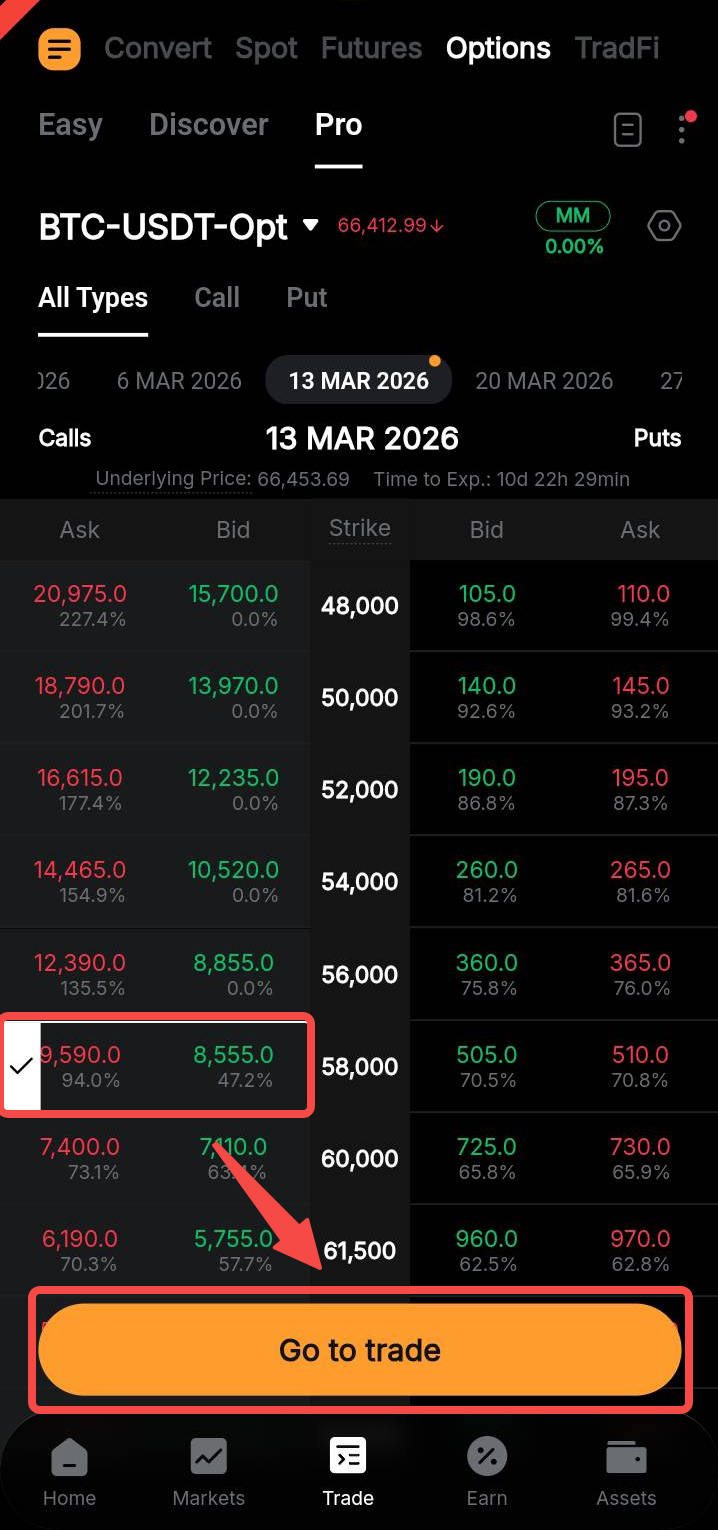
Step 2: Tap a contract on either the left side (Calls) or the right side (Puts) of your desired strike price.
Once selected, tap Go to Trade to open the order placement page.
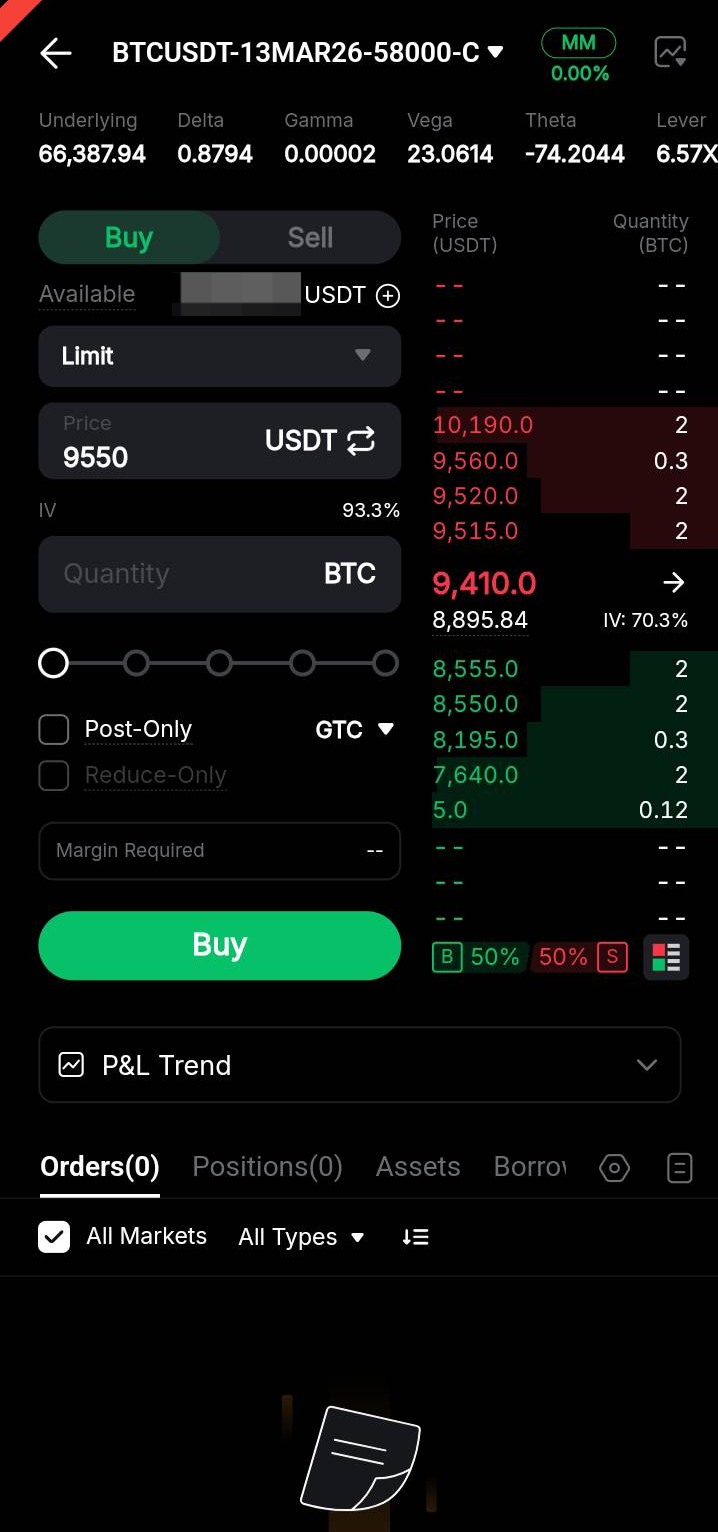
Step 3: On the order placement page, you can view the bid/ask prices and key contract details, such as Implied Volatility (IV), Delta, Gamma, and more.
To view the Mark Price and Index Price charts, tap the Chart icon in the top-right corner of the page. You can also view the potential profit and loss using the P&L Trend below the order zone.
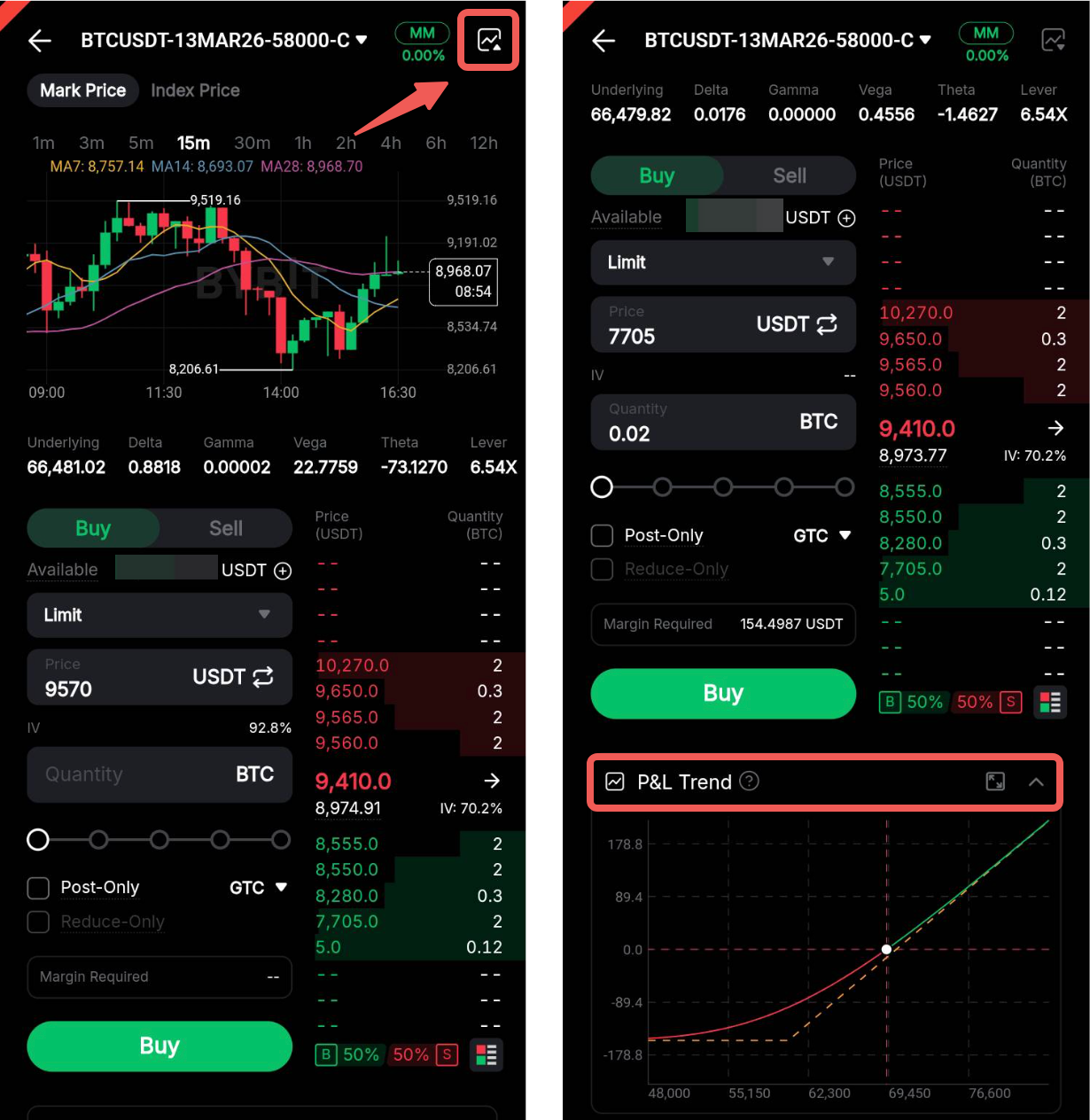
You can access additional information about your orders and trades in the Trade Subpanel below, including Open Orders, Positions, Assets, and Borrowing. To view your Order History and Trade History, tap the History icon in the top-right corner of the panel.
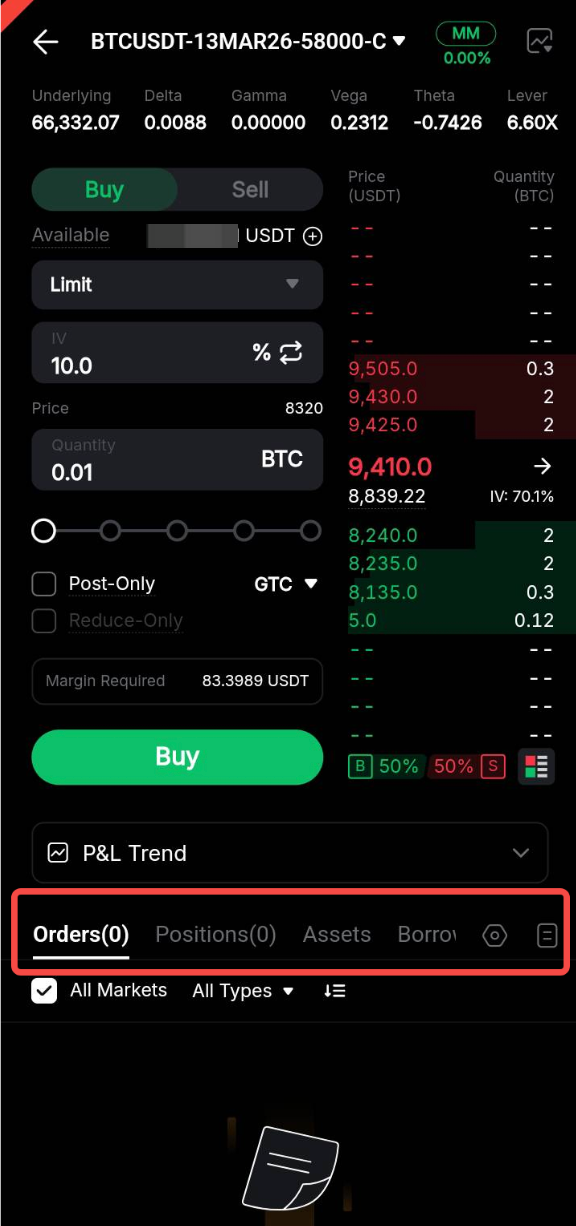
Step 4: Enter the order details to place your Options order.
Set via Limit
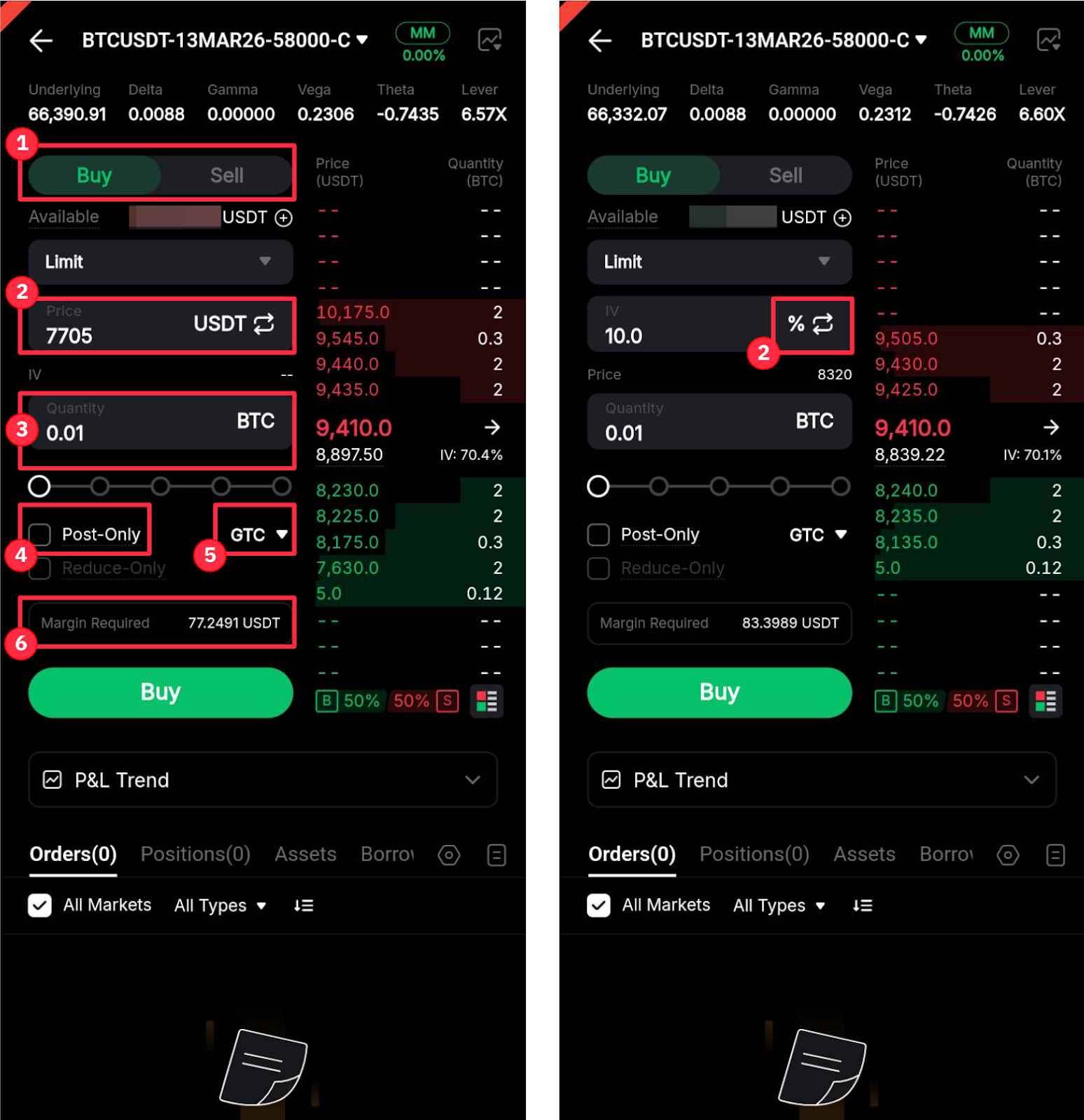
1. Select your trade direction: Buy or Sell.
2. Enter the order price or IV (%). Tap the Switch icon to toggle between the two parameters.
Note: The IV (%) represents the annualized expected volatility of the underlying asset (future volatility). When an order is placed based on IV, the Options price adjusts with changes in the underlying price and time to expiration.
3. Enter the quantity.
4. Select Post-Only (optional).
5. Choose your Time in Force strategies (optional).
6. The required margin will be calculated automatically after you enter the price/IV and quantity.
Set via Market
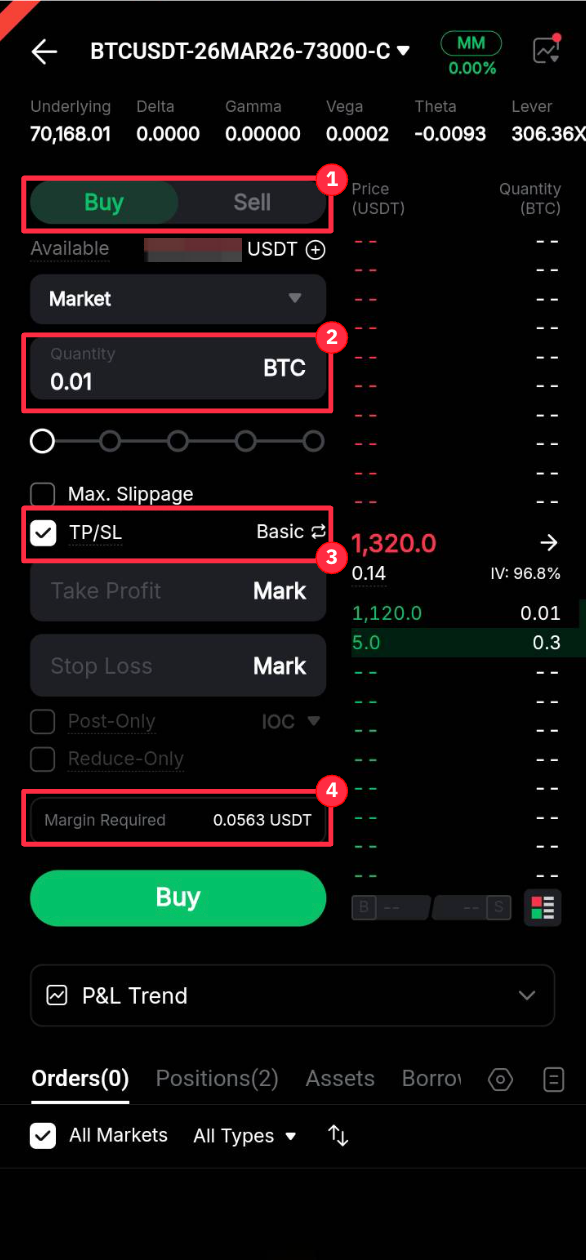
1. Select your trade direction: Buy or Sell.
2. Enter the quantity.
3. Set TP/SL (optional).
4. The required margin will be calculated automatically based on the entered quantity.
Step 5: Tap Buy, review the order details in the confirmation window, then tap Buy again to proceed.
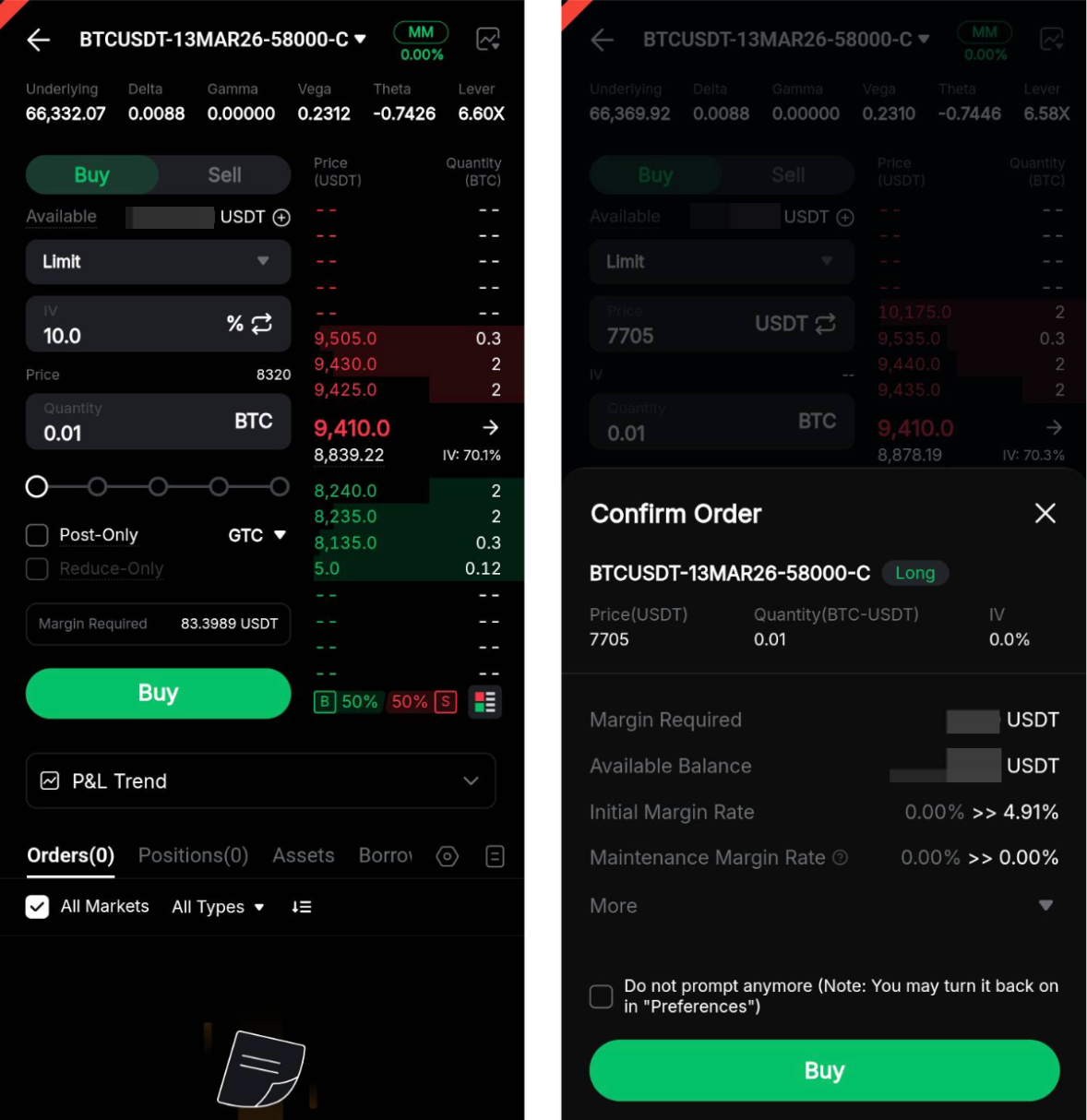
Your Options order has been submitted successfully.
Modify or Cancel Your Order
Via Order Placement
Go to the Orders tab in the Trade Subpanel. Tap Modify for the relevant order to update the order parameters, including Order Price or IV (%) (depending on the parameter selected during order placement), as well as the contract quantity.
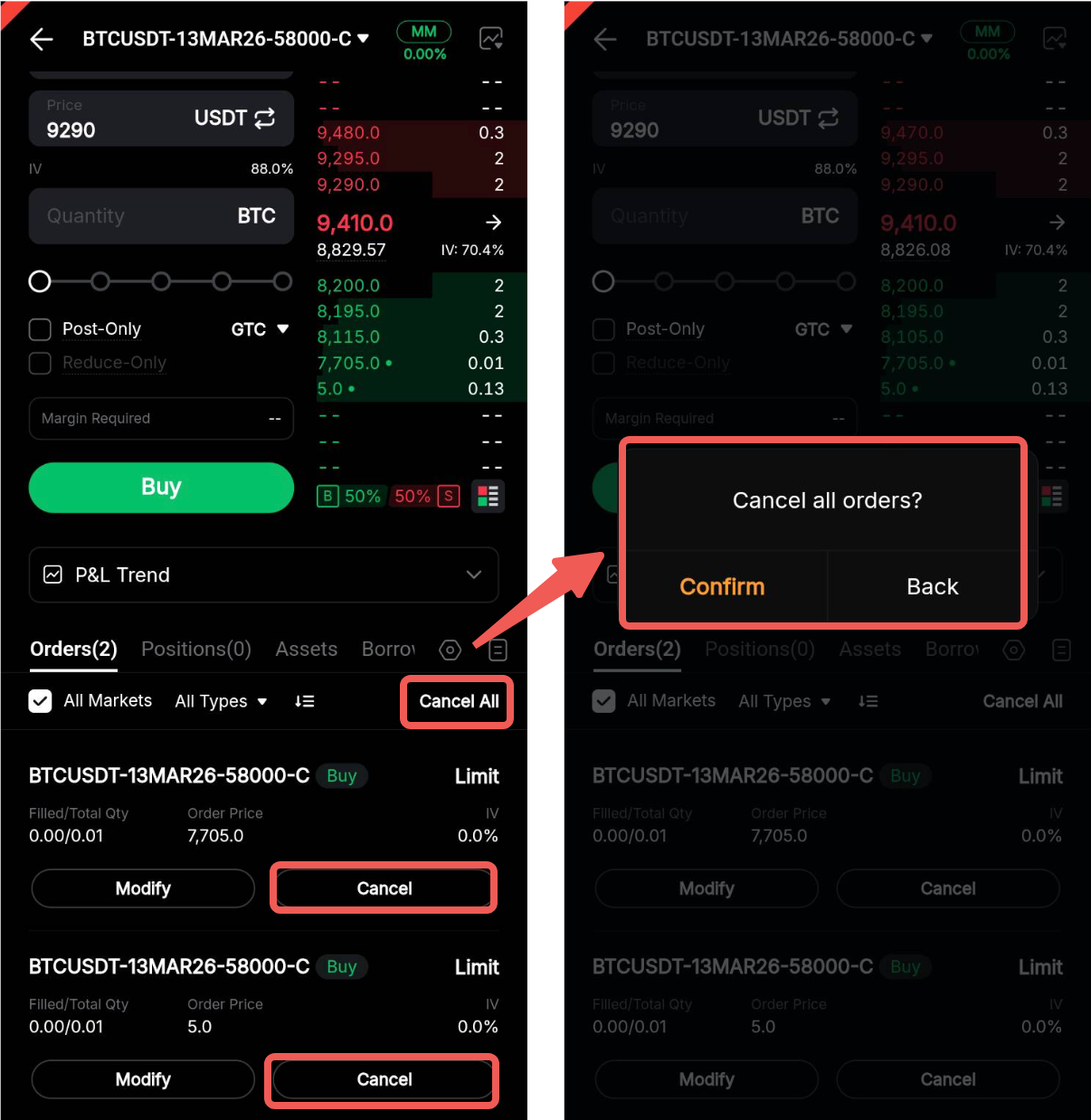
To cancel an order, tap Cancel for the selected order, or tap Cancel All to cancel all open orders.
Via the Options Chain
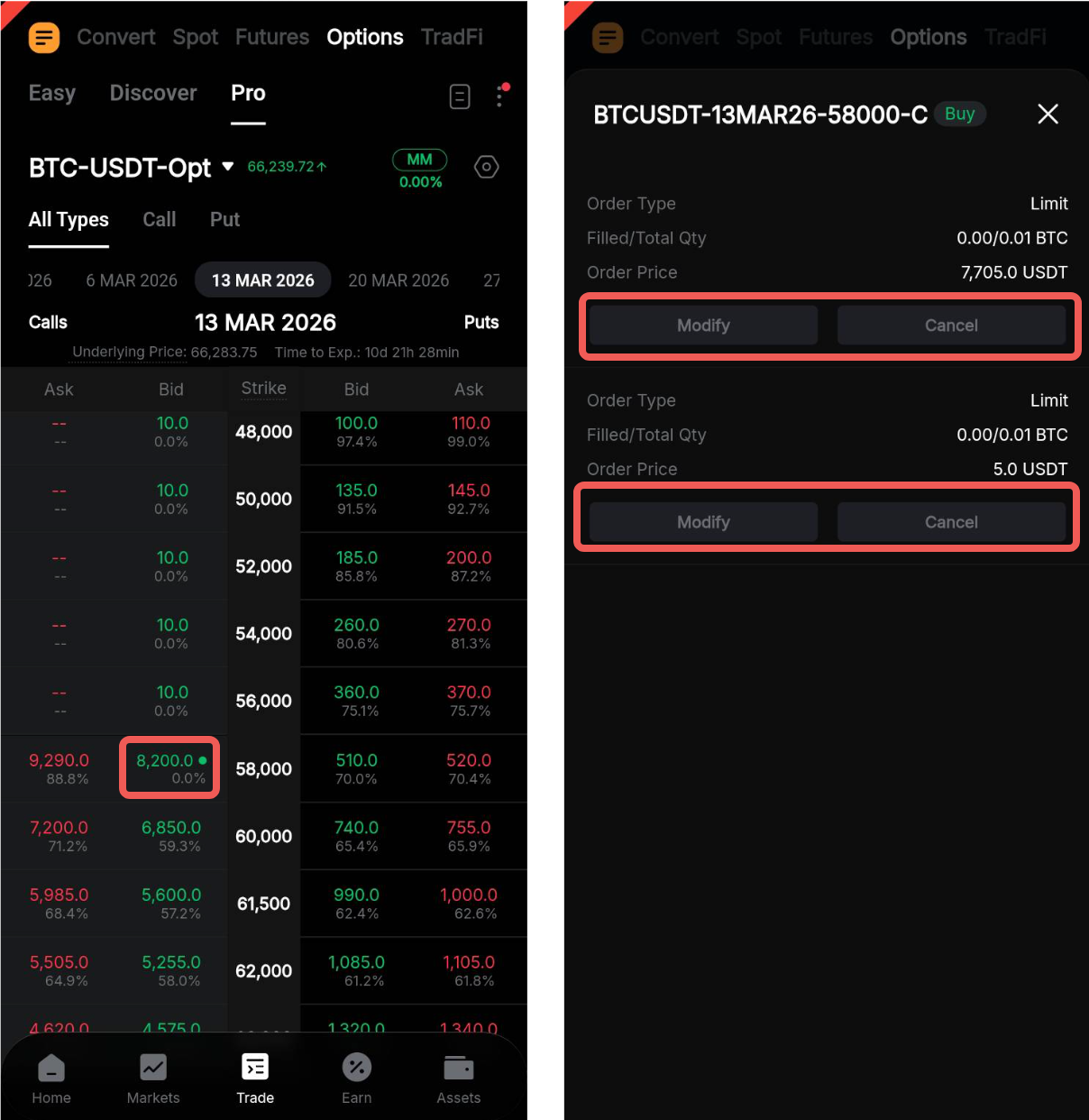
To modify or cancel your limit Options order directly from the Options Chain, tap the relevant best Bid/Ask price indicated by a small dot. Then, select Modify or Cancel as needed.
Via All Orders Page
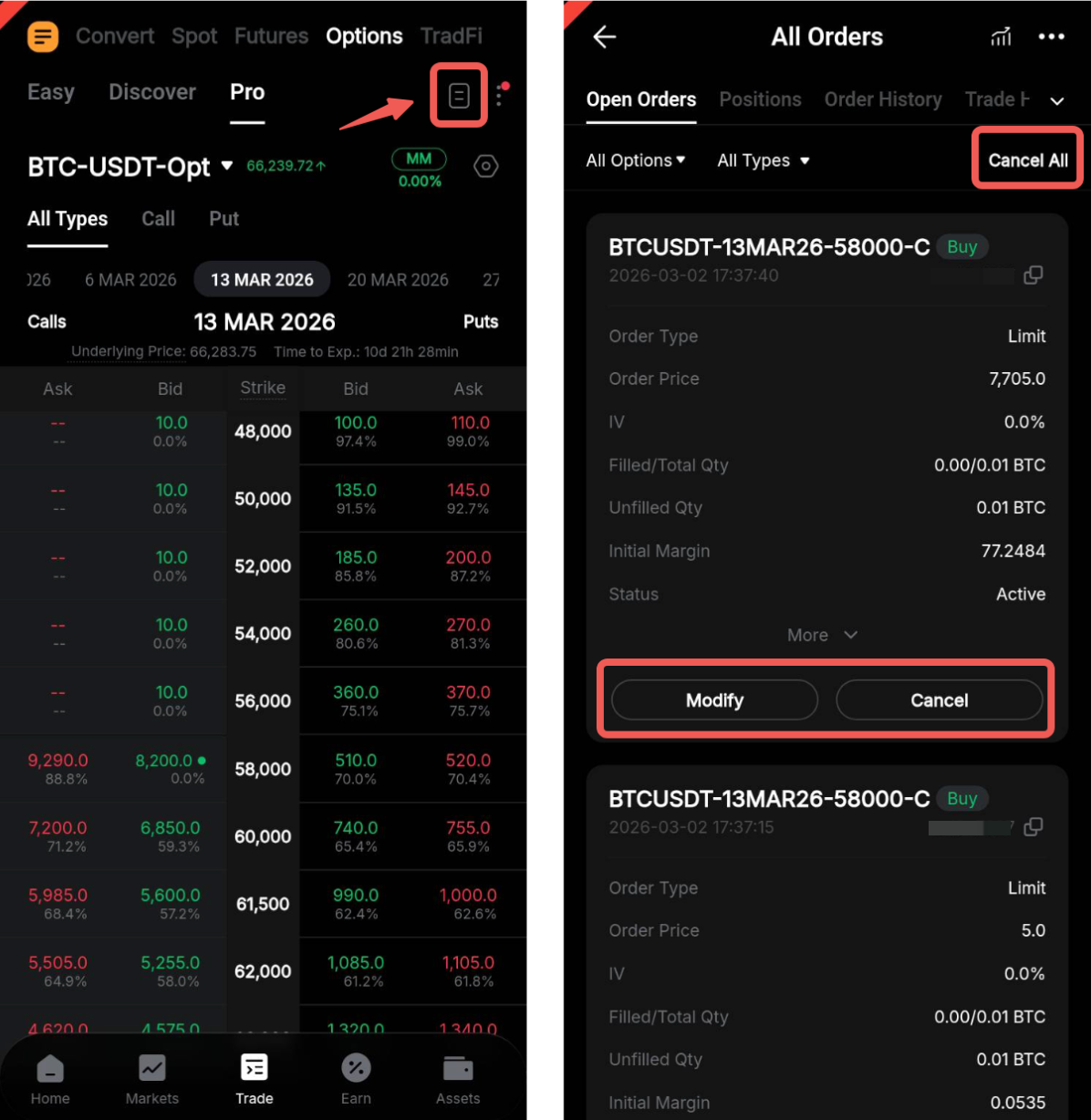
Tap the History icon in the top-right corner of the page. If you have no active Options positions, you will be automatically redirected to the Open Orders tab. Otherwise, switch to the Open Orders tab and filter the list to All Options, if needed.
From there, you can select Modify, Cancel, or Cancel All as needed.
Set Take Profit / Stop Loss (TP/SL)
Bybit Options supports Take Profit (TP) and Stop Loss (SL) orders to help you manage risk.
Currently, TP/SL orders for Options are only available for market orders and are not supported for limit orders.
You can set TP/SL orders using the following trigger methods:
- By ROI (%): Triggered based on the return on investment percentage of the position.
- By Change (%): Triggered based on the percentage change in the Options price.
- By P&L: Triggered based on the profit or loss amount of the position.
Notes:
— By default, the trigger price is based on the Mark Price.
— TP/SL orders help manage risk but do not guarantee execution price. Due to market volatility and liquidity conditions, slippage may occur, and execution is not guaranteed.
— Once triggered, TP/SL orders will close the entire position. Partial position closure is currently not supported for Options TP/SL.
To ensure your TP/SL orders work correctly, please note the following:
For Buy (Long) positions:
- The Take Profit price must be higher than the Mark Price.
- The Stop Loss price must be lower than the Mark Price.
For Sell (Short) positions:
- The Take Profit price must be lower than the Mark Price.
- The Stop Loss price must be higher than the Mark Price.
a. Add TP/SL upon order creation
Step 1: During order placement, enter your order quantity and select the TP/SL option in the order panel.
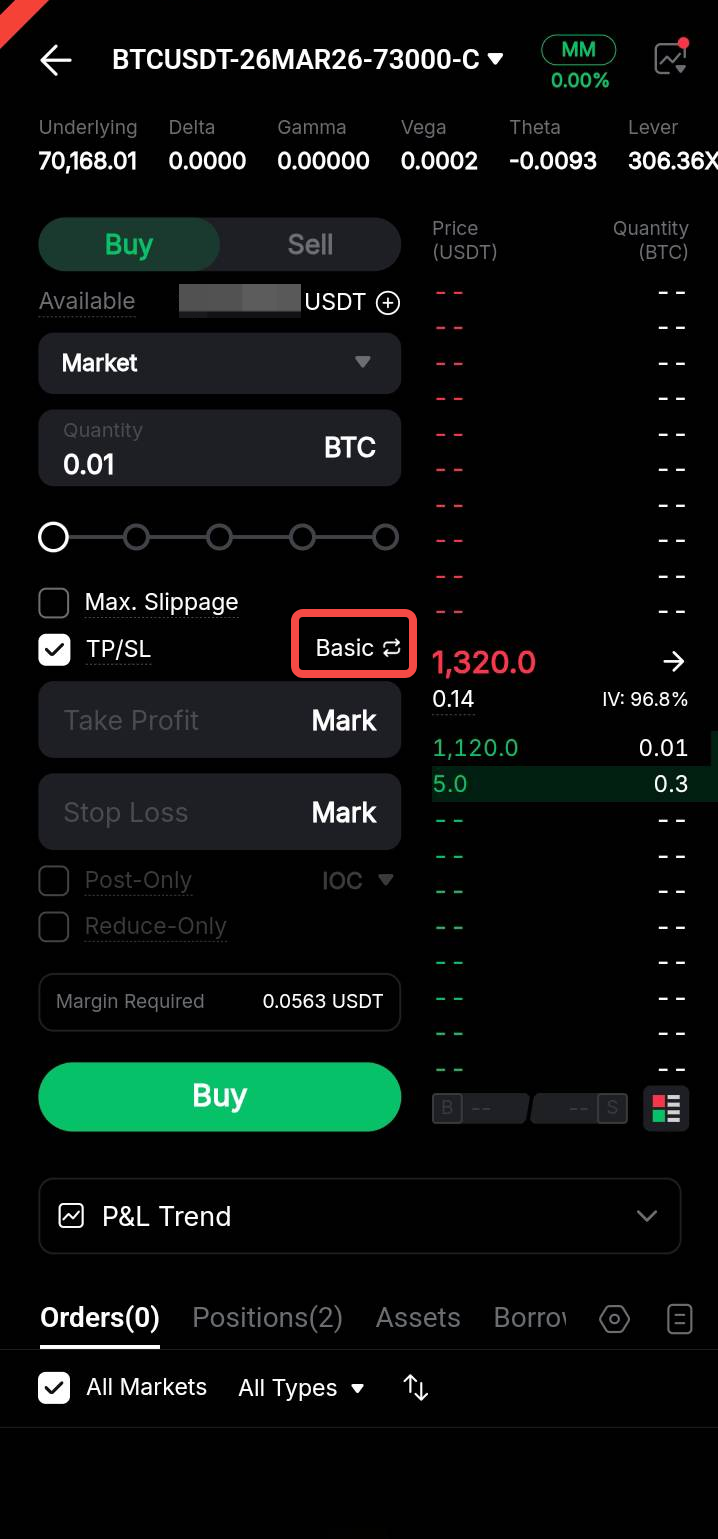
Note: TP/SL orders currently support market orders only.
Step 2: Choose between Basic Mode and Advanced Mode when setting your TP/SL:
- Basic Mode: Set the trigger price based on the Mark Price.
- Advanced Mode: Set trigger conditions by ROI (%), Price Change (%), or P&L.
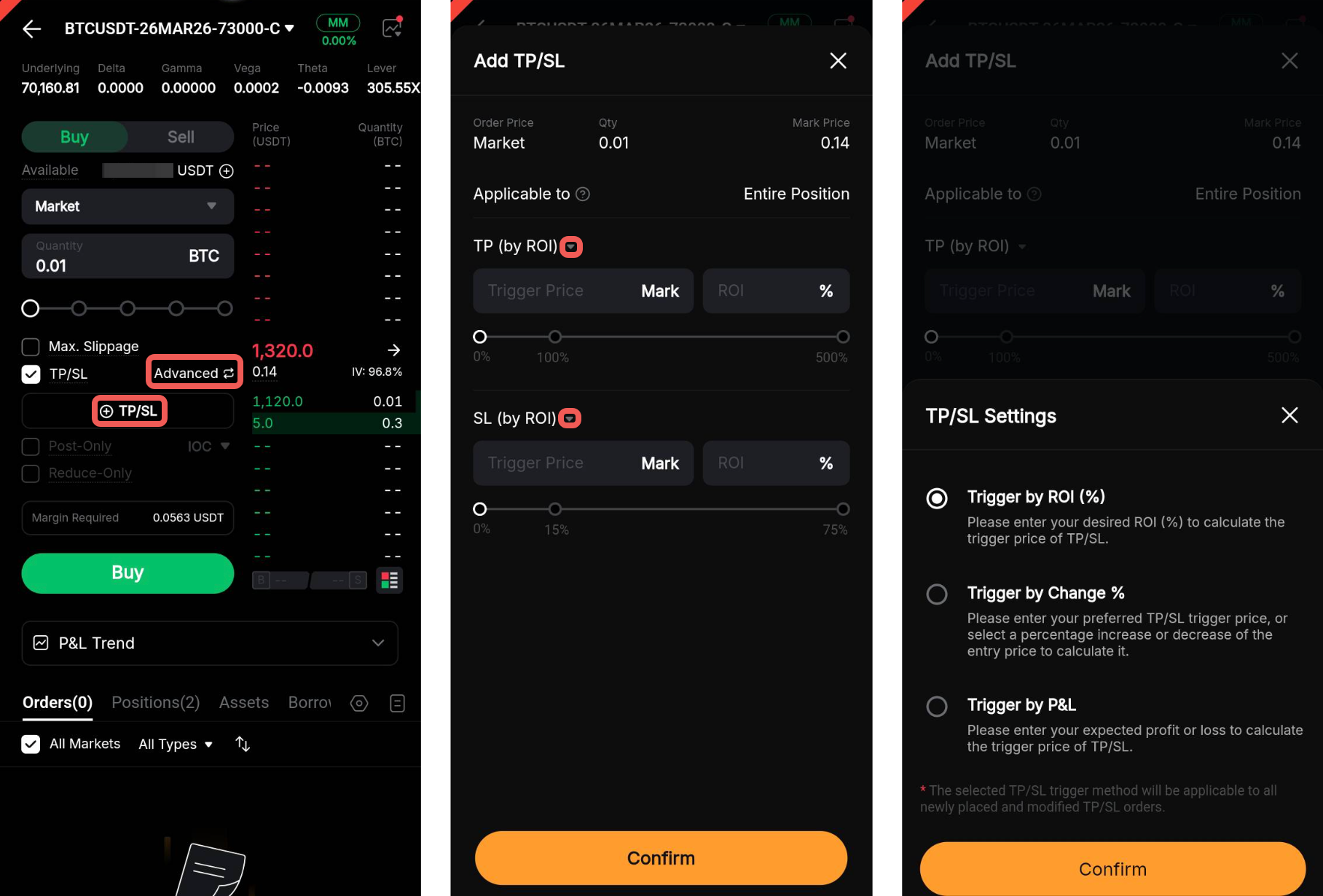
Step 3: Tap Confirm to proceed.
b. Add TP/SL to an open position
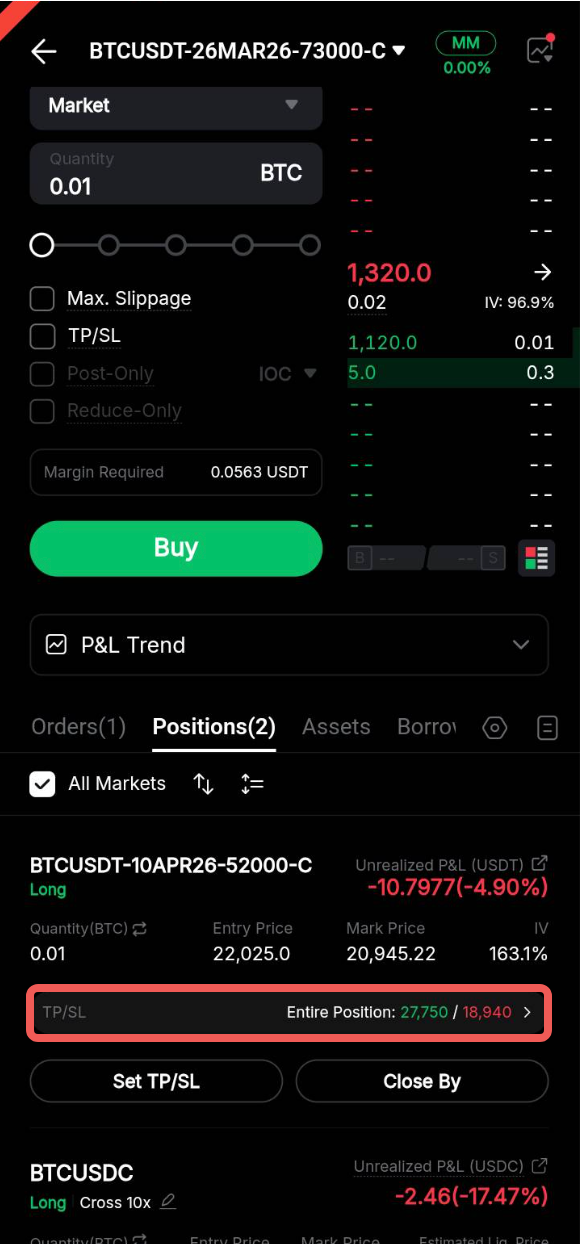
Step 1: Under Positions, tap the TP/SL for your open position.
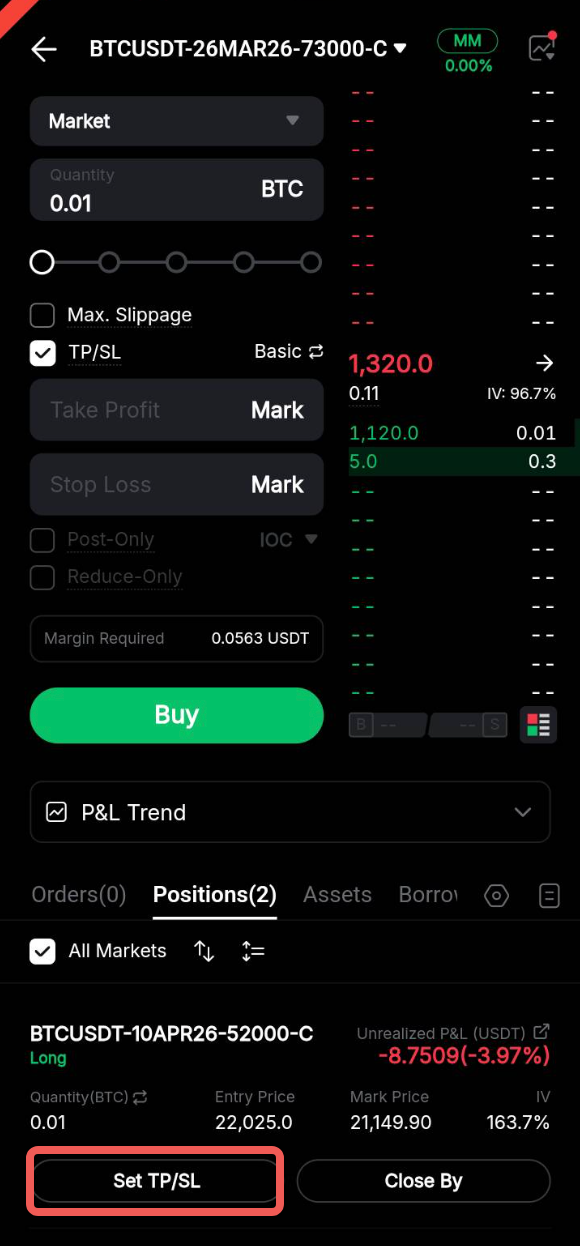
Step 2: Select your preferred TP/SL trigger mode: By ROI (%), By Change (%), or By P&L.
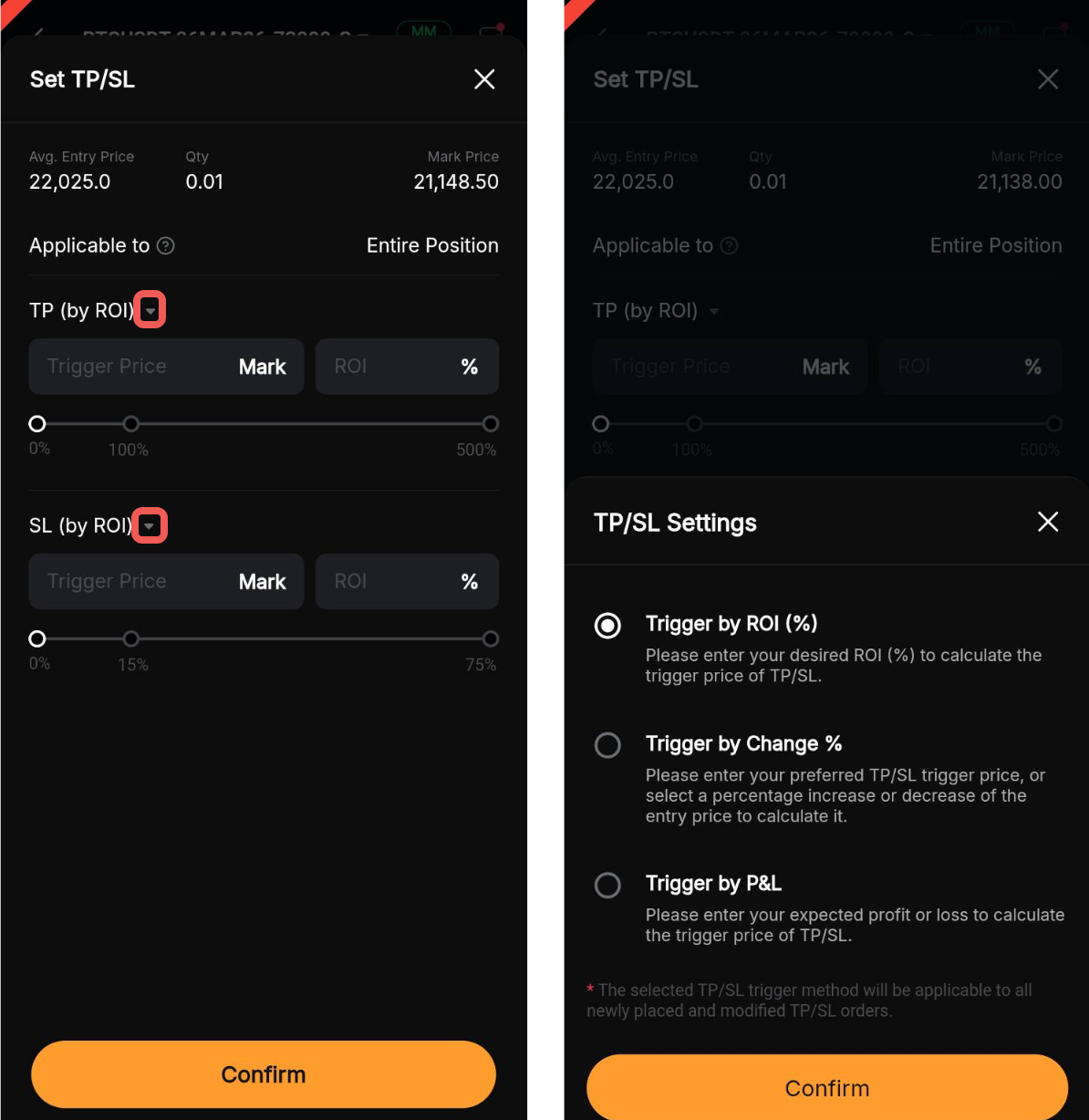
Step 3: Tap Confirm to proceed.
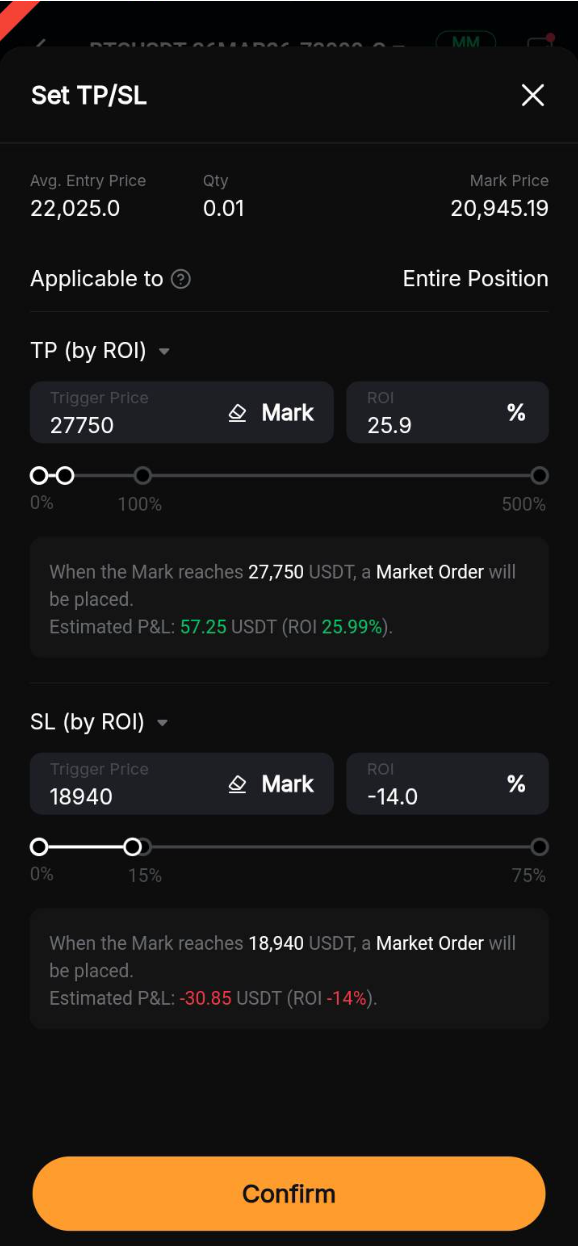
c. Modify Your TP/SL Order
Step 1: Under Positions, tap the TP/SL for your open position.
Step 2: In the Modify TP/SL window, update the TP/SL parameters as needed, then tap Confirm.
Close Your Open Positions
You can close your open positions in the following ways:
Via the Positions Tab
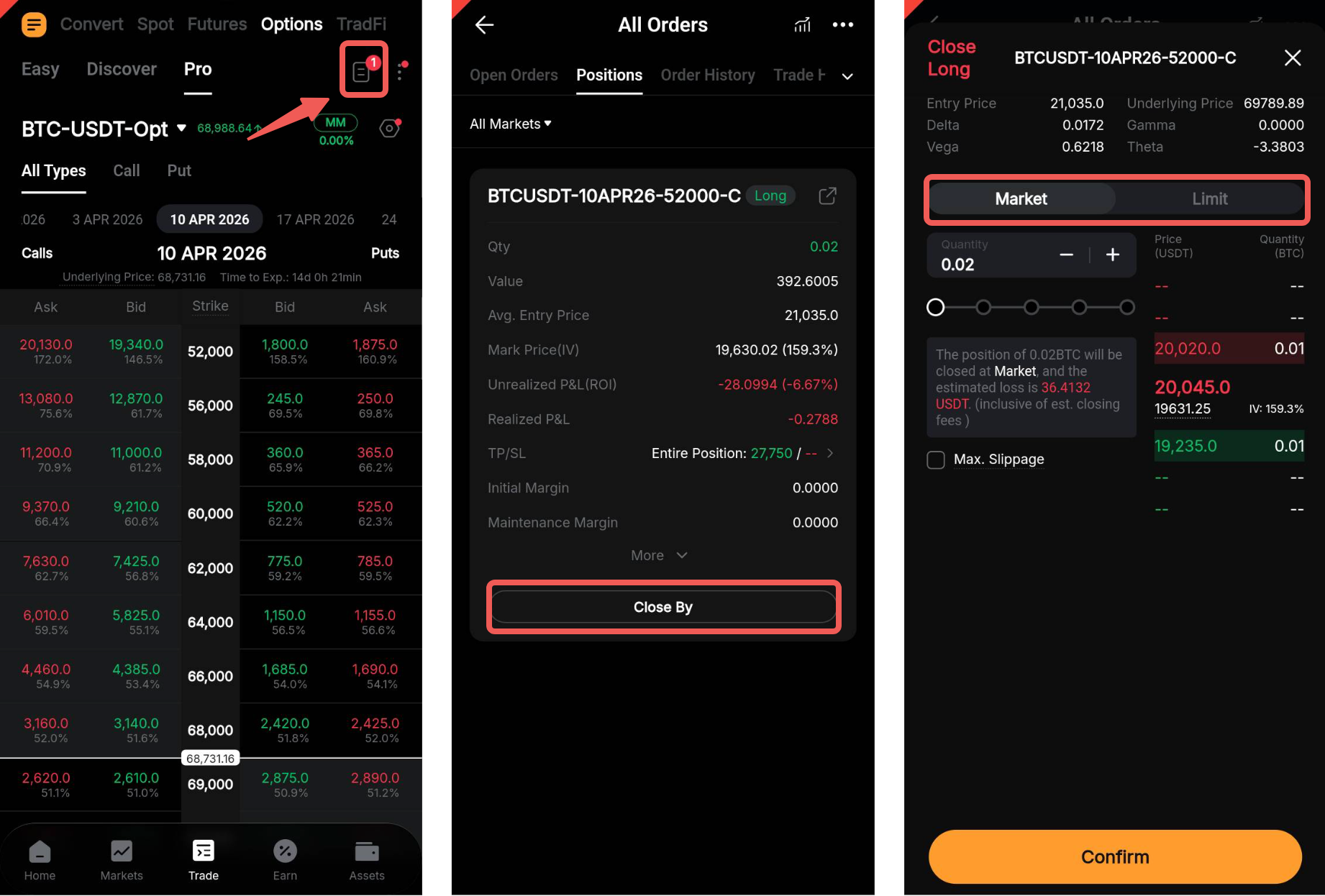
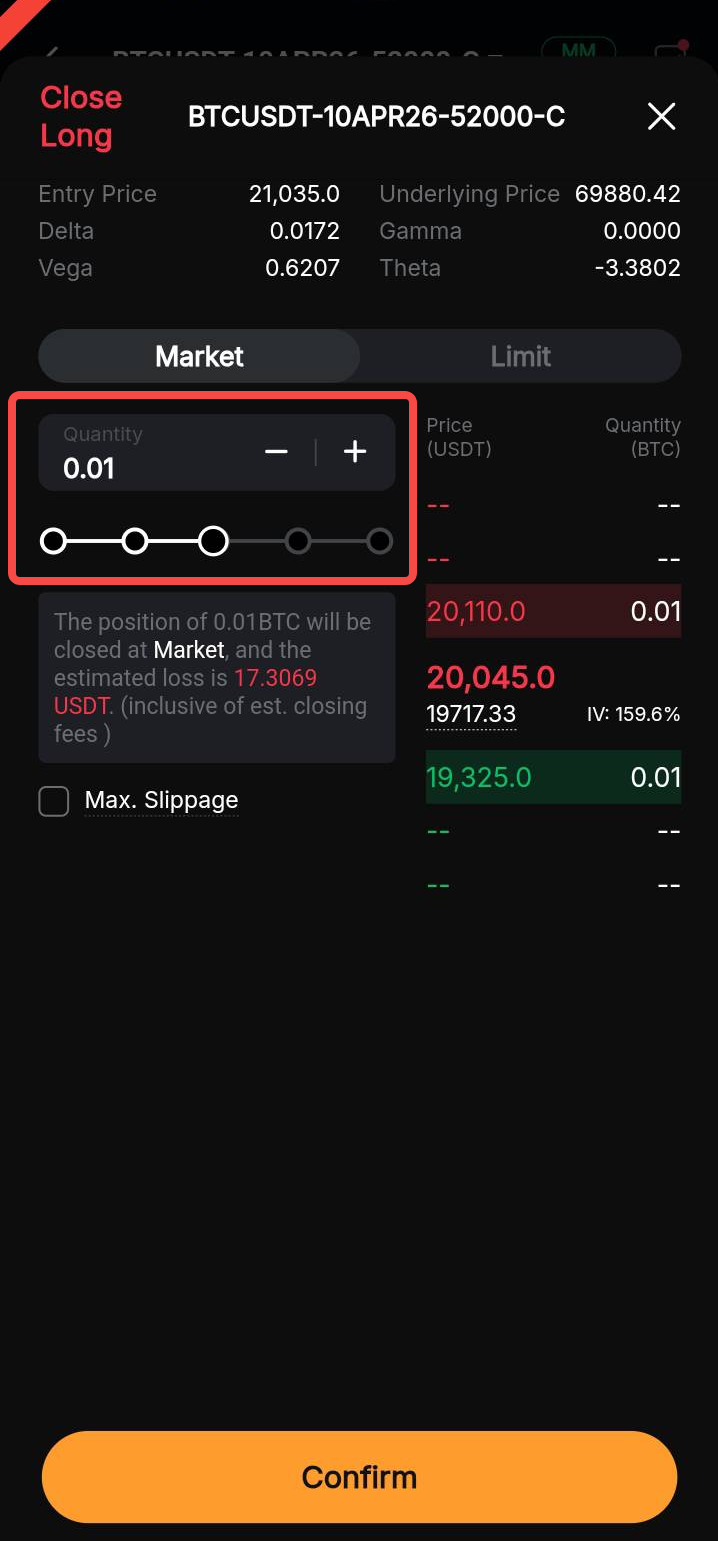
The number of active positions is indicated by the History icon on the Options Chain page. Tap the icon to access the All Orders page, then select Positions → Close By. From there, choose either Limit or Market.
Alternatively, on the order placement page, go to the Positions tab. Tap Close By for the desired position and select either Limit or Market.
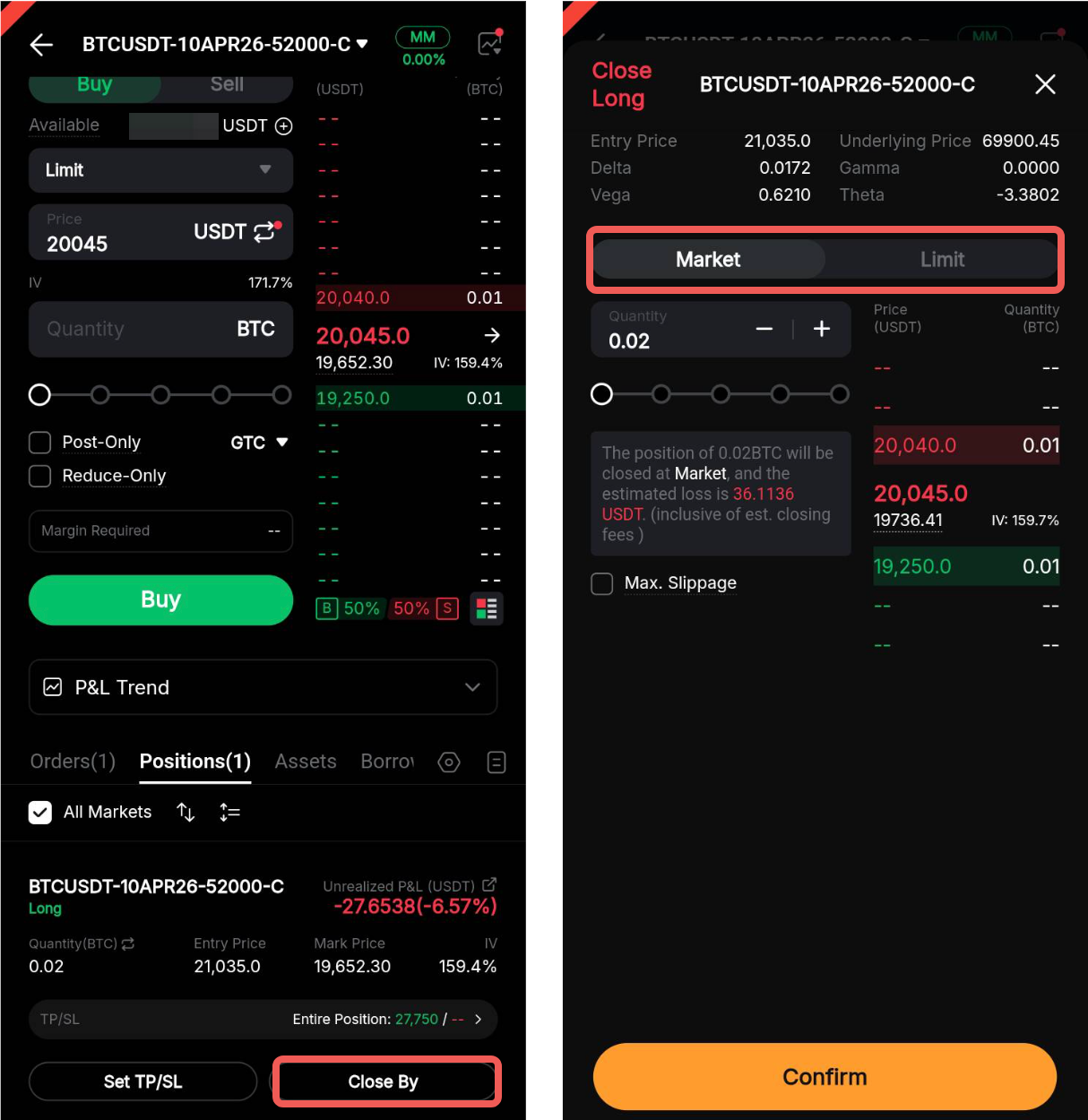
To partially close a position, adjust the quantity using the slider or input field. Please note that partial closing is only available if your position size exceeds the minimum order quantity.
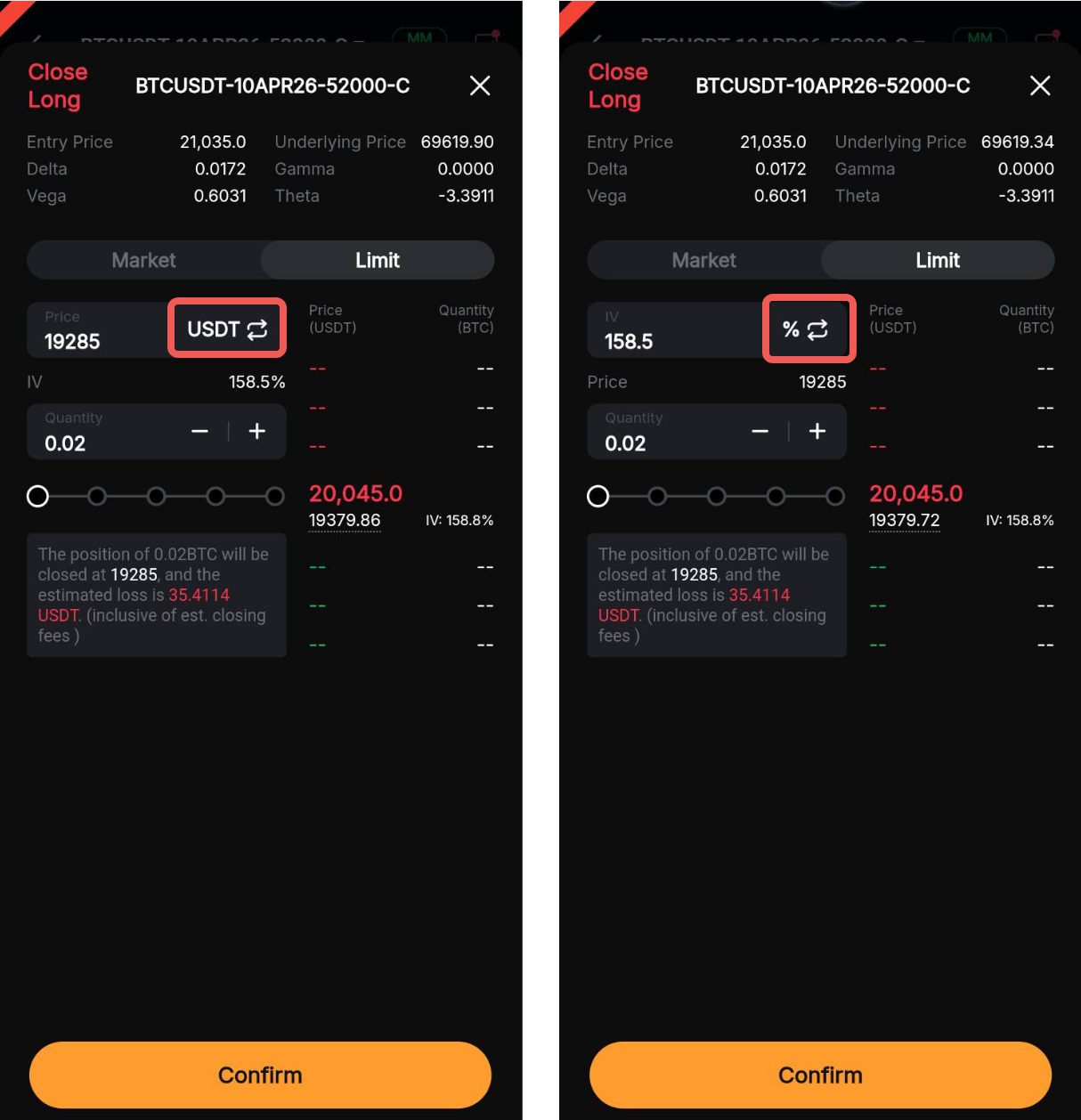
For limit close orders, you can also set the trigger condition based on Order Price or IV (%).
Via Order Placement (Opposite Position)
You can close an open position or reduce its size by placing a new order in the opposite direction, using the same Options contract (i.e., the same order type, expiration date, and strike price).
For example, if you have an active Buy Call position of 1 BTCUSDT-24FEB26-62000-C, you will need to place a Sell Call order for 1 BTCUSDT-24FEB26-62000-C to fully close the position.
To avoid opening an unintended position in the opposite direction, you can enable Reduce-Only when placing a closing order.
Notes:
— Options contracts are exercised at 8AM UTC on the settlement date. You will not be able to place closing orders during the settlement process.
— Under extreme market conditions, limited liquidity may prevent your closing order from being executed.