To make the most of your trading experience on Bybit, it is important to understand the different trade settings you can configure for your account before starting trading.
Please find below the various settings to consider to set up your orders.
In Account Settings
You can access some of the Trade Settings by simply clicking on your Profile Picture → Preference Settings to access the Trade Settings.
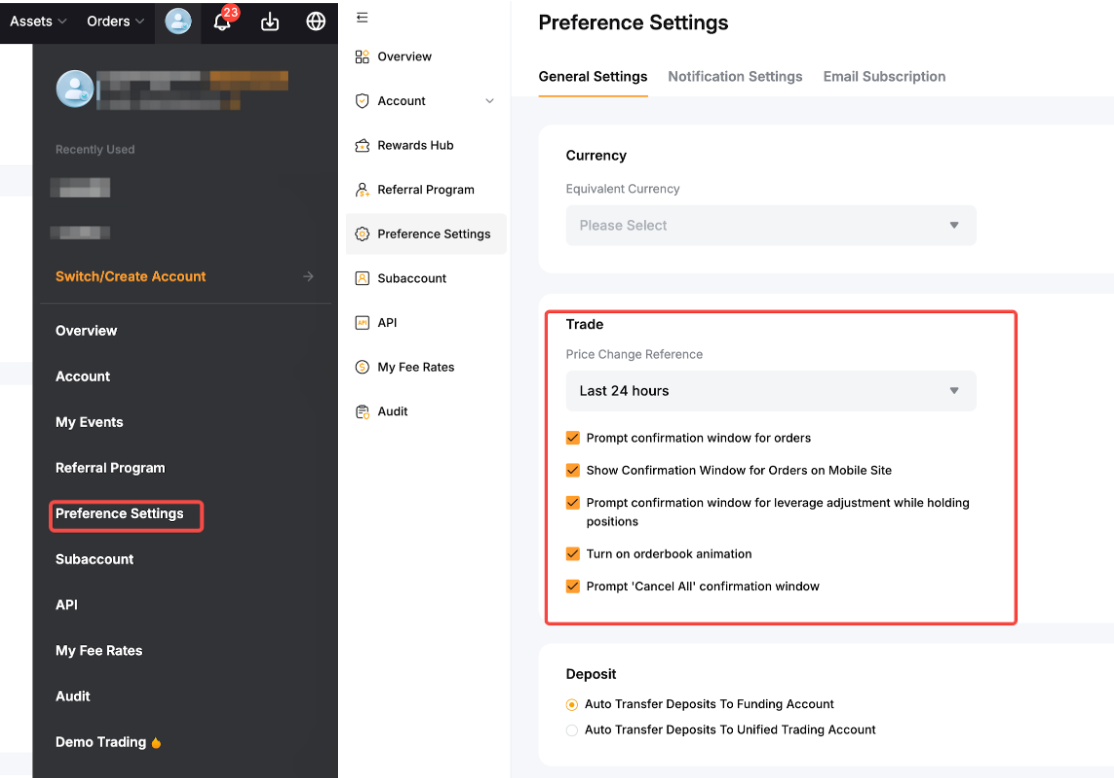
From this page, you can activate and deactivate the different confirmation windows available when handling orders. It is recommended to keep most if not all of the confirmation window to ensure you do not place an order or make changes by accident.
You can also decide the timezone and calculation for the price changes visible in the trading pages as well as the orderbook animation. However, please note that orderbook animation can be turned off if you prioritize speed and would like to optimize your trading experience on Bybit.
In the Trading Page
The Settings in the trading pages will offer more options for your trading activities. To access the Settings menu, simply click on the Settings icon on the top right corner of the page.
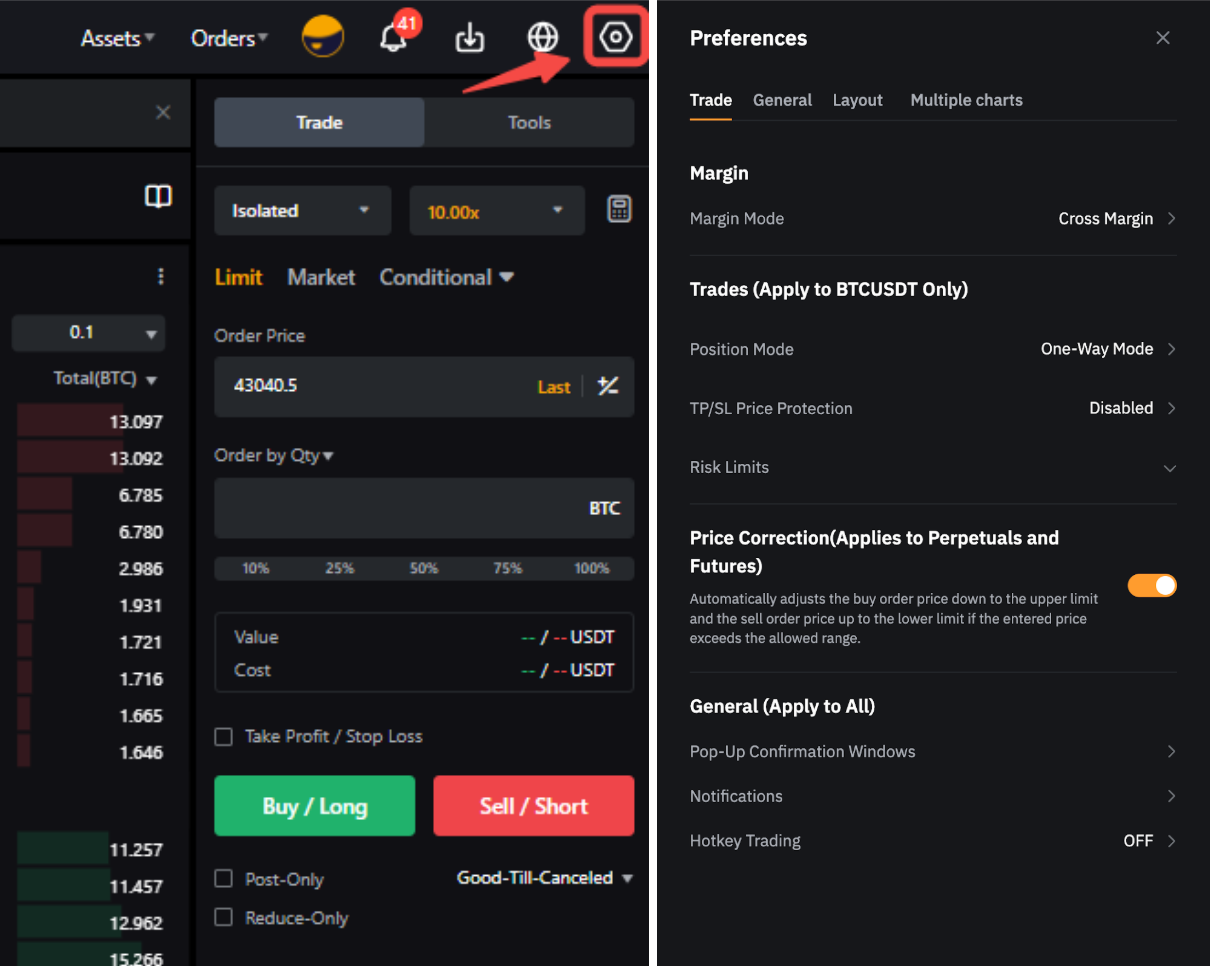
The trading preferences page allows you to set up key characteristics of your trades and personalize the information shown on your trading page.
Please find below the current settings available on the app:
Settings | Explanation |
Margin Mode | Select the margin mode for your current trading pair here. There are three margin modes to choose from: Isolated Margin (IM), Cross Margin (CM), and Portfolio Margin (PM).
To learn more about the differences between these modes, kindly refer to this article. |
Position Mode | Whenever applicable, you can choose between One-Way Mode and Hedge Mode for the trading pair that you are currently on. You can also apply this choice to all USDT-Perpetual Trading Pairs. |
TP/SL Price Protection | Enabling this feature will help you control the execution of your TP/SL depending on the Last Traded Price and Mark Price evolutions. For more information, please consult this article. |
Risk Limits | Find more information about the risk limits currently applied to the trading pair. For more details, please consult this page.
Note: Risk limits cannot be changed manually. |
Price Correction | The Price Correction will automatically adjust the buy order price down to the upper limit and the sell order price up to the lower limit if the entered amount is less favorable than the current market price. A risk warning pop-up will appear to ask for your confirmation prior to order execution. The setting is applicable for both perpetual and expiry contracts. |
Pop-Up Confirmation Windows
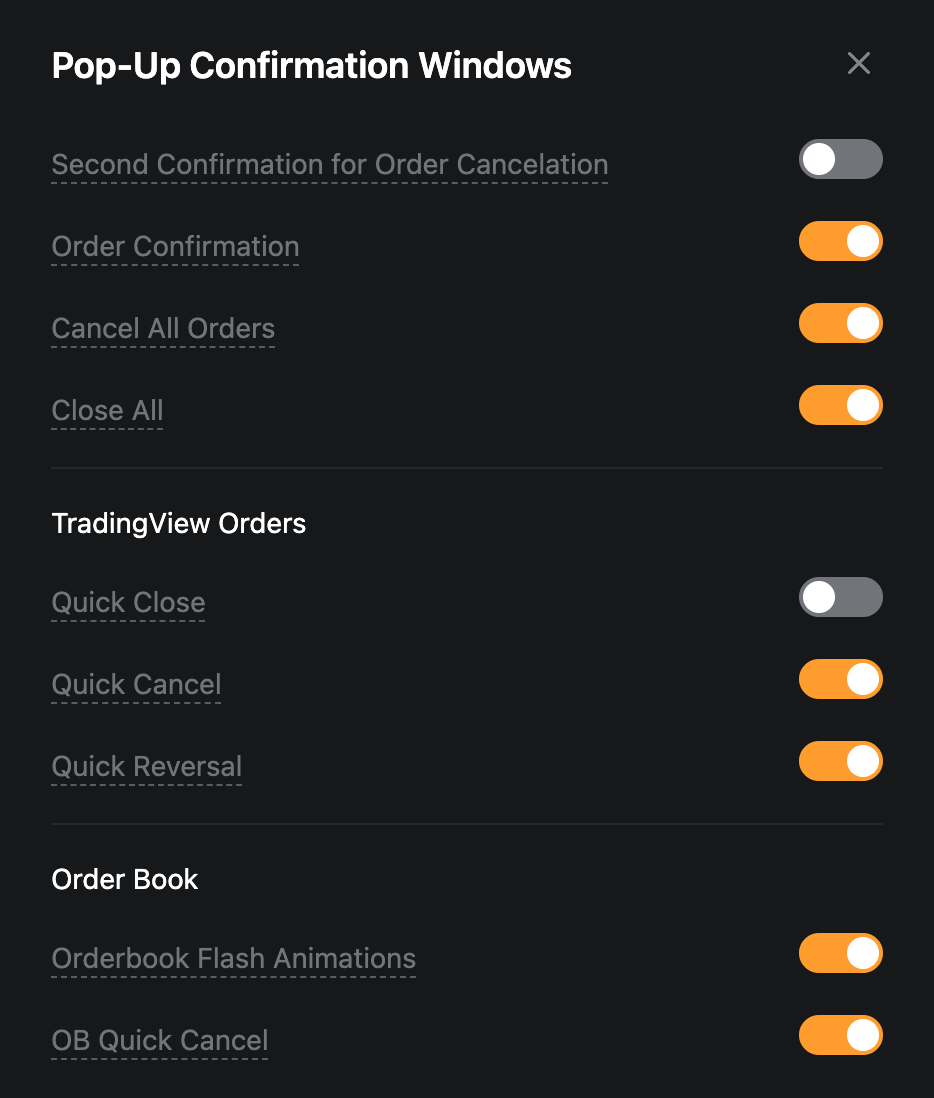
| Enabling the different type of confirmation windows allows you to get a second confirmation before placing an order and to prevent you from order placement or modification mistakes.
Bybit highly recommends having at least the Order Confirmation, Quick Reverse, Close All and Cancel All confirmation windows enabled to avoid any wrong actions. |
Notification | Enable the notification sounds from this page. You can also check on the type of notification you want to receive |
Hotkey Trading
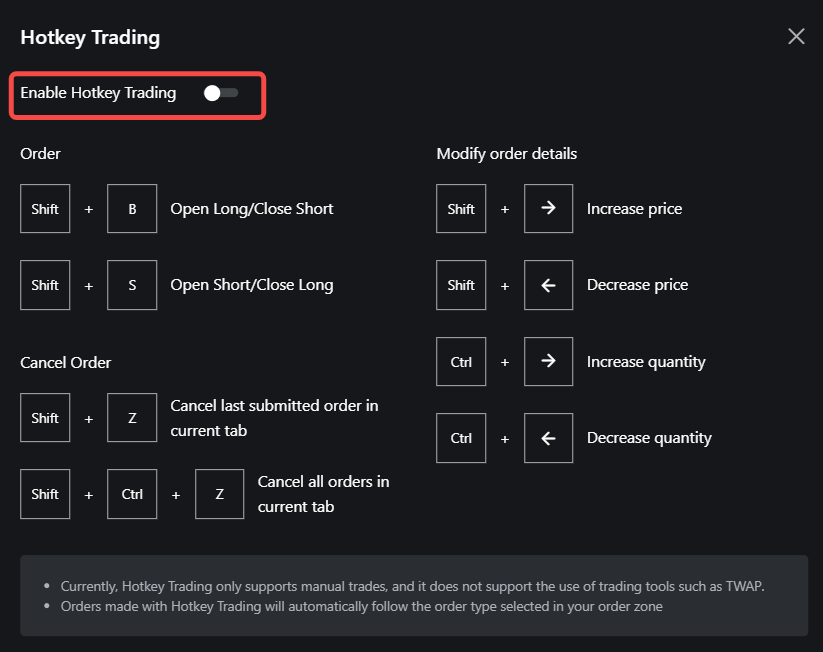
| Using Hotkey trading will allow you to place trades quickly by using shortcuts on your keyboard. Please note that at the moment, Hotkey Trading only supports manual Market, Limit, and Conditional trades and will follow the order type selected in your order zone. |
Benchmark Time Zone | Choose the timezone that will be used for the calculation of percentage change for each trading pair on your account (excluding Demo Trading). By default, the percentage change will be calculated on the last 24 hours. If a time zone is selected, the percentage will be calculated from 12am in that time zone until now. |
Favorite Trading Pairs | Select which information. between the percentage change or the Last Traded Price, you wish to display for the trading pairs shown in your Favorite strip at the bottom of the page. |
Layout Style | Change the theme of the Bybit Website in this section. |
Multiple charts | It allows you to split your screen to view several graphs at once. Instead of constantly switching tabs to check different coins or different timeframes, you can see everything side-by-side in real time. |
