
Here’s a step-by-step guide that will walk you through the process of creating your first TradFi Combo Bot on Bybit.
How to Create a TradFi Combo Bot
View Your TradFi Combo Bot
Modify TradFi Combo Bot Parameters
Terminate Your TradFi Combo Bot
How to Create a TradFi Combo Bot
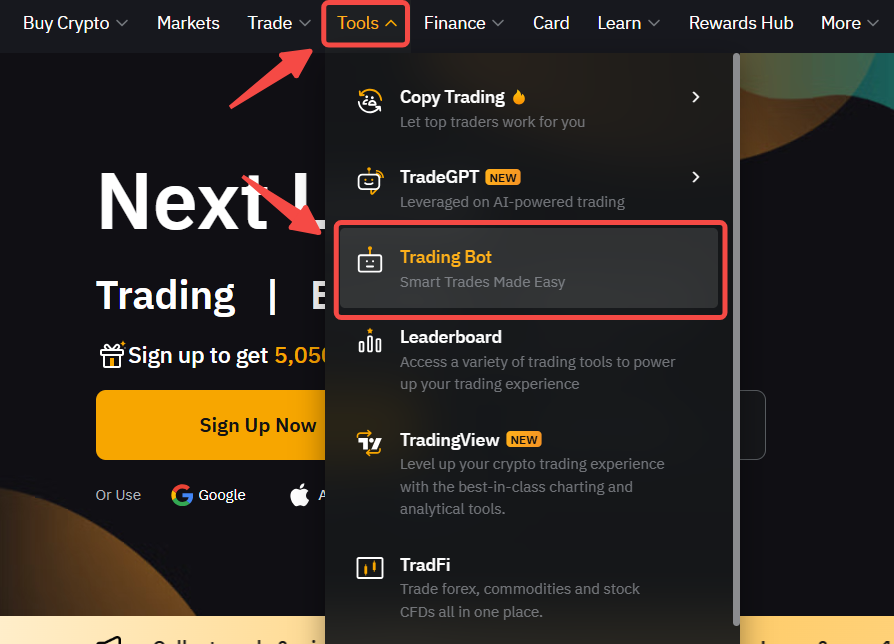
Step 1: Click Tools → Trading Bot in the navigation bar to enter the Bybit Trading Bot page.
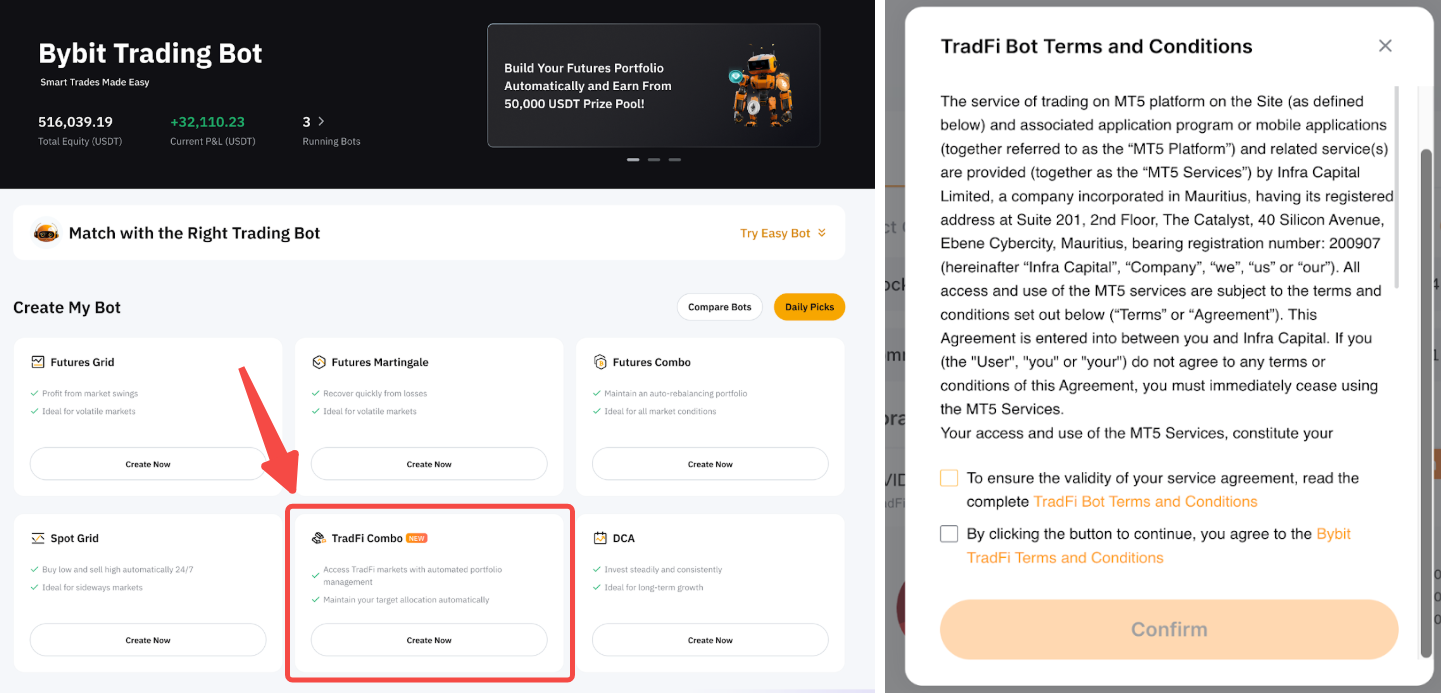
Step 2: Select TradFi Combo Bot from the Trading Bot homepage. Review the TradFi Bot Terms and Conditions in the pop-up window, tick the acknowledgment boxes and tap Confirm to proceed.
Step 3: You have three (3) options for creating your TradFi Grid Bot.
1. AI Strategy
Under AI Strategy, select your preferred strategy and click Create. You can filter the options by your preferred trading Direction (Long, Short, or Mix) and Category from the dropdown list. The bot parameters are already set up for you, so you only need to enter your Investment amount, set up a Trailing Stop (optional), and click on Create Now.
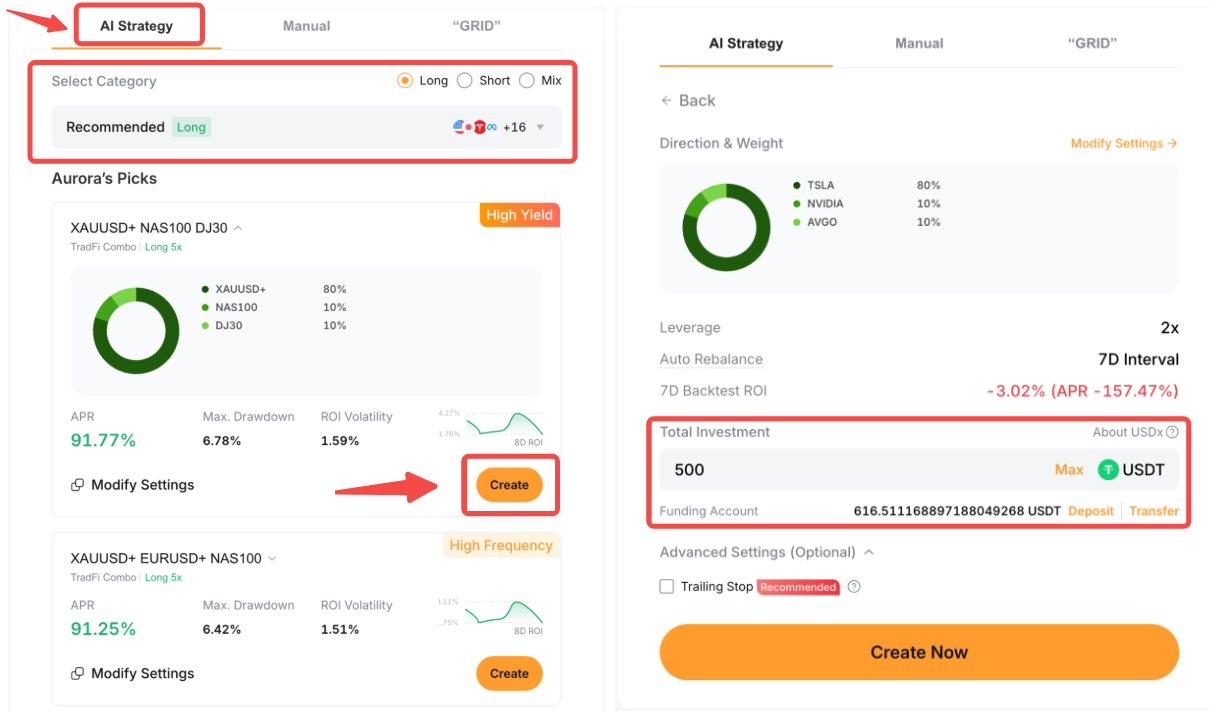
Note: You can still modify the bot settings (e.g., Trading Pairs, Leverage, or Auto Rebalance) at any time by clicking Modify Settings.
2. Manual
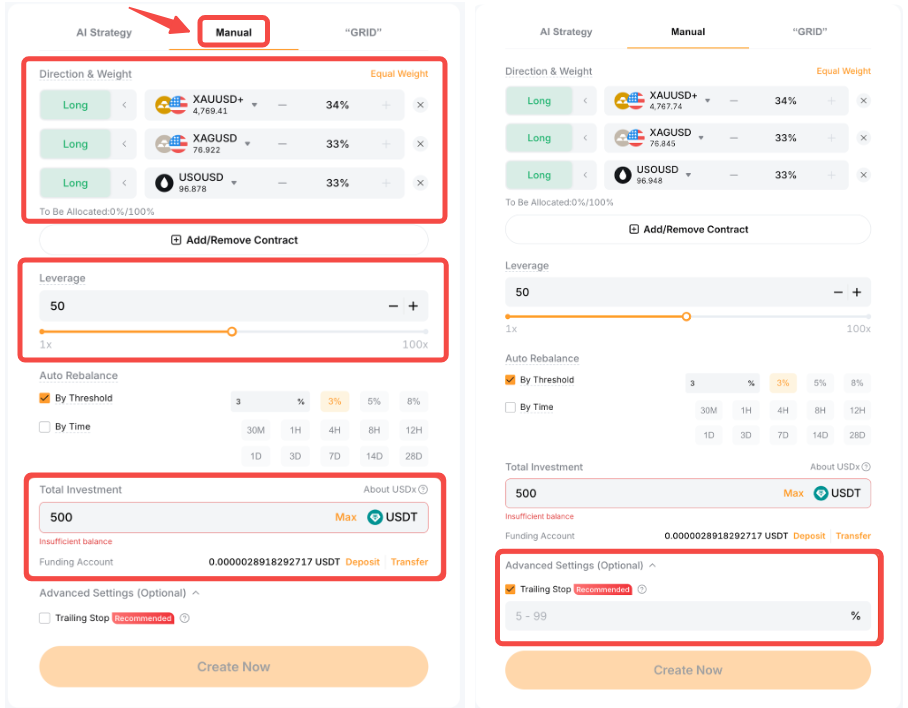
Under the Manual tab, set up the following parameters based on your preference:
- Trading Pairs: Select up to 10 trading pairs (minimum 2 pairs) from the dropdown list. You can choose a mix of Commodities, Forex, Indices, Metals, and Stocks.
- Direction: Long or Short
- Weight: Total allocation must equal 100%. Click Equal Weight to split evenly.
- Leverage: 1x - 100x
- Auto Rebalance: By Threshold and/or By Time. Please tick at least one of the two options.
- Investment Amount: Enter the amount to invest. Please note that the funds will be deducted from your Funding Account. You can click on Deposit or Transfer next to your available balance to add funds.
- Trailing Stop (optional): Set up a Trailing Stop to determine when to exit the strategy.
Then, click on Create to proceed.
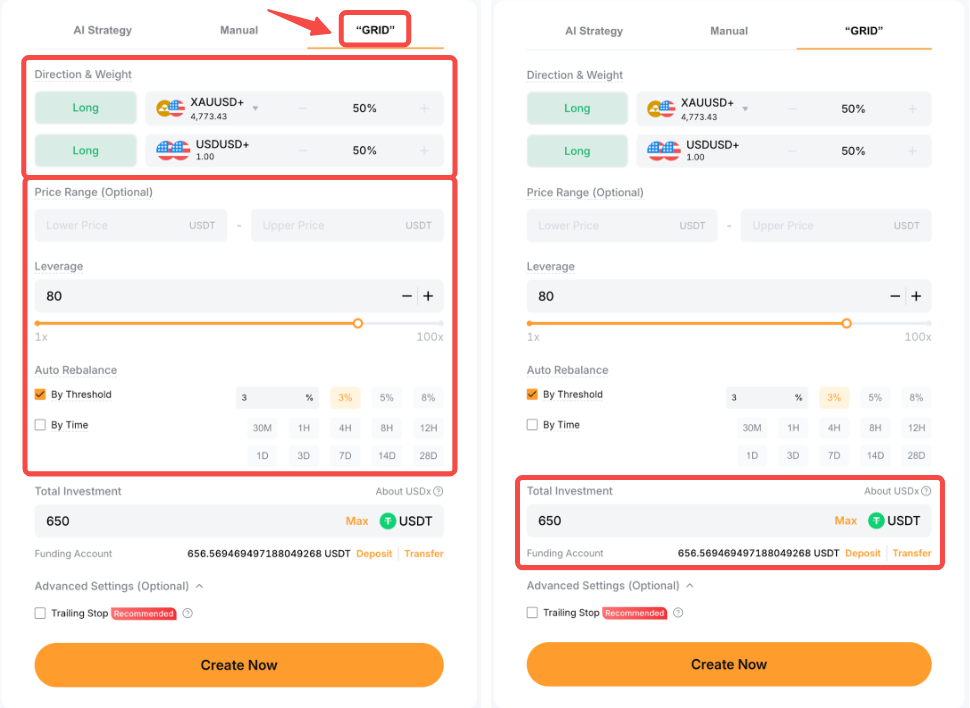
3. Grid
The TradFi Combo Grid Bot rebalances your portfolio within a set price range. As prices move, it reduces outperforming positions and increases underperforming ones. This helps you maintain target weights while following a buy low, sell high approach.
Under the “Grid” tab, select one preferred trading pair to start creating a grid bot. By default, the following settings are fixed and cannot be modified:
- Trading Pair: USDUSD+
- Direction: Long
- Weight: 50% each
Set these additional parameters based on your preferences:
- Price Range (Optional): Once the price enters the defined range, the bot will be initialized or triggered rebalancing strategy.
- Leverage: 1x - 100x
- Auto Rebalance: By Threshold and/or By Time (tick at least one of the two options)
- Investment Amount: Enter the amount to invest. Please note that the funds will be deducted from your Funding Account. You can tap Deposit or Transfer next to your available balance to add funds.
- Trailing Stop (optional): Set up a Trailing Stop to determine when to exit the strategy.
Once you are done, click on Create to proceed.
Step 4: Verify your TradFi Combo Bot details and click Confirm.
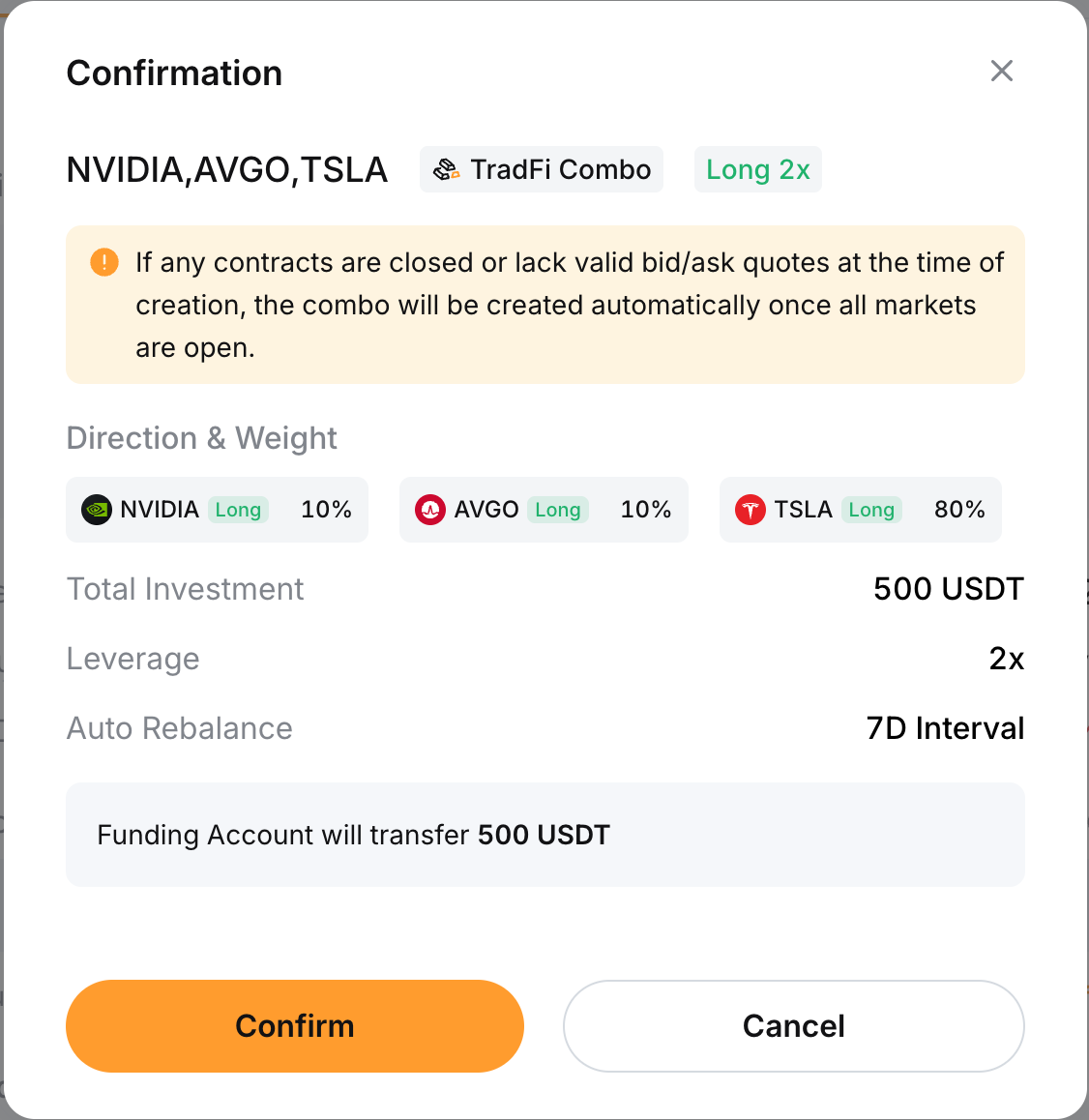
You’ve successfully created an AI Strategy TradFi Combo Bot.
View Your TradFi Combo Bot
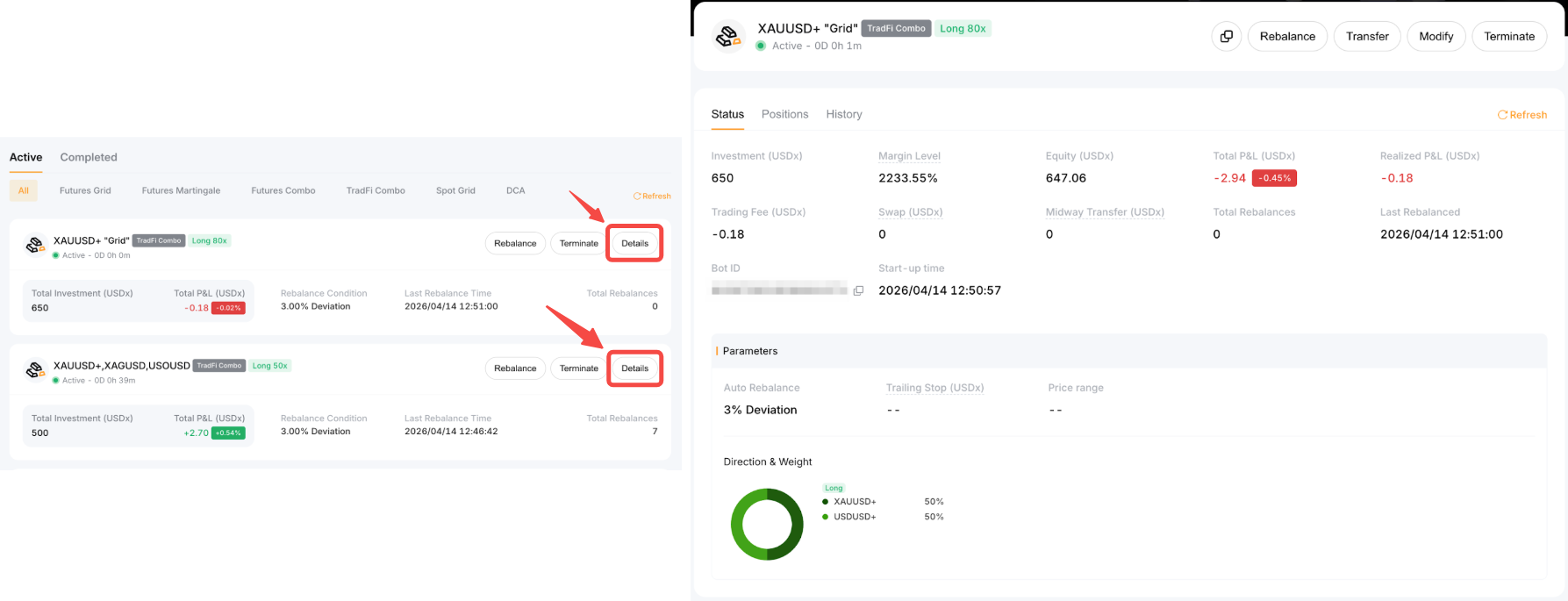
After you click Confirm, the page will automatically be redirected to My Bots for you to view your active bots. You can click Details in the upper right corner of the grid bot you wish to view to explore more information. This includes the current status of your TradFi Combo Bot and current positions held under the Positions tab, as well as your order history under History tab.
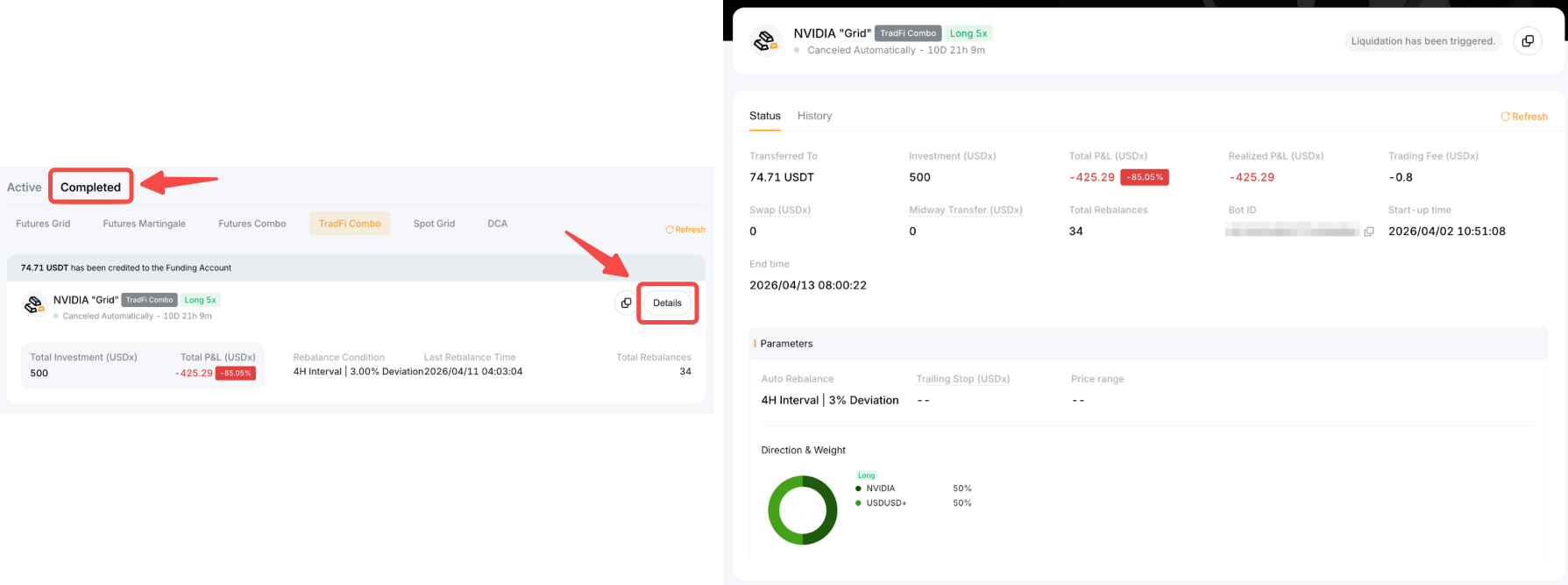
You can view the status of your completed TradFi Combo bots under the Completed tab → TradFi Combo. Click Details to go to the Bot Details page. On the Bot Details page, you can click Status to view the detailed performance of your completed bots and History to view the previous rebalancing rounds.
Modify TradFi Combo Bot Parameters
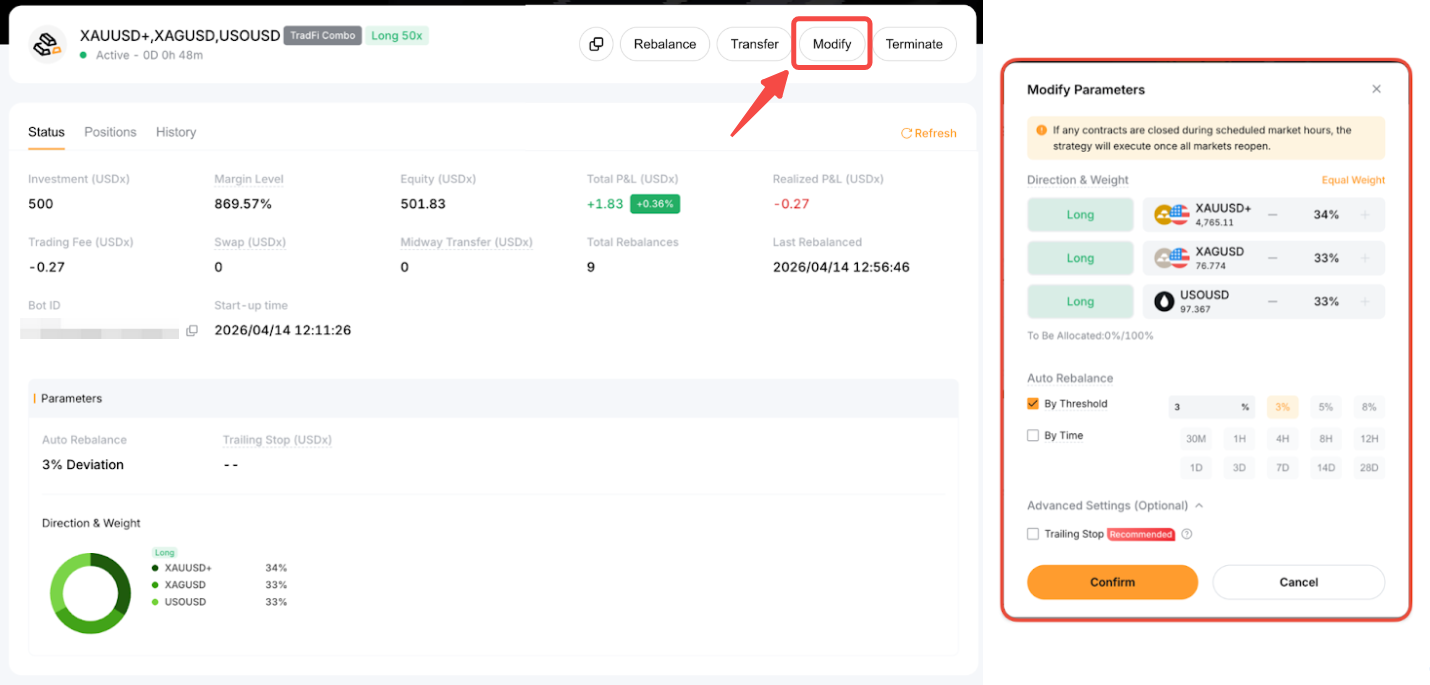
You can modify parameters such as Weight, Auto Rebalance, and Trailing Stop after the TradFi Combo bot is created. To do so, go to the bot’s Details page and click Modify. After updating the parameters, click Confirm for the changes to take effect.
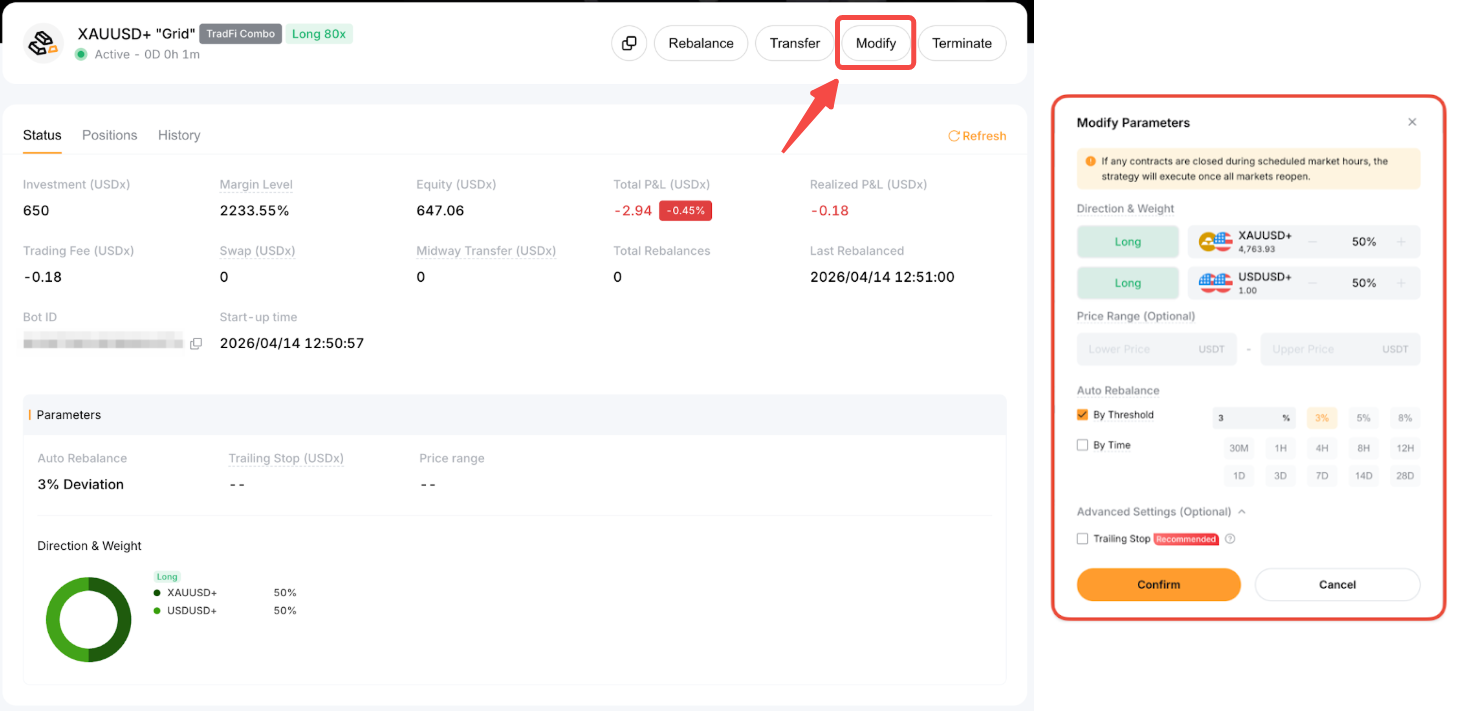
If you have created a TradFi Combo Grid Bot, you can modify the Price Range, Auto Rebalancing and Trailing Stop once your TradFi Combo Grid Bot is created. To do so, go to the “Grid” Bot’s Details page and click Modify. After updating the parameters, click Confirm for the changes to take effect.
Terminate Your TradFi Combo Bot
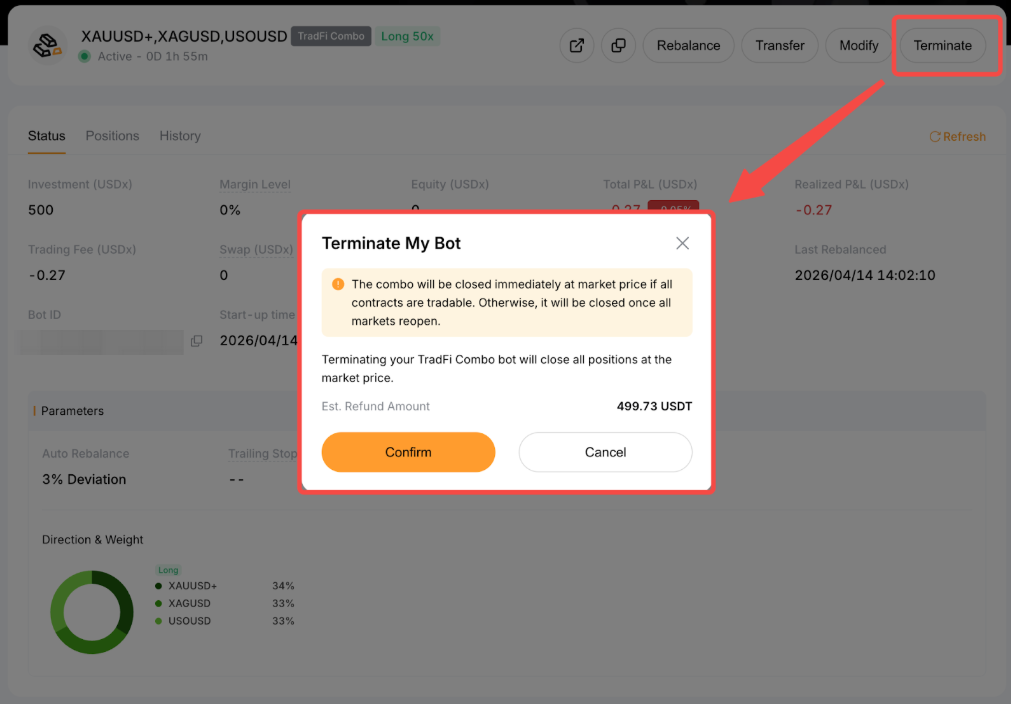
To terminate your TradFi Combo Bot, go to the Details page of your TradFi Combo Bot and click Terminate. Your open positions will be closed at the market price and you can see the estimated return amount if any.
Alternatively, your TradFi Combo Bot will be terminated once the Trailing Stop condition is triggered, or if liquidation occurs.