
How to Register for MT5 CFD Account
How to Deposit to MT5 CFD Account
How to Switch Account Modes
How to Withdraw from MT5 CFD Account
How to Unarchive MT5 CFD Account
How to Register for MT5 CFD Account
In order to start trading on Bybit CFD, you will need to create a MT5 CFD account which will have its own account balance. Here is a step-by-step guide to creating and activating your MT5 CFD account.
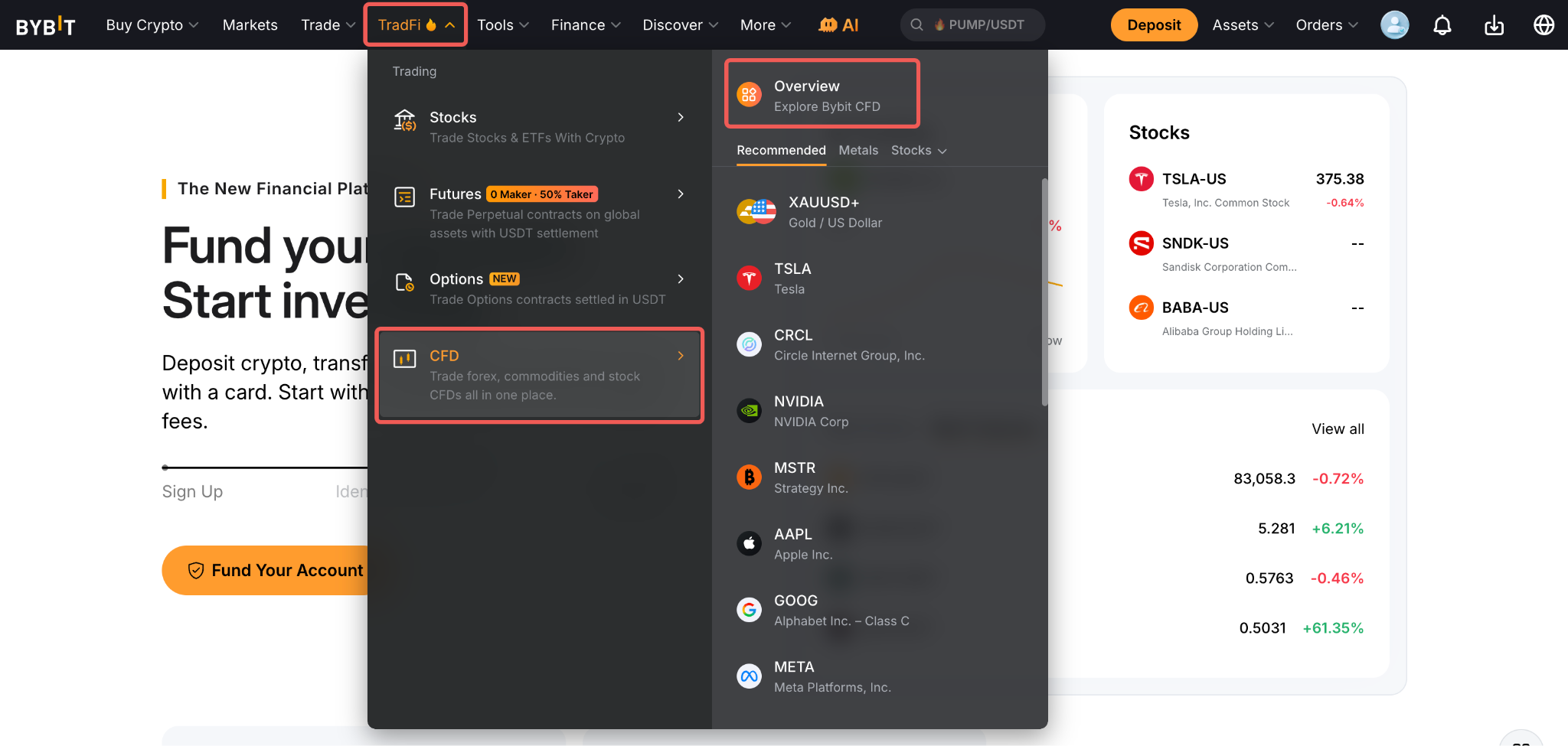
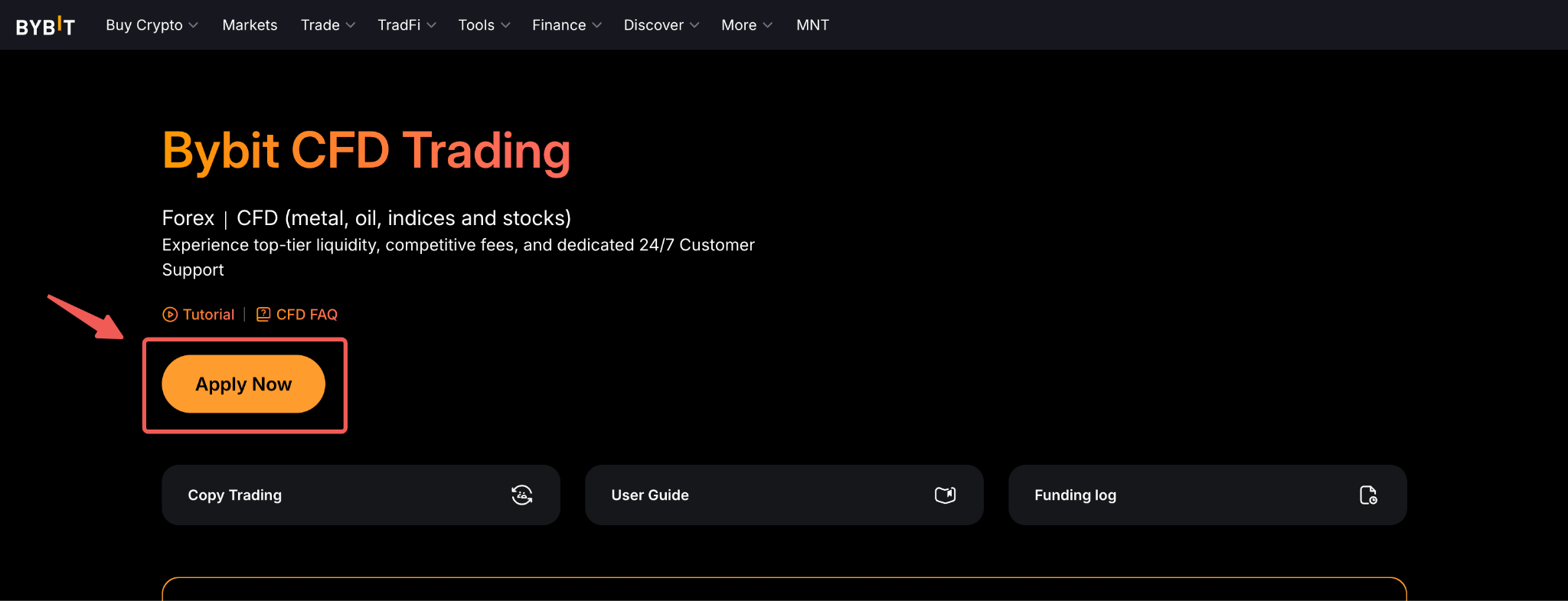
Step 1: On the Bybit homepage, go to TradFi → Overview to access the CFD homepage. Then, click Apply Now.
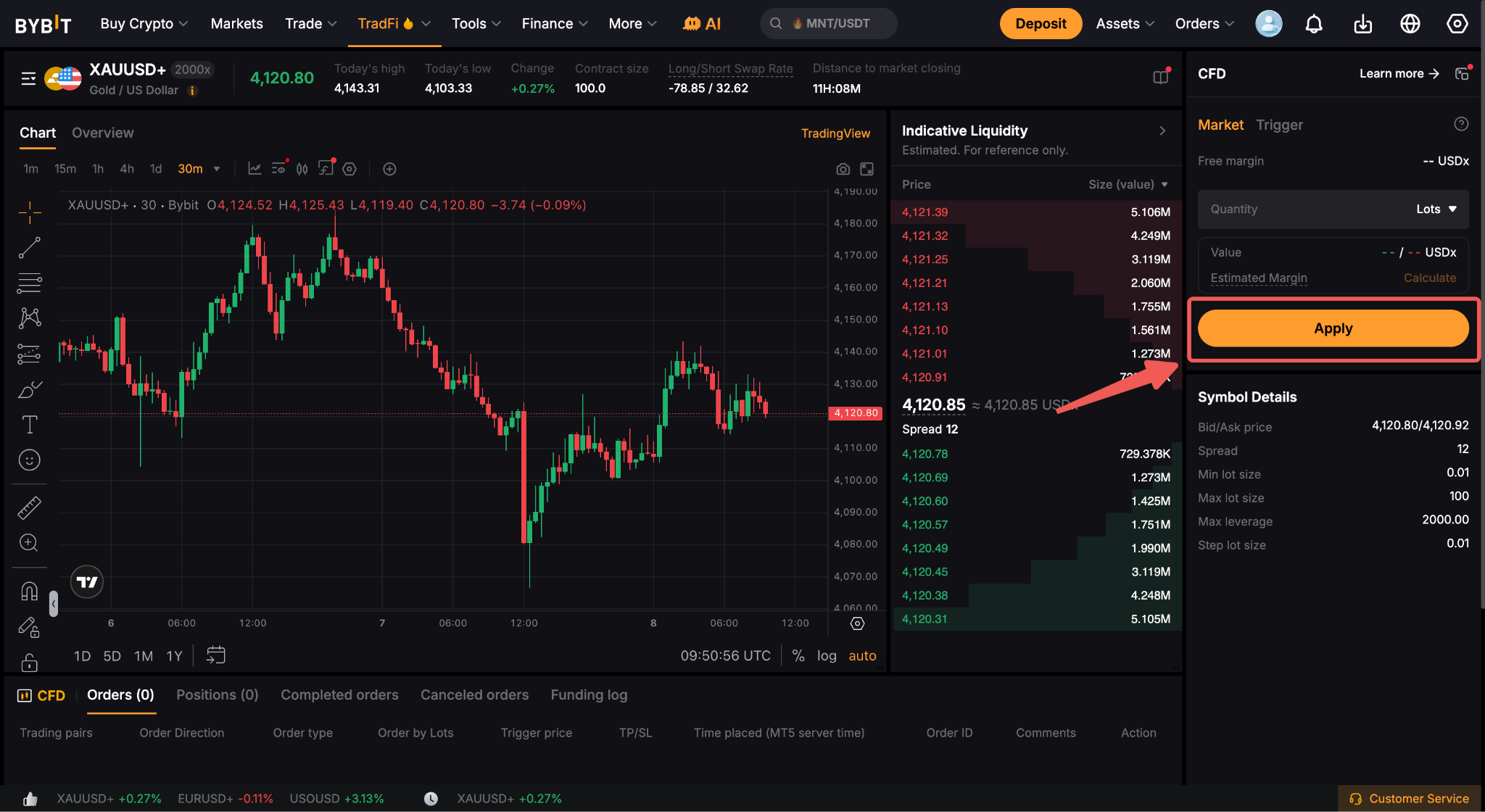
Alternatively, you can go directly to one of the available CFD trading pairs pages and click Apply in the order box.
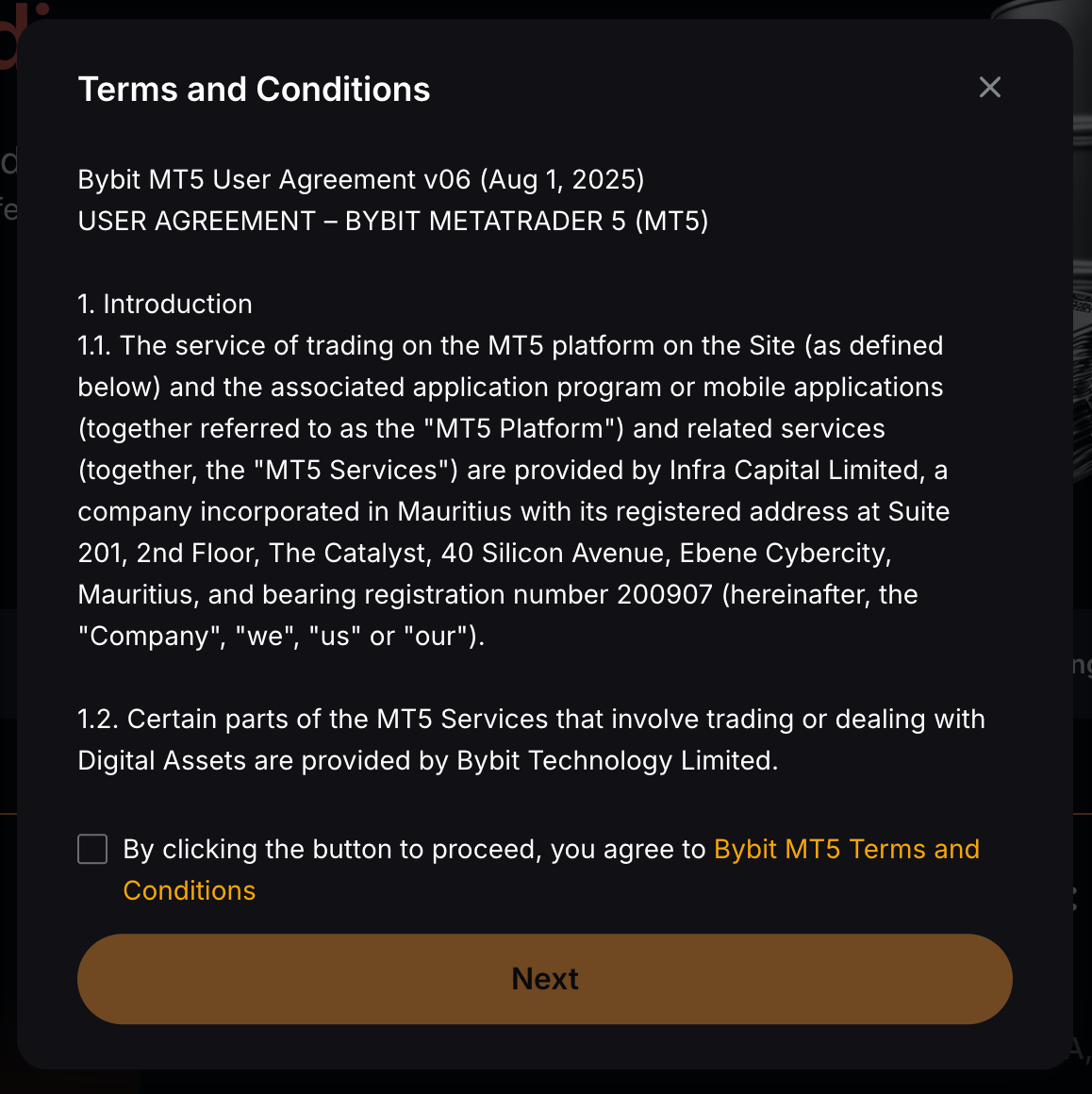
Step 2: Read carefully and accept the Terms and Conditions by ticking the box. Then, click Next.
Step 3: Your account is now created. However, to start trading on CFD, you will need to make a fund transfer to your MT5 CFD account. To do so, click Transfer.
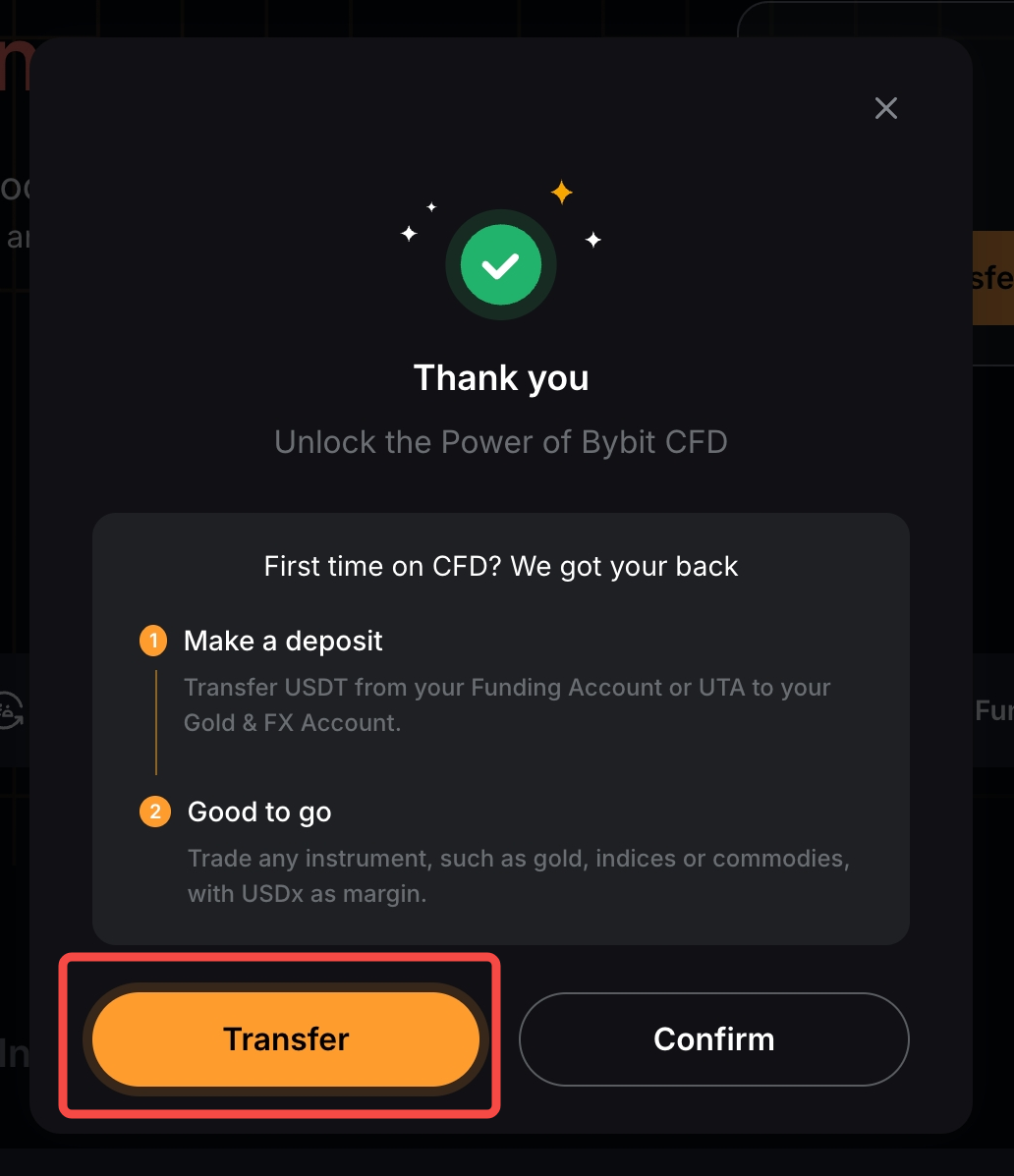
Note: If you would like to make an asset transfer later, simply click Confirm to exit the page.
How to Deposit to MT5 CFD Account
Step 1: To transfer funds into your MT5 CFD account, go to the MT5 CFD Account page and click Transfer In. Select the account from which you want to transfer funds and input the amount of USDT or BYUSDT you would like to transfer. Once done, click Confirm.
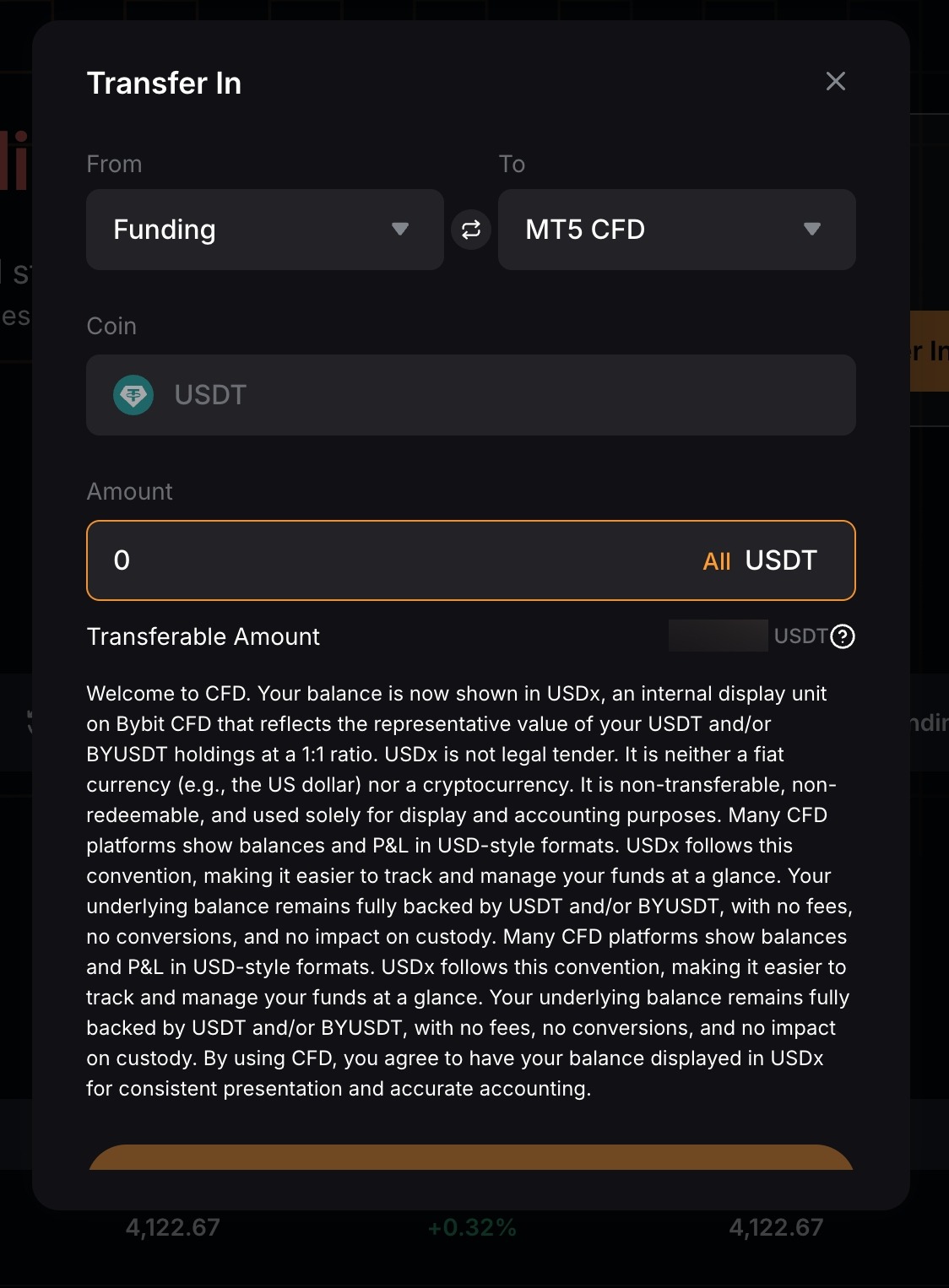
Your funds are now transferred to your MT5 CFD account!
Once your assets are transferred, they will appear on the CFD Trading homepage and you can start trading!
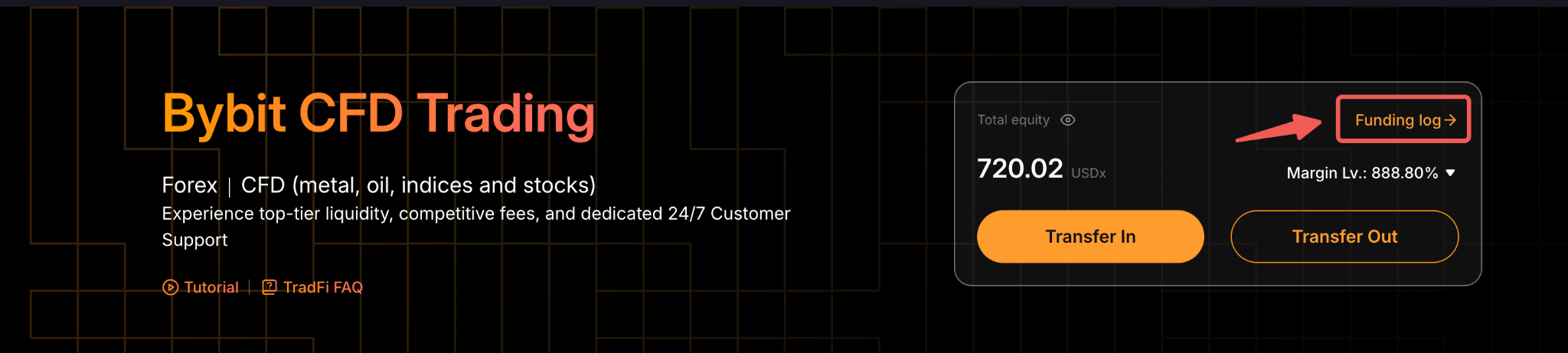
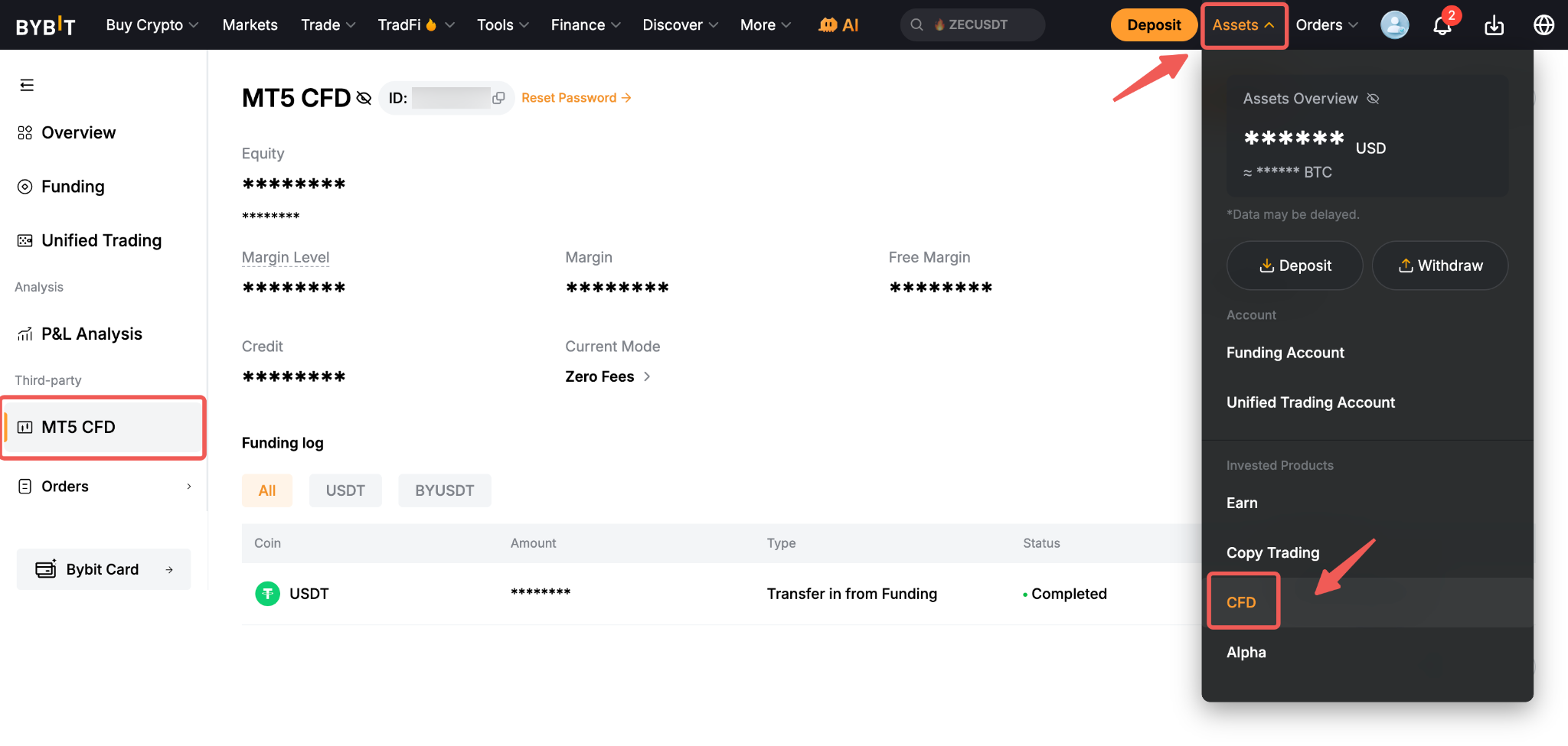
You can make transfers in and out of your MT5 CFD account by clicking Transfer in and Transfer out. To view your transfer history, simply click Funding Log on the MT5 CFD dashboard, or go to Assets → CFD.
Notes:
- You will not be able to deposit or withdraw funds directly in or out of your MT5 CFD Account, but you will have to perform Transfer In or Out via the MT5 CFD Account Page.
- BYUSDT transferred into the MT5 CFD account will continue generating yield, with rewards distributed to your Unified Trading Account (UTA).
- Eligible stablecoin assets such as USDT and BYUSDT will be displayed as part of your USDx Balance for CFD trading purposes.
- CFD trading profits and losses are always settled in USDT.
How to Switch Account Modes
By default, the user’s MT5 CFD account is set to Zero-Fee mode. Users may switch to Tight-Spread Mode only if they meet the applicable eligibility requirements. Users can determine the current account mode for their MT5 CFD account by checking the Account Mode section on the Account page or on the trading page. For details information about different between Zero-Fee mode and Tight-Spread mode, please refer to here
To be eligible for the switch to the Tight-Spread mode, users must meet the following conditions:
- Have a minimum cumulative deposit of USD 3,000.
- No active orders and open positions
Once you have met all requirements to switch to Tight-Spread mode, follow the step-by-step guide below to adjust your account mode settings:
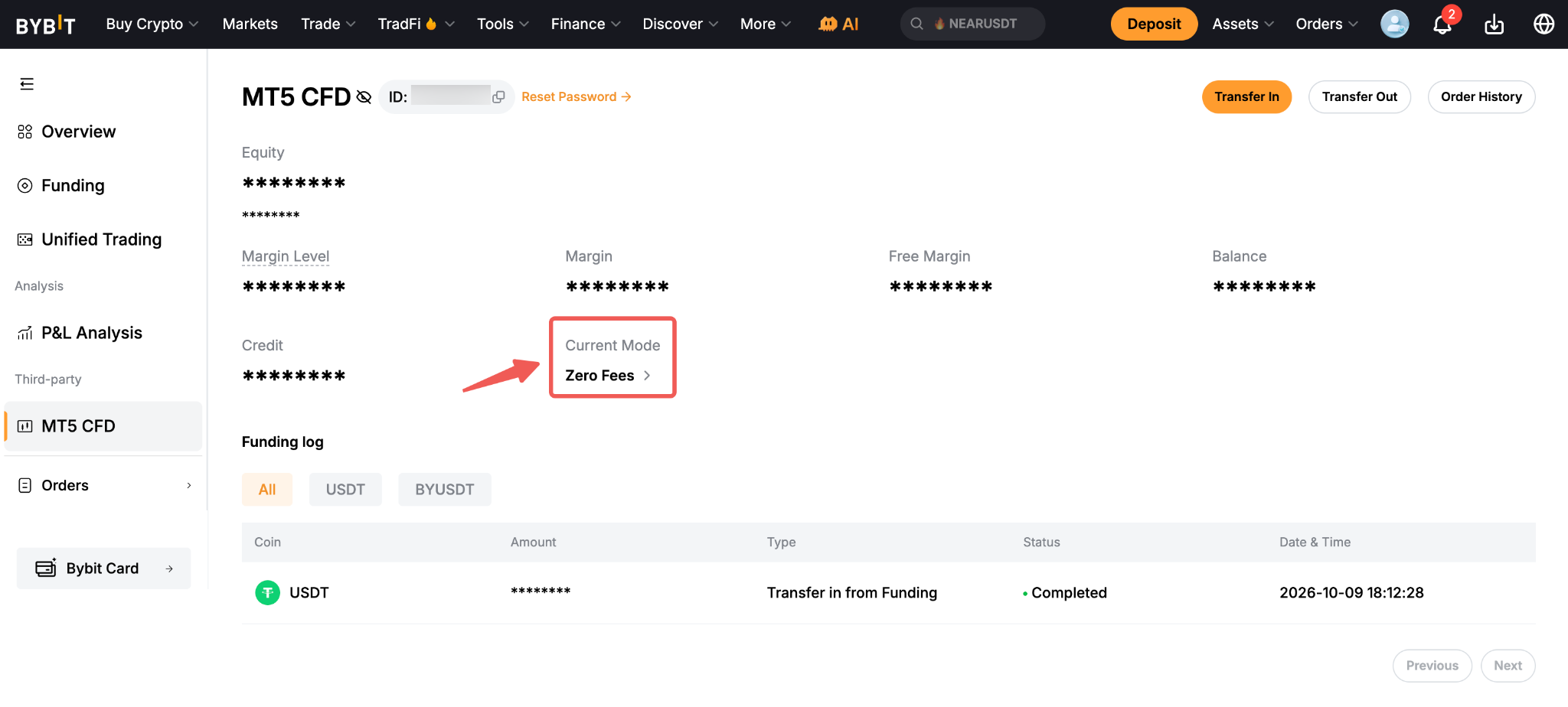
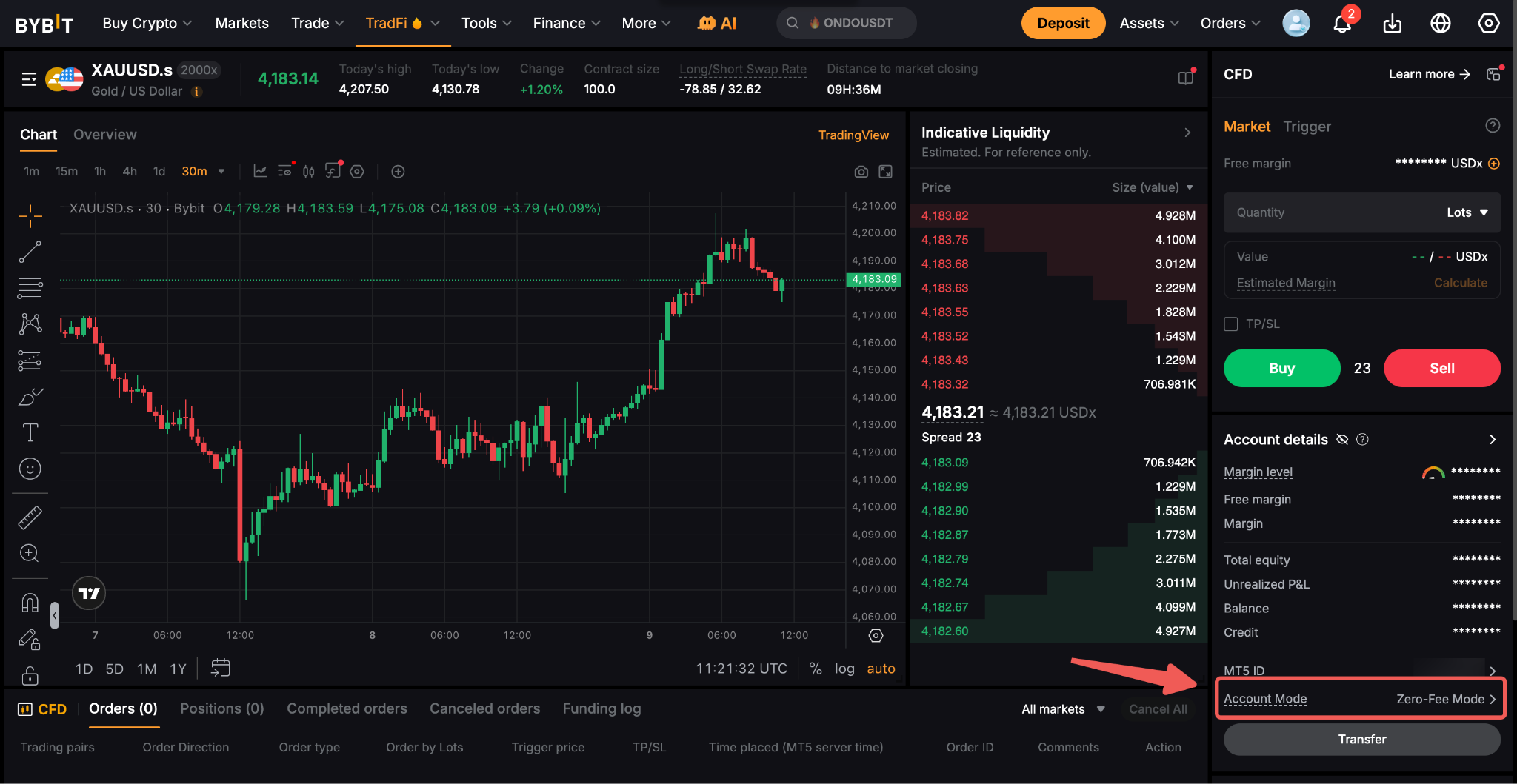
Step 1: Locate the Account Mode section on either the MT5 CFD Account page or the CFD Trading page, then click the arrow next to your current account mode.
Step 2: This will prompt the Account Mode Settings window. Your current mode will be highlighted accordingly. Read all the mode details carefully before proceeding to switch.
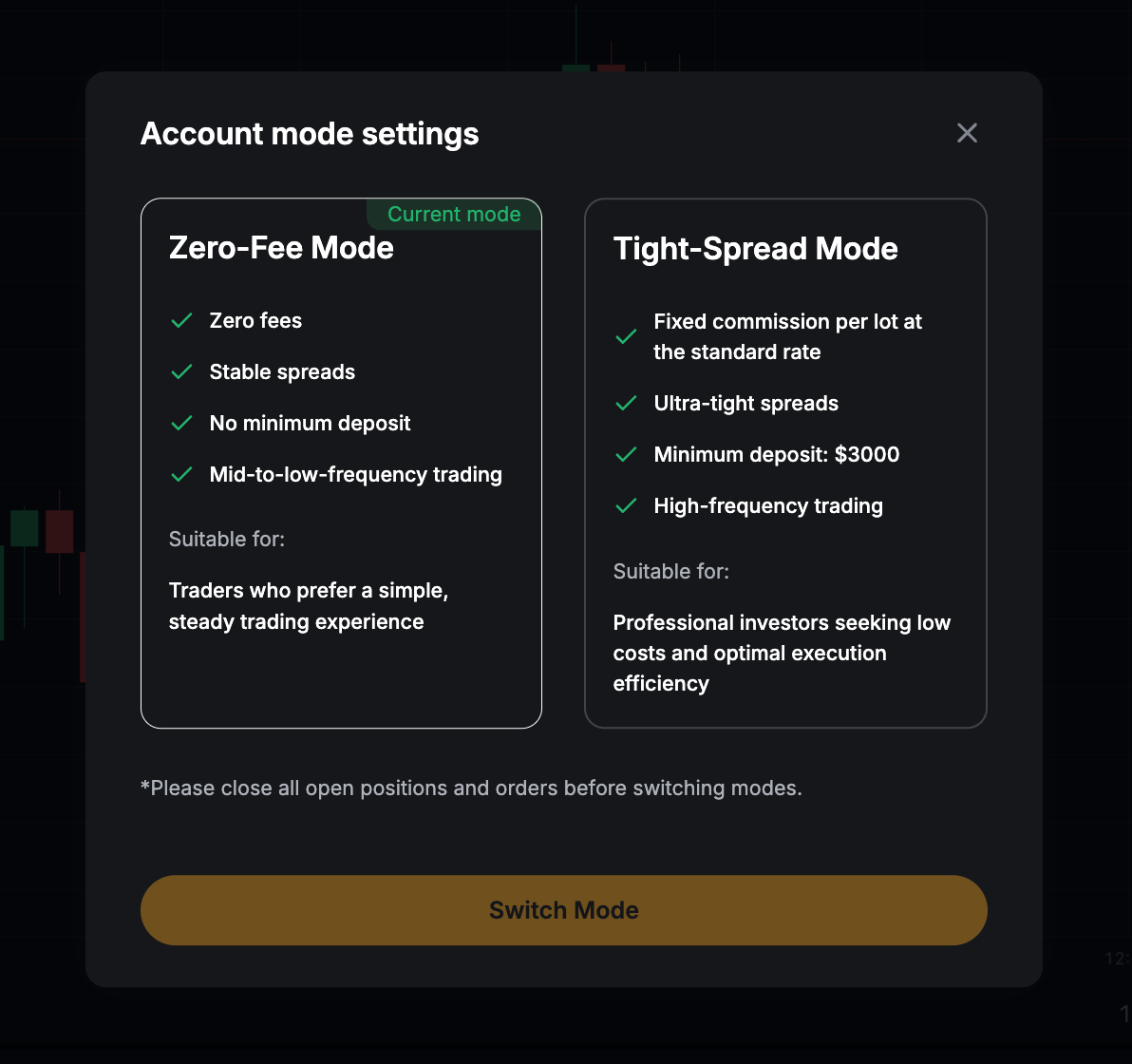
Notes: The minimum deposit requirement will only be applicable prior to the account switch. Upon successfully switching, the amount will be counted towards your accumulated deposit, and you are free to change between modes thereafter.
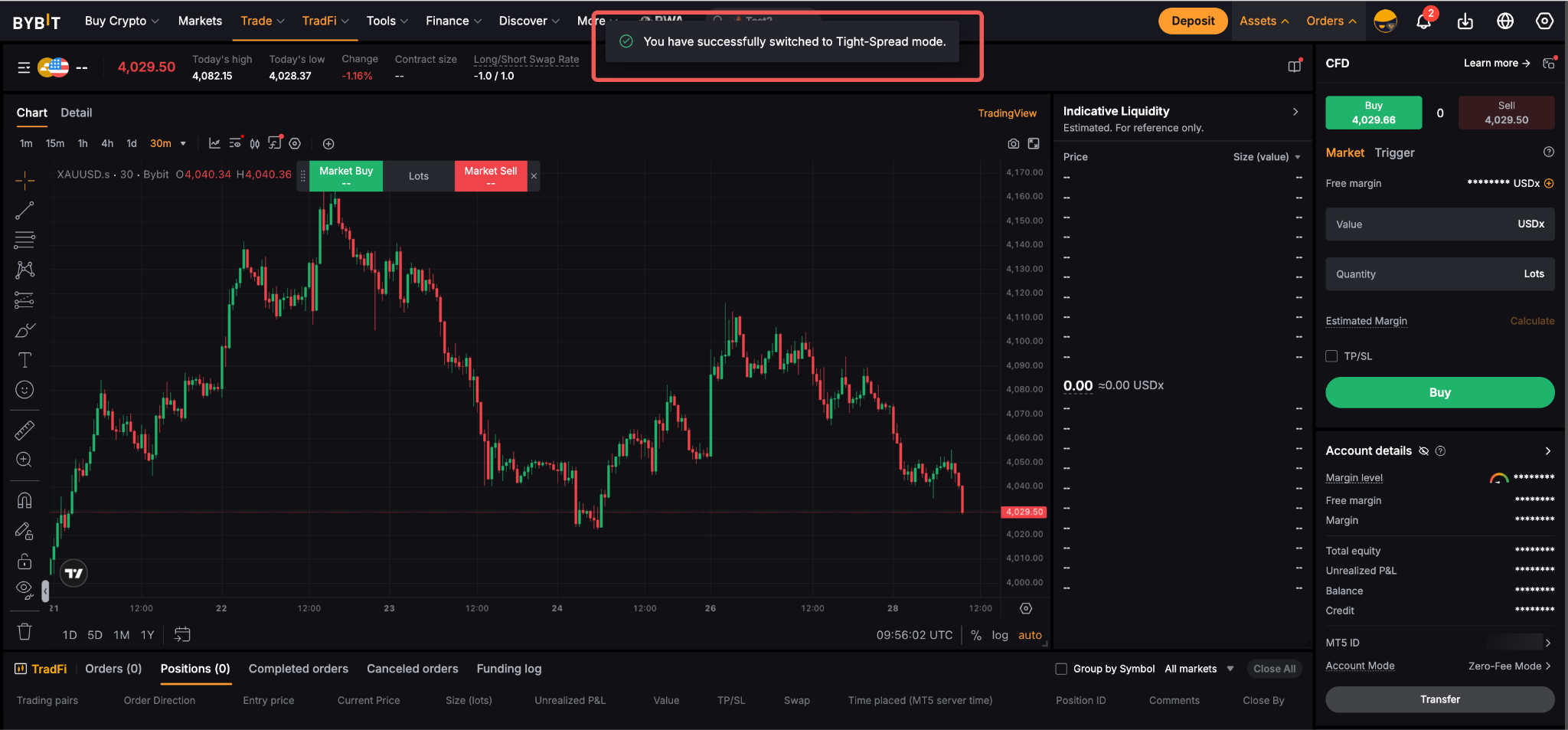
Step 3: Click either one of the modes to proceed and then click Switch Mode.
You have successfully switched your MT5 CFD account mode!
How to Withdraw from MT5 CFD Account
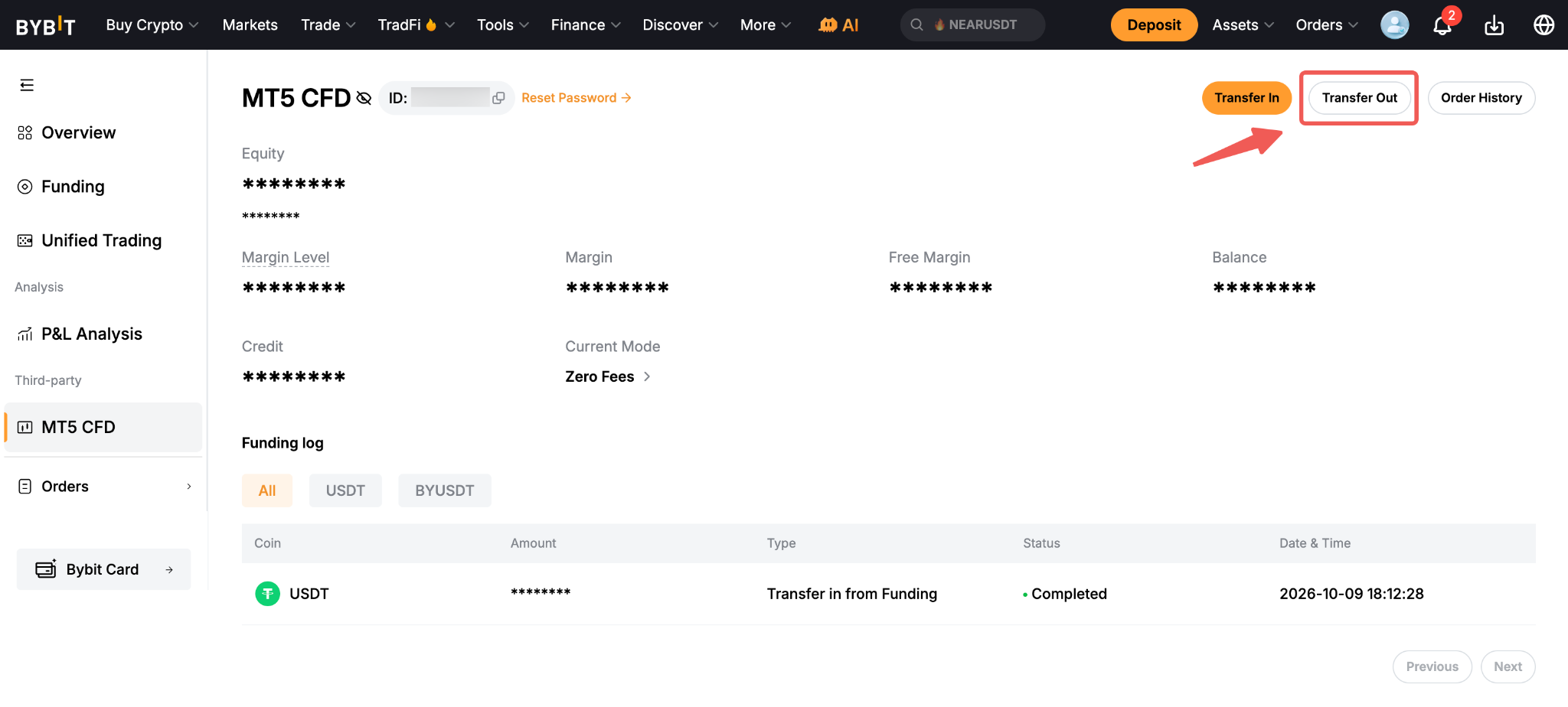
Step 1: Go to your MT5 CFD Account page and perform the transfer by clicking Transfer Out.
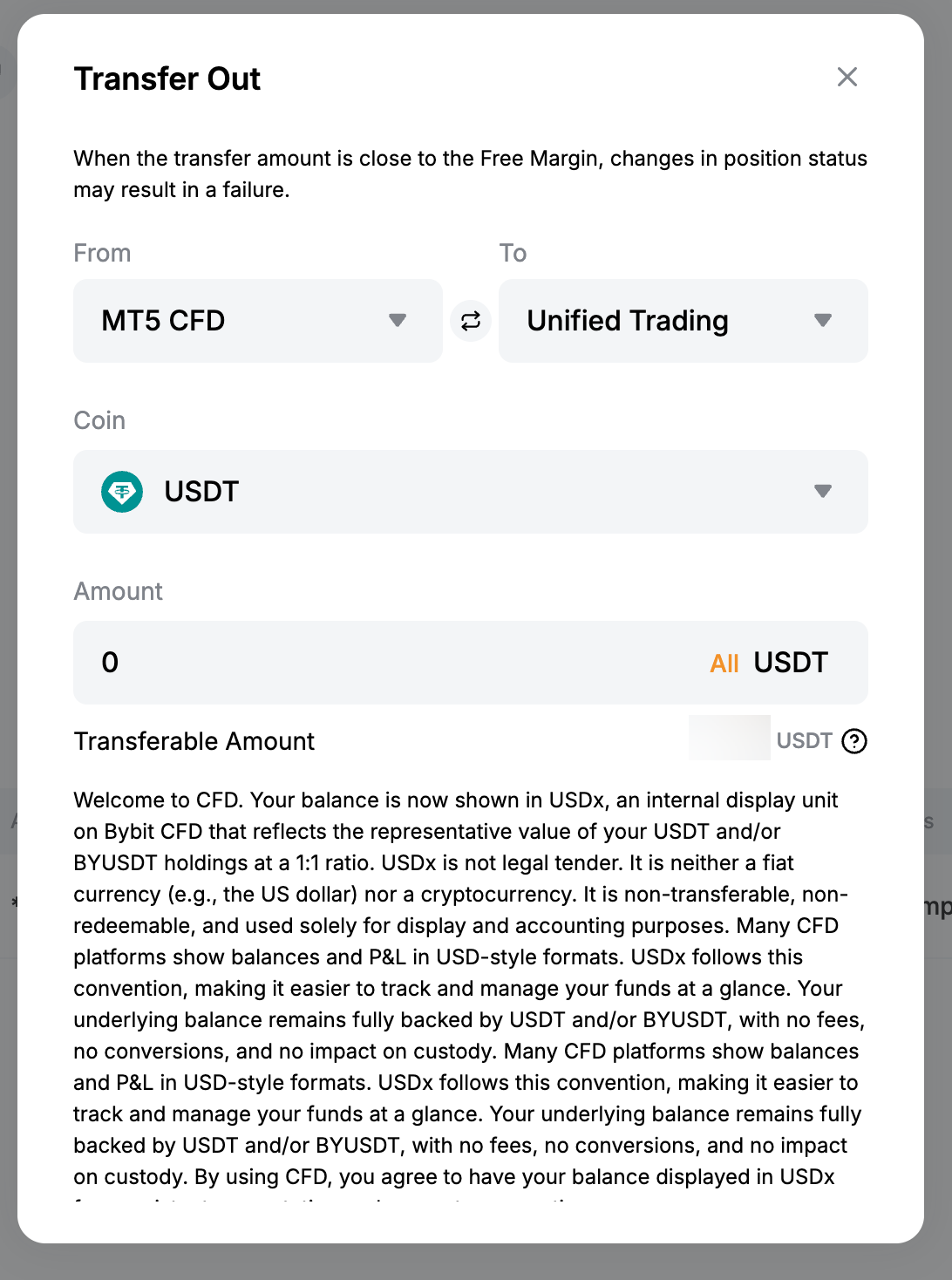
Step 2: Select the To account and Coin Type, and enter the amount you wish to transfer out of your MT5 CFD account. You can also click All to transfer all of the USDT and/or BYUSDT available in your MT5 CFD Account to your Funding or Unified Trading account. Click Confirm once done.
Your funds are now transferred back to your Funding Account or Unified Trading Account (UTA)!
You can check your transaction history here as well as your new Funding Asset balance on your Funding Asset Page.
Notes:
— BYUSDT is not available to transfer to the Funding account, it is only available to the Unified Trading Account (UTA) or MT5 CFD Account.
— If your MT5 CFD account contains Credit, any withdrawal of USDT or BYUSDT will proportionally reduce the Credit balance based on the withdrawal amount. For more information, please refer to Understanding MT5 CFD Asset Balances and Transfers
How to Unarchive an MT5 CFD Account
On Bybit, your MT5 CFD account will be automatically archived after 3 months of inactivity, provided you don’t have any balance, pending orders, positions or trades in your account.
Once your MT5 CFD account is archived, you can see the following:
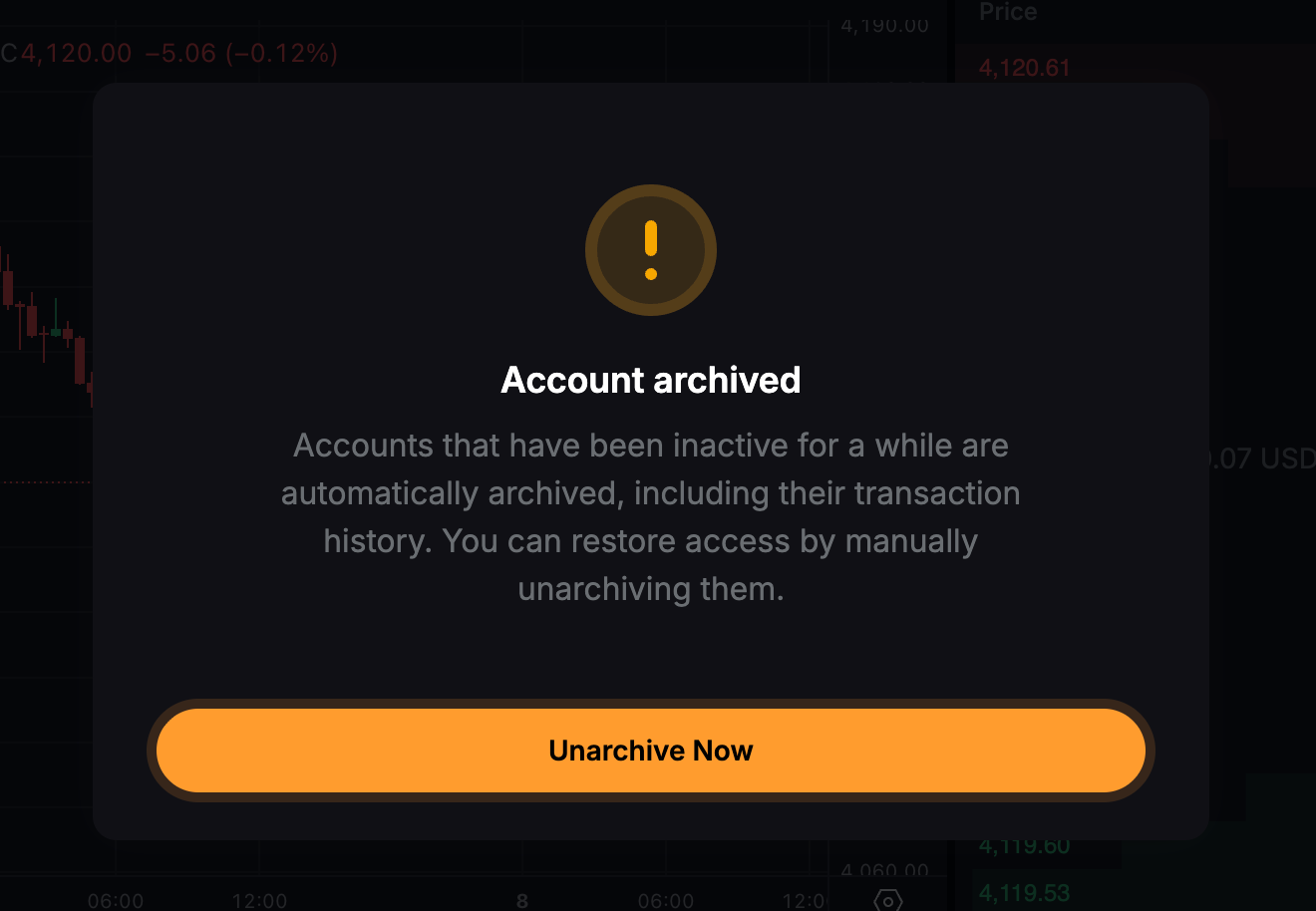
a. On the CFD trading page, an Account Archived pop-up message will appear when you attempt to trade.
b. On the MT5 CFD Account page, a similar pop-up message will be displayed. Please note that you will not be able to transfer funds in and out of your account until the account is reactivated.
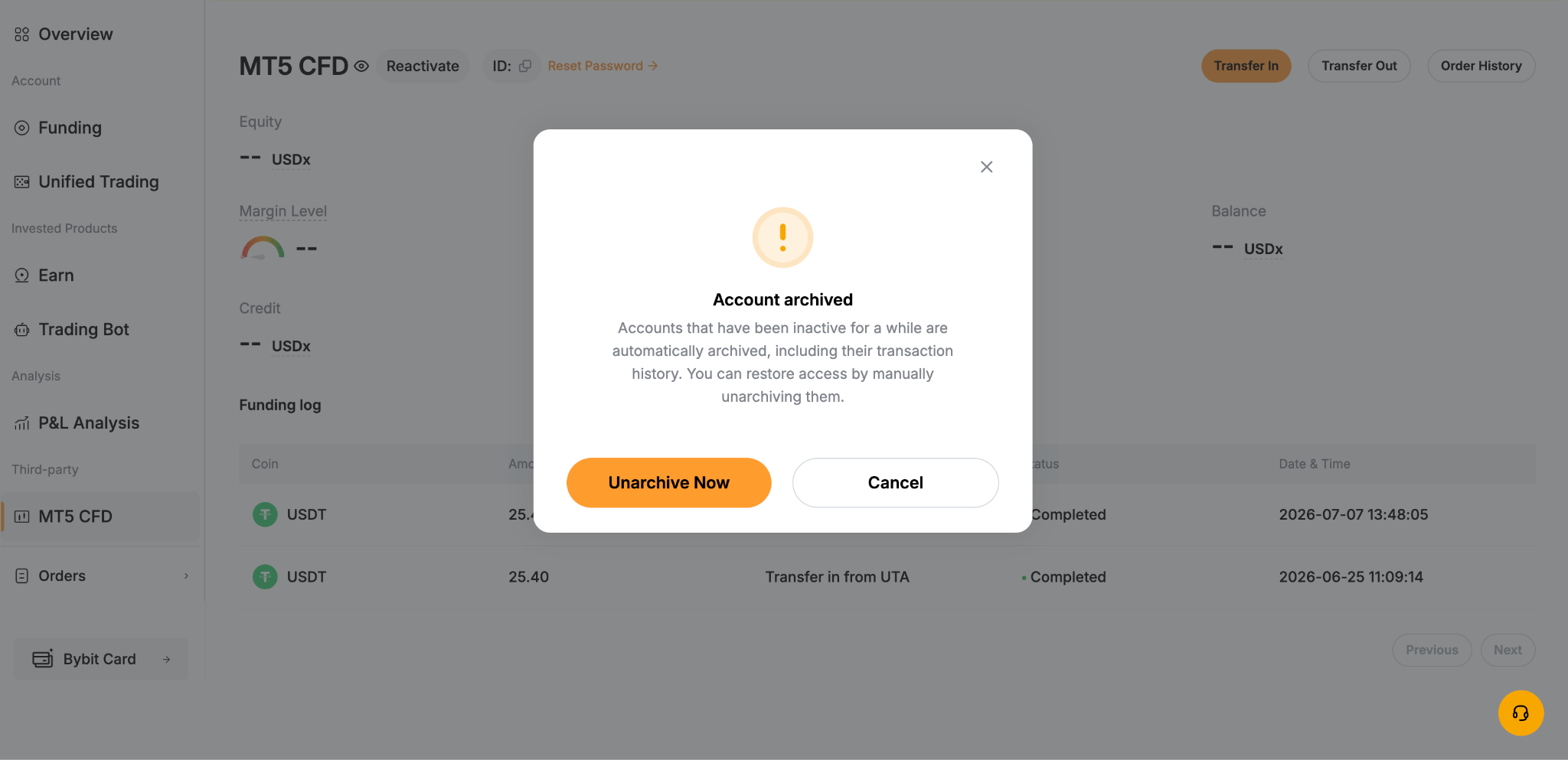
To unarchive your account, click Unarchive Now
Once it is clicked, you will be redirected to another page displaying your archived account information. To perform the final unarchiving step, click the Unarchive button.
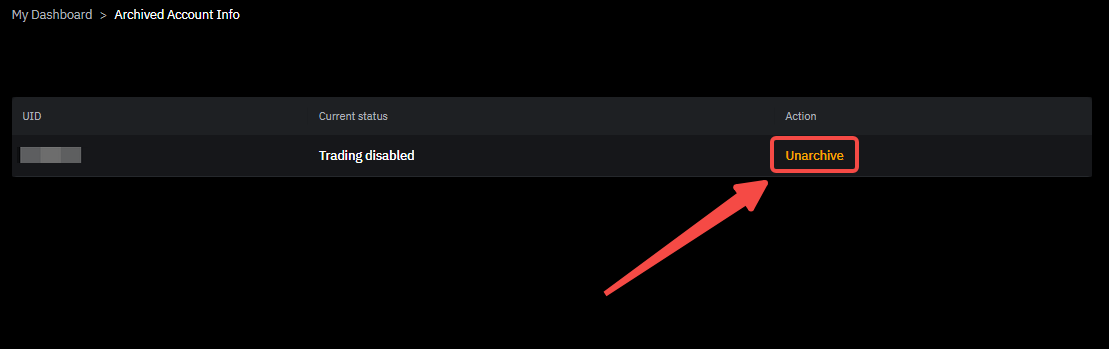
Your account is successfully unarchived! You will now be able to access and trade on the CFD trading page.